Creating a Non-Salient Pole Core with a Q-Axis Damper
In general, this process is realized by a subtraction of two objects. Several steps are needed to finish the procedure.
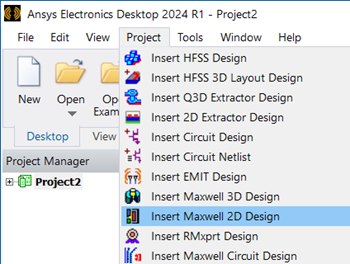
- Click Project > Insert Maxwell 2D
Design to create a Maxwell 2D Design in a project.
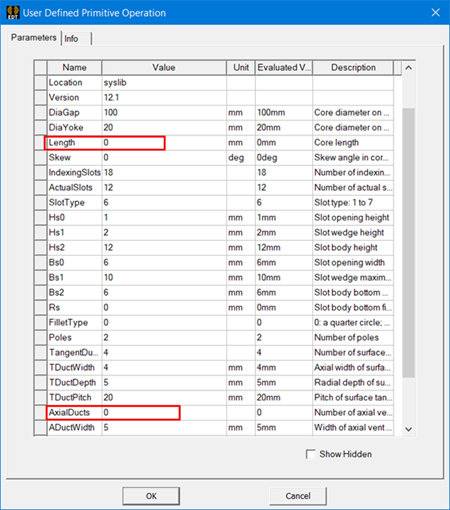
- Click Draw > User Defined Primitive > RMxprt > NonSalientPoleCore to draw a Non-Salient Pole Core UDP. In order
to show it in a 2D dimension, set the Length to 0. Also set AxialDucts
to 0 for subtraction, as shown in the following figure.
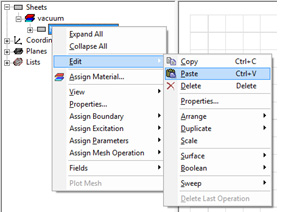
- Create a damper. Make a copy of the NonSalientPoleCore,
and then paste it and rename it to damper.
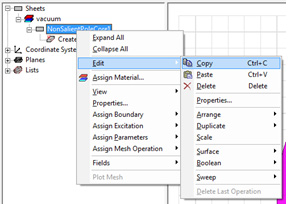
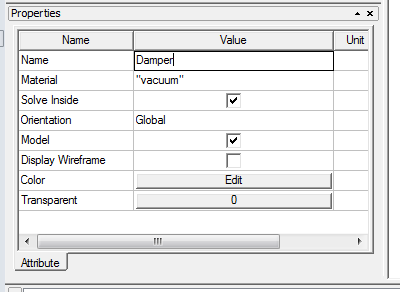
Rename the new NonSalientPoleCore to Damper:
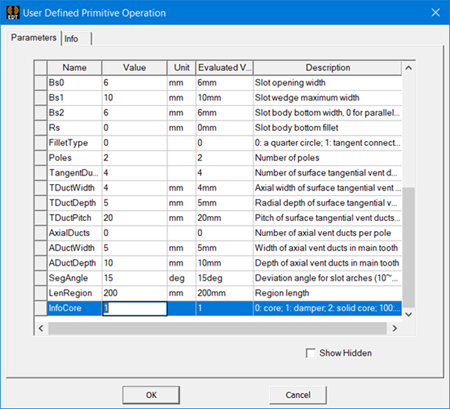
- Change the InfoCore value to 1
to make a damper. Also change the Color of the damper to distinguish
it from the NonSalientPoleCore.
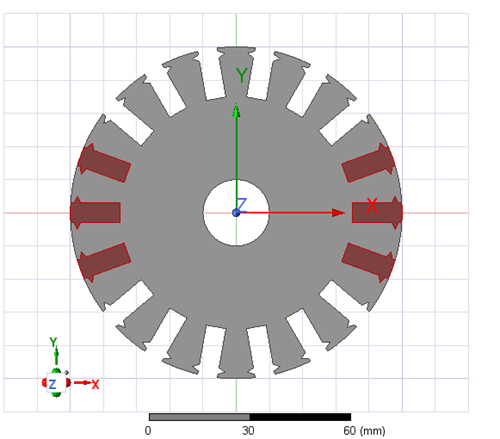
The objects appear as follows in the coordinate system window. The Non-Salient Pole Core is gray, and the damper is red.
- You can also change the damper’s SlotType
and slot parameters if necessary. For instance, SlotType is reset
to 1 and slot parameters are reassigned as in the following figure.
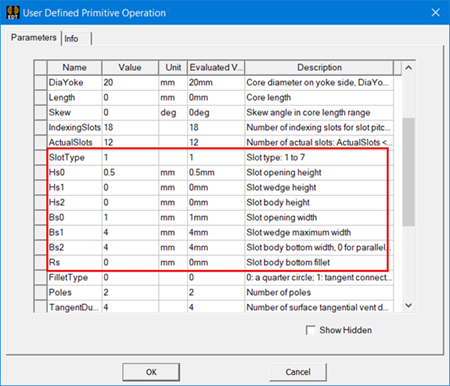
After you modify the slot-related parameters of the damper, the objects in the coordinate system window appear as in the following example:
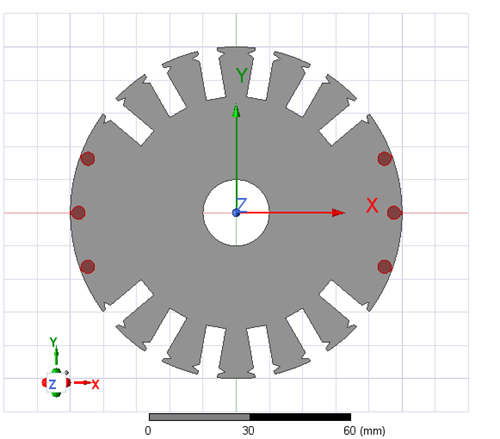
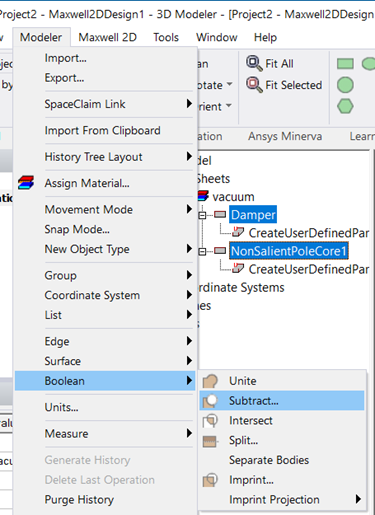
- Select both objects (Damper and NonSalientPoleCore)
in the history tree simultaneously by pressing Ctrl on the keyboard.
Click Modeler > Boolean > Subtract. A Subtract window appears.
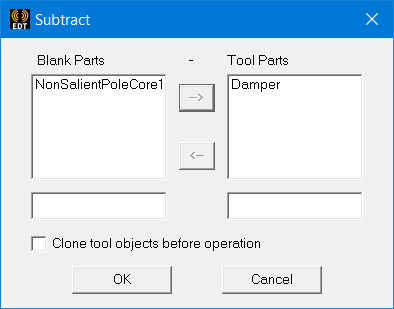
- Move NonSalientPoleCore to Blank Parts and Damper to Tool Parts, and check the Clone tool objects before operation box. Click OK to finish subtraction.
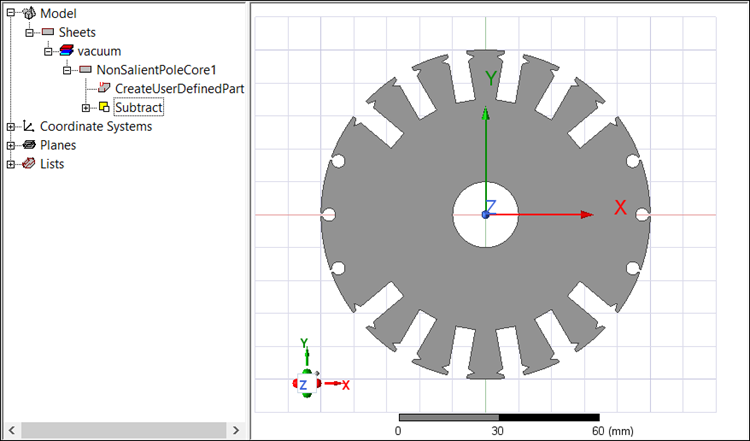
The final history tree and coordinate system window show the objects after subtraction: