
Cloning a Mesh
Note: The Clone Mesh operation described in this topic only applies to Maxwell 2D designs. For more information on clone meshing for a 3D Maxwell design, see 3D Clone Mesh Generation.
The clone mesh operation allows users to use the mesh data from a user-specified parent region of a Maxwell 2D design to apply identical meshes to its cloned regions. In the example shown below, three cloned regions have been generated with an angular spacing of 90 degrees from the user-drawn parent region.
Note: For non-transient
solution types, this operation is applied only on the initial mesh. If
you do adaptive refinement, the meshes will no longer match; the operation
is not reapplied during adaptive refinement.
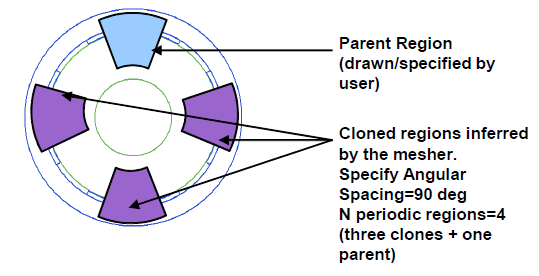
Clone mesh operations are performed after all other mesh operations are done.
Note: To use clone mesh, you must also setup Length-Based Mesh Refinement Inside Objects.
- To begin a clone mesh operation, select
Maxwell 2D > Mesh > Assign Mesh Operation > Clone
Mesh... to open the Clone Mesh dialog box.
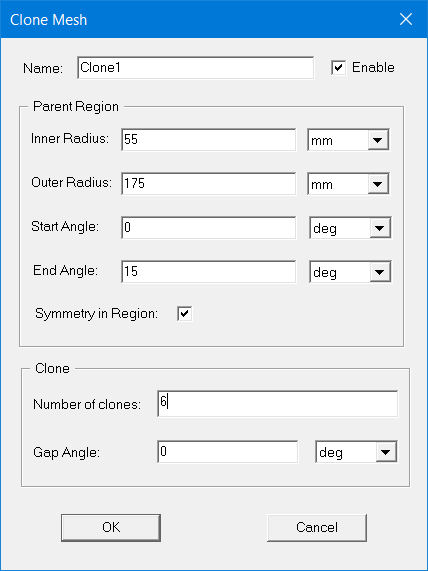
- First set up a Parent Region. (Refer to the following figure.)
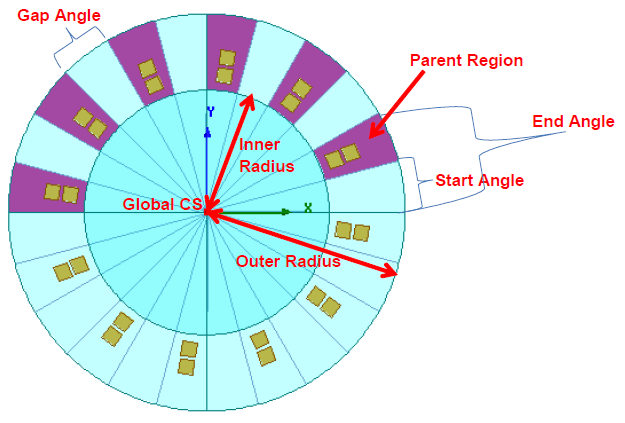
To set up the parent region, define the following parameters:
- Inner Radius
- Outer Radius
- Start Angle (default=0)
- End Angle
- Symmetry in Region - treat the region (parent and clone) as symmetric inside the region
- Specify how to clone the parent region by defining the following parameters:
- Gap Angle (default=0) - angular spacing between clones
- Number of clones - number of periodic regions (including the parent)
- Like other mesh operations, the user can enter a Name, which can be enabled and disabled. Multiple clone mesh operations (with different names) can be created.
- When finished, click OK.
- To edit the clone mesh setup data, use the Clone Mesh or the Properties window.