Write Average Metal Fraction
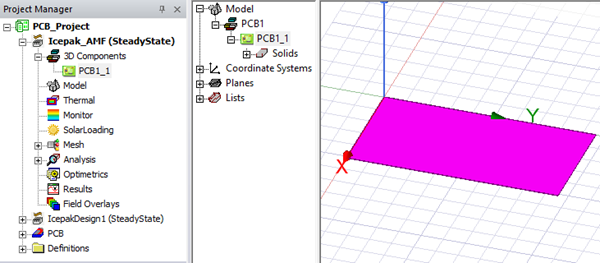
Write Average Metal Fraction allows you to calculate the average metal fraction for each layer of a PCB linked to an HFSS 3D Layout design. It also creates a PCB in a new project using one of three methods: 3D Component, Lumped PCB, or Detailed PCB.
The following are pre-requisites to access and run the Write Average Metal Fraction toolkit:
- The project must contain at least one Icepak design.
- An Icepak design must be the active design.
- HFSS 3D Layout design must contain valid ECAD.
- Thermal properties must be defined in the layer materials specifications in HFSS 3D Layout.
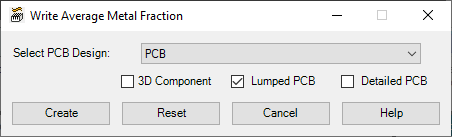
| Select PCB Design | From the Select PCB Design drop-down list, select the PCB for which you want to calculate average metal fractions and generate the new project. |
| 3D Component | Select 3D Component to create an Icepak PCB component with a full, layer-based conductivity map. |
| Lumped PCB | Select Lumped PCB to create a single block PCB with normal-to-plane and in-plan orthotropic conductivities. |
| Detailed PCB | Select Detailed PCB to model each layer individually with averaged isotropic conductivity. |
| Create | Click Create to calculate the average metal fractions and generate the new project with the specified PCB. |
| Reset | Click Reset to clear the Select PCB Design selection. |
| Cancel | Click Cancel to close the toolkit. |
| Help | Click Help to open the Help dialog box. |
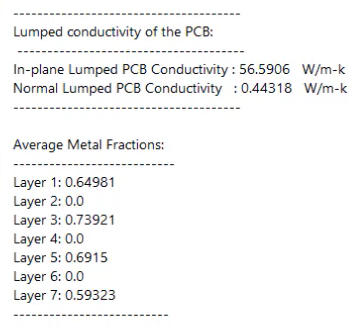
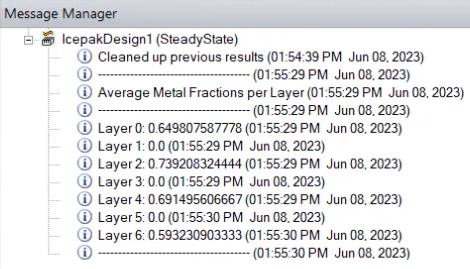
The average metal fractions are displayed in a dialog box and the message manager.