
Static ROM
The Static ROM toolkit allows you to extract training data from Icepak for use inTwin Builder for ROM creation and validation. On the Parametric Setup tab, configure the parametric trials with the desired design variables. After running the parametric trials, use the Data creation tab to export the training data. In Twin Builder, use the data to build and validate a static ROM.
Note:
Use the navigation arrows on the image below to view each tab.
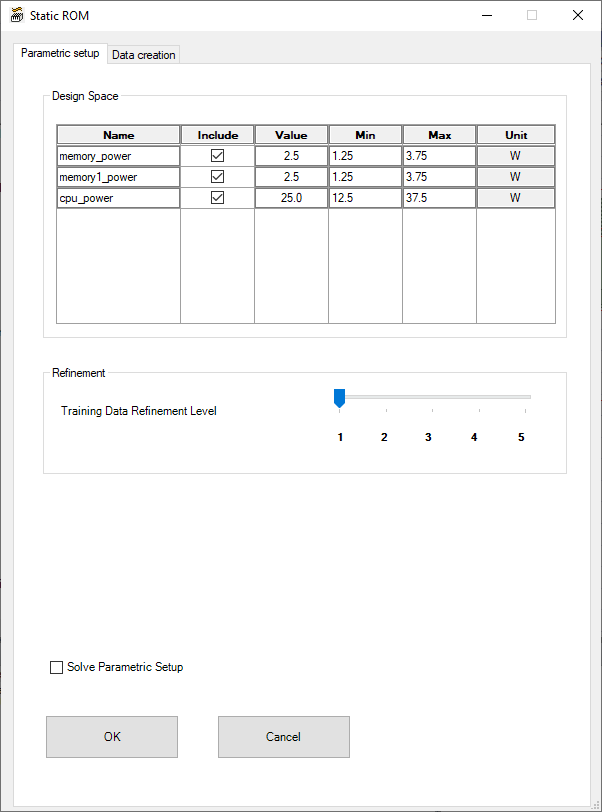
| Design Space | Design Space displays the design variables. Select Include for each variable to include in the parametric setup. Also define the Value, Min, Max, and Unit for each variable. |
| Refinement | Under Refinement, position the Training Data Refinement Level slider bar to the desired level. By default, Icepak creates n+2 trials, where n equals the number of variables included. That number is multiplied by the refinement level to determine the total number of trials in the design of experiments. |
| Solve Parametric Setup | Enable Solve Parametric Setup to analyze the design of experiments automatically. |
| OK/Cancel | Click OK to create and analyze the design of experiments (if Solve Parametric Setup is enabled). Click Cancel to close the toolkit. |
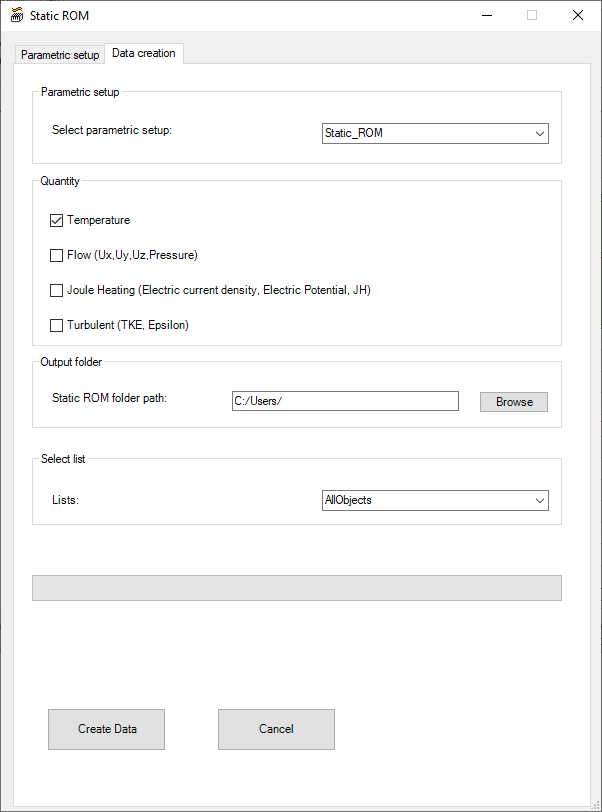
| Parametric setup | Under Parametric Setup, select the parametric setup to be used for data creation. |
| Quantity | Under Quantity, select the quantities for which data will created. |
| Output folder | Under Output folder, specify the folder name and click Browse to navigate to the desired location. |
| Select list | Under Select list, select the list of objects to be included in the ROM. |
| Create Data/Cancel | Click Create Data to export the ROM data for use in Twin Builder. Click Cancel to close the toolkit. |