Source From CSV
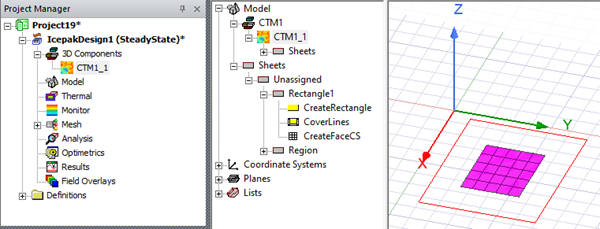
Source From CSV allows you to create a source object from a comma-separated value file. The sources can be modeled as a CTM native component or source thermal boundary conditions. The CTM native component option is recommended. The Individual Sources option takes longer to process as individual source geometry are created and boundary conditions automatically assigned.
| Object Preferences | |
|---|---|
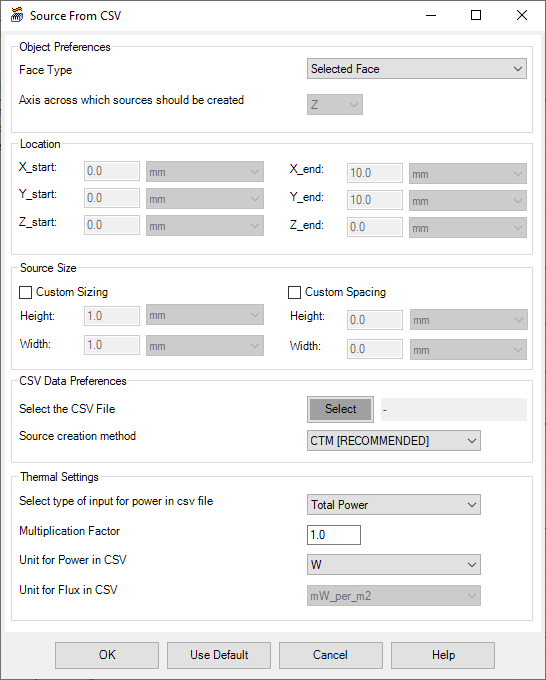
| Face Type | Specify either Selected Face if you selected a piece of sheet geometry or New sheet if you want to specify Location for a new piece of sheet geometry. |
| Axis across which sources should be created | Specify the Axis across which sources should be created. |
| Location | |
| X, Y, and Z start | If you selected New sheet, specify the X, Y, and Z coordinate start points for the sheet geometry. |
| X, Y, and Z end | If you selected New sheet, specify the X, Y, and Z coordinate end points for the sheet geometry. |
| Source Size | |
| Custom Sizing | If needed, select Custom Sizing and specify Height and Width values. |
| Custom Spacing | If needed, select Custom Spacing and specify Height and Width values. |
| CSV Data Preferences | |
| Select the CSV File | Click Select to open the Open dialog and browse to the CSV file location. |
| Source creation method | From the drop-down list, select CTM, Dataset, or Individual Sources. CTM creates a CTM native component. Dataset creates a design dataset. Individual Sources creates source boundary conditions, |
| Thermal Settings | |
| Select type of input for power in csv file | Select Total Power or Surface Flux for the type of power specified in the CSV file. |
| Multiplication Factor | Enter the multiplication factor to be applied to the power. |
| Unit for Power in CSV | If you selected Total Power, select the unit for the total power. |
| Unit for Flux in CSV | If you selected Surface Flux, select the unit for the surface flux. |
| OK, Use Default, Cancel, Help | Click OK to create the sources as specified. Click Use Default to restore the default settings. Click Cancel to close the Source From CSV dialog box without creating the sources. Click Help to open a dilaog with additional information about the toolkit. |
CSV File
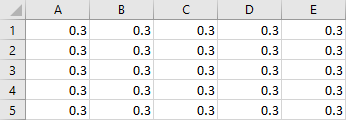
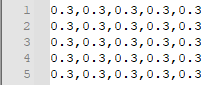
The following images are examples of a comma-separated value (.csv) file as displayed in a spreadsheet application and a plain text editor.