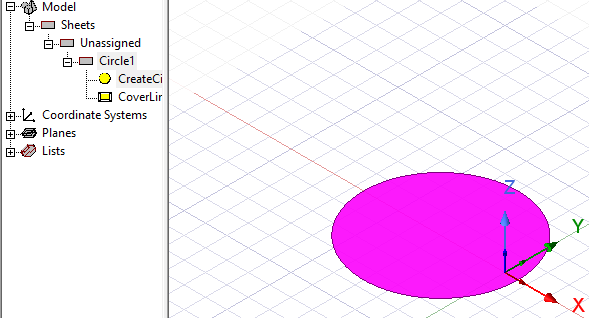
Drawing a Circle
Draw a circle by selecting a center point and a radius. Circles are drawn as true surfaces in the modeler. Before you draw a circle, you can specify the coordinate system, and you can set the drawing plane as Z, Y, or Z, or you can edit the plane in the properties.
- From the menu bar, click Draw>
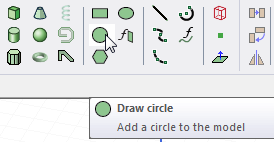
 Circle or on the Draw ribbon tab, click the Draw circle icon:
- Select the center point of the circle in one of the following ways:
- Click the point.
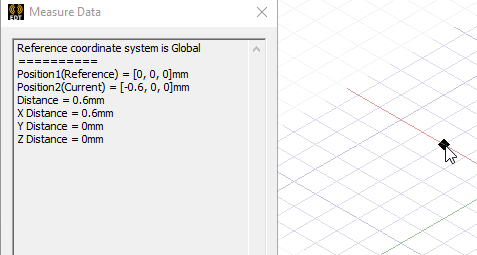
- Type the point's coordinates in the text boxes in the status bar.

The Status bar also includes options to specify the Coordinate System as Absolute or Relative, and drop down menu options to specify the circle in Cartesian, Cylindrical, or Spherical coordinates.
- Click the point.
- Specify the radius by selecting a point on the circle's circumference in one of the following ways:
- Click the point.
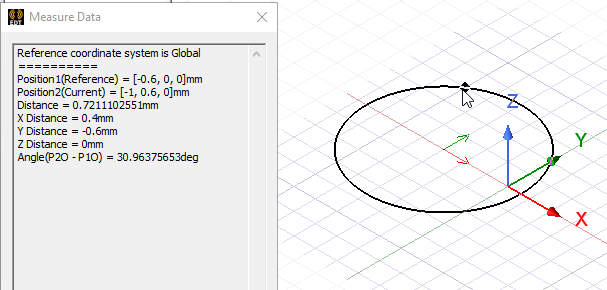
- Type the coordinates of the point relative to the center point in the dX, dY, and dZ boxes, where d is the distance from the previously selected point.
- Click the point.
- Double-click or right-click and select Done from the shortcut menu. If the Modeler option for editing properties of new primitives is checked, the Properties dialog box appears, enabling you to modify the object's properties.