
Network Node and Link Properties
Network node and link properties are defined in Properties windows, which you can open by double-clicking the component in the schematic or right-clicking it and selecting Properties from the right-click menu.
External Node Properties
External node properties are displayed on three tabs: Parameter Values, Symbol, and Property Displays.
Use the navigation arrows on the image below to view each tab.
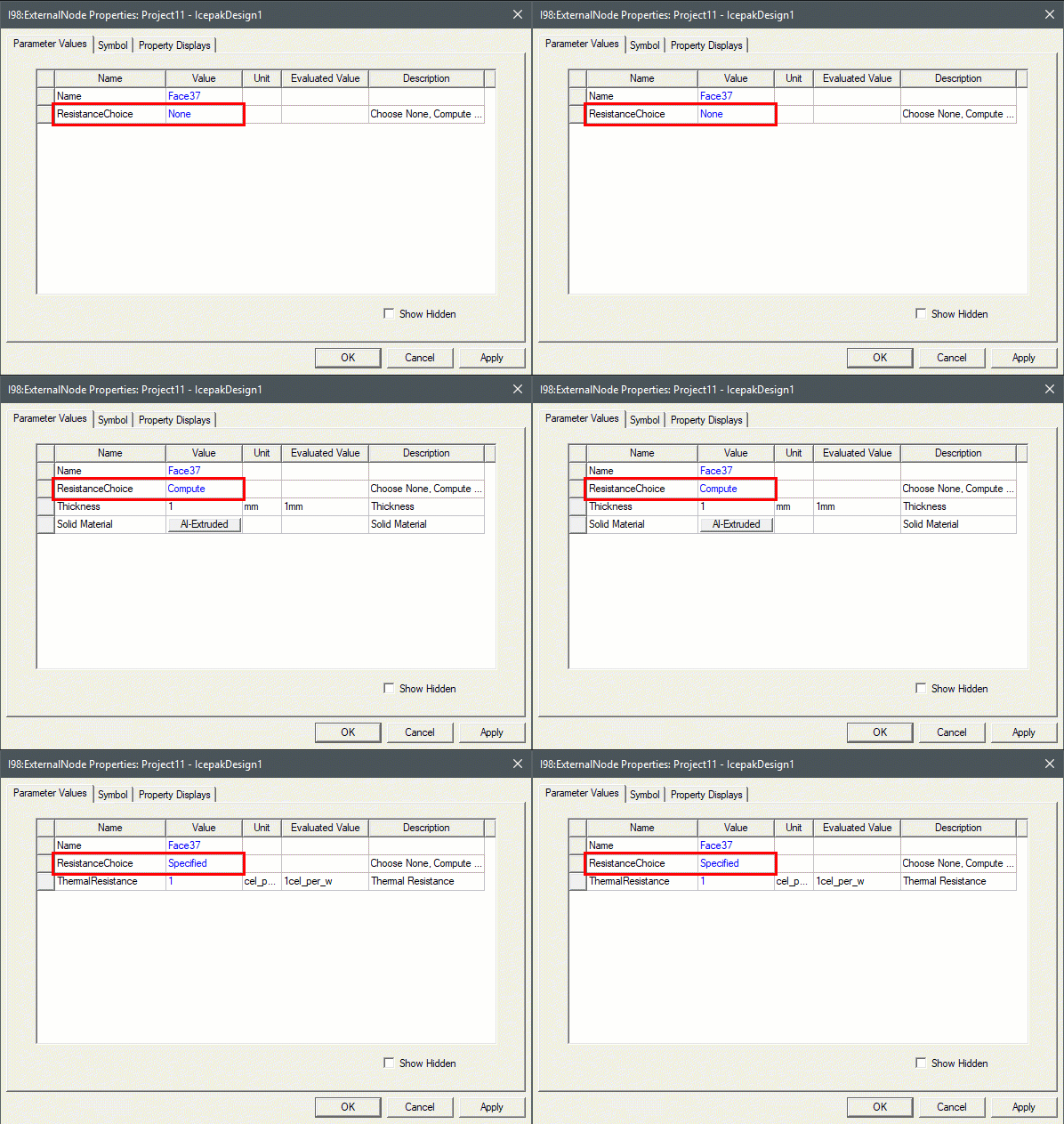
| Parameter Values | |
| Name | The Name appears in the schematic editor. |
| Resistance Choice | Select Compute or Specified. Compute uses the specified Thickness value and the specified Solid Material thermal conductivity to calculate the thermal resistance. Specified allows you to directly specify the Thermal Resistance value if it is known. |
| Thickness | When Compute is selected, Thickness allows you to specify the thickness of the node. Also specify the Unit of measurement. |
| Solid Material | When Compute is selected, Solid Material allows you to open the Select Definition dialog box to define the node's material. |
| Thermal Resistance | When Specified is selected, Thermal Resistance allows you to directly specify the node's thermal resistance if it is known. |
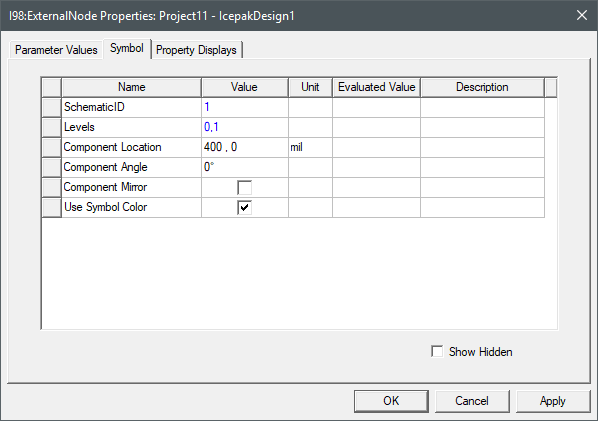
| Symbol | |
| SchematicID | SchematicID specifies the node's assigned identification number. |
| Levels | Levels displays how many levels are associated with the symbols for the node. See Displaying Symbols in Schematics for more information. |
| Component Location | Component Location specifies where in the schematic the node is displayed. Click in the Value field to enter a new set of X,Y coordinates for the symbol. |
| Component Angle | Component Angle specifies the angle at which the node is displayed in the schematic. |
| Component Mirror | Component Mirror allows you to flip the component left-to-right. The mirror operation is performed as soon as you check the box. Uncheck the box to return the symbol to its original orientation. |
| Use Symbol Color | Use Symbol Color allows you to display the symbol color to override the selected component color for the node. |
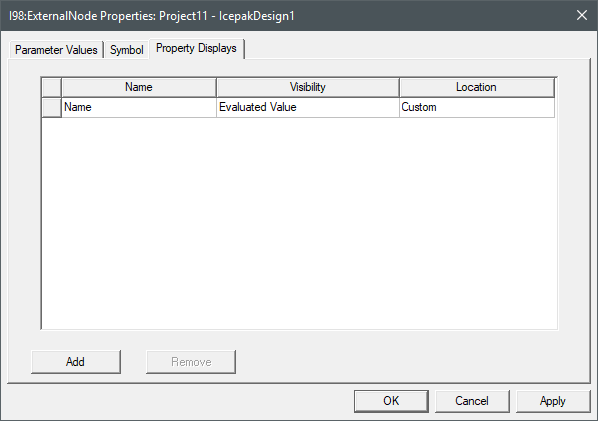
| Property Displays | |
| Name | Name allows you to specify which setting determines the node's label in the schematic. |
| Visibility | Visibility allows you to choose to display the category Name, the Value, or the Evaluated Value. |
| Location | Location allows you to choose the location of the node's label relative to its symbol. |
Boundary Node Properties
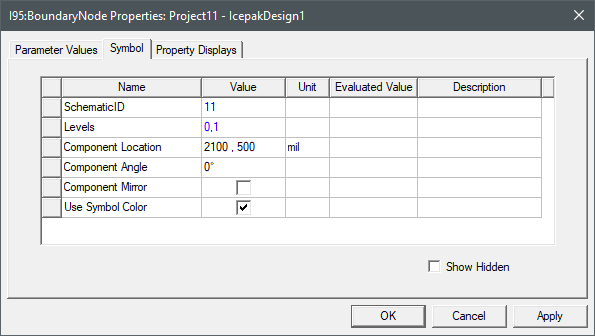
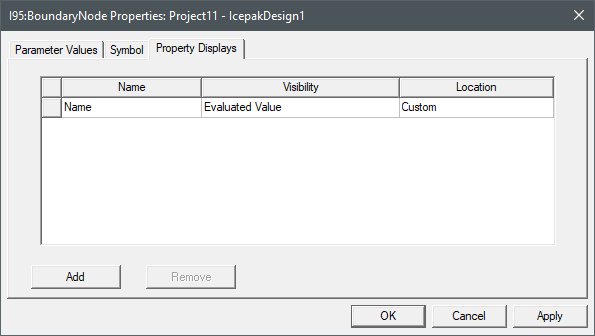
Boundary node properties are displayed on three tabs: Parameter Values, Symbol, and Property Displays.
Use the navigation arrows on the image below to view each tab.
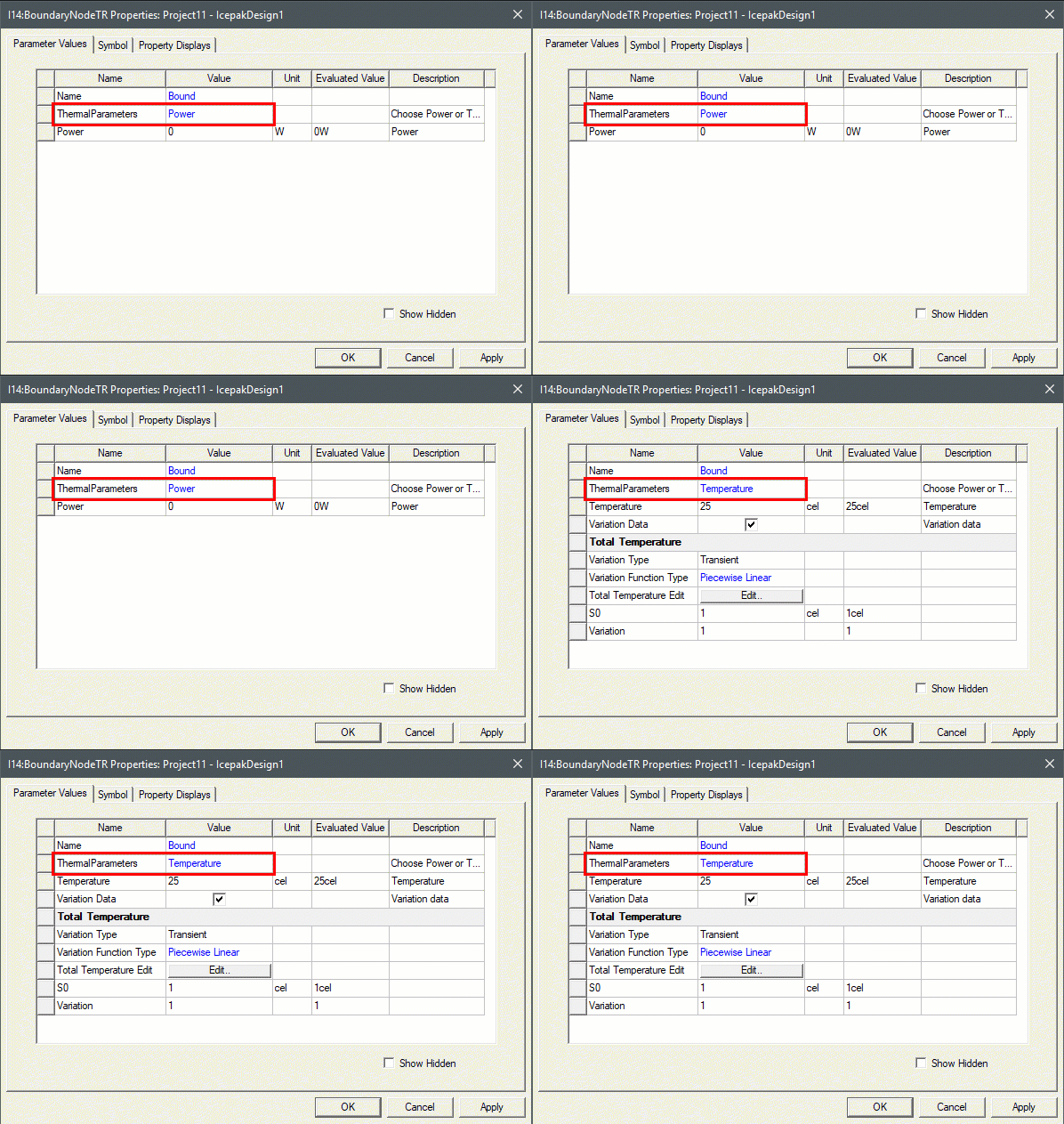
| Parameter Values | |
| Name | The Name appears in the schematic editor. |
| ThermalParameters | Select Power or Temperature. |
| Power | When Power is selected, specify the power of the node. Also specify the Unit of measurement. |
| Temperature | When Temperature is selected, specify the temperature of the node. Also specify the Unit of measurement. |
| Variation Data | When Temperature is selected in transient designs, Variation Data allows you to specify the node's temperature as time-dependent. |
| Total Temperature | For more information on time-dependent temperature, refer to Specifying Parameters as a Function of Time. |
| Symbol | |
| SchematicID | SchematicID specifies the node's assigned identification number. |
| Levels | Levels displays how many levels are associated with the symbols for the node. See Displaying Symbols in Schematics for more information. |
| Component Location | Component Location specifies where in the schematic the node is displayed. Click in the Value field to enter a new set of X,Y coordinates for the symbol. |
| Component Angle | Component Angle specifies the angle at which the node is displayed in the schematic. |
| Component Mirror | Component Mirror allows you to flip the component left-to-right. The mirror operation is performed as soon as you check the box. Uncheck the box to return the symbol to its original orientation. |
| Use Symbol Color | Use Symbol Color allows you to display the symbol color to override the selected component color for the node. |
| Property Displays | |
| Name | Name allows you to specify which setting determines the node's label in the schematic. |
| Visibility | Visibility allows you to choose to display the category Name, the Value, or the Evaluated Value. |
| Location | Location allows you to choose the location of the node's label relative to its symbol. |
Internal Node Properties
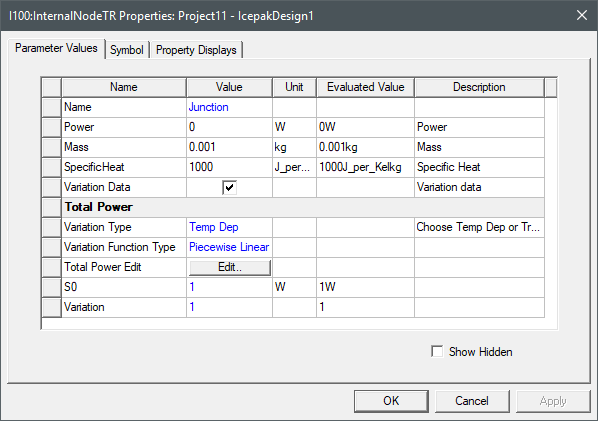
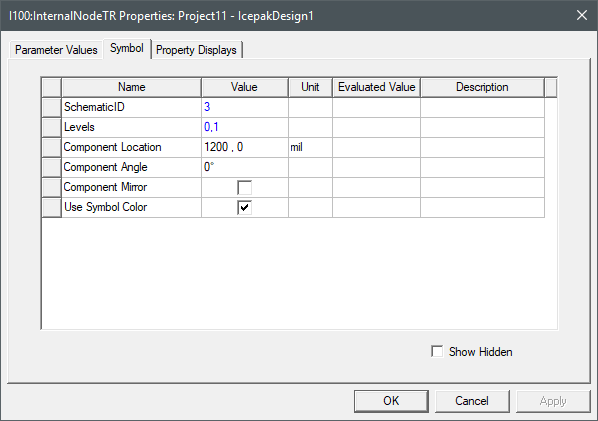
Internal node properties are displayed on three tabs: Parameter Values, Symbol, and Property Displays.
Use the navigation arrows on the image below to view each tab.
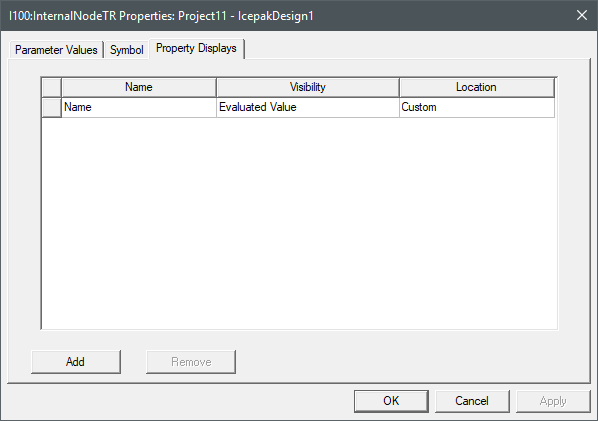
| Parameter Values | |
| Name | The Name appears in the schematic editor. |
| Power | Power allows you to specify the power of the node. Also specify the Unit of measurement. |
| Mass | Mass allows you to specify the mass of the node. Also specify the Unit of measurement. |
| Specific Heat | Specific Heat allows you to specify the heat of the node. Also specify the Unit of measurement. |
| Variation Data | When enabled, Variation Data allows you to specify the node's power as temperature-dependent for steady-state and transient designs or time-depedent for transient designs. |
| Total Power | For more information on temperature-dependent and time-dependent power, refer to Using Datasets to Define Temperature-Dependent Parameters and Specifying Parameters as a Function of Time, respectively. |
| Symbol | |
| SchematicID | SchematicID specifies the node's assigned identification number. |
| Levels | Levels displays how many levels are associated with the symbols for the node. See Displaying Symbols in Schematics for more information. |
| Component Location | Component Location specifies where in the schematic the node is displayed. Click in the Value field to enter a new set of X,Y coordinates for the symbol. |
| Component Angle | Component Angle specifies the angle at which the node is displayed in the schematic. |
| Component Mirror | Component Mirror allows you to flip the component left-to-right. The mirror operation is performed as soon as you check the box. Uncheck the box to return the symbol to its original orientation. |
| Use Symbol Color | Use Symbol Color allows you to display the symbol color to override the selected component color for the node. |
| Property Displays | |
| Name | Name allows you to specify which setting determines the node's label in the schematic. |
| Visibility | Visibility allows you to choose to display the category Name, the Value, the Evaluated Value, or both. |
| Location | Location allows you to choose the location of the node's label relative to its symbol. |
R Link Properties
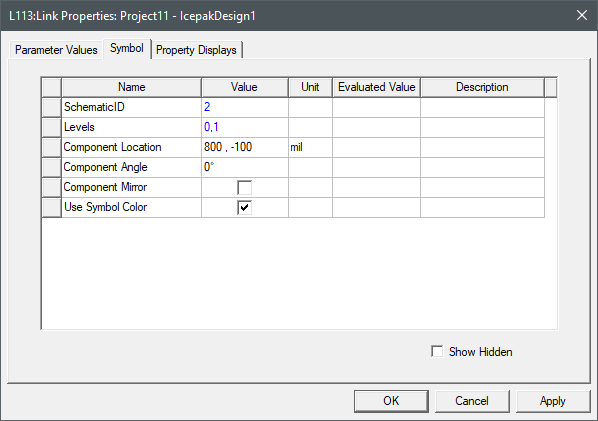
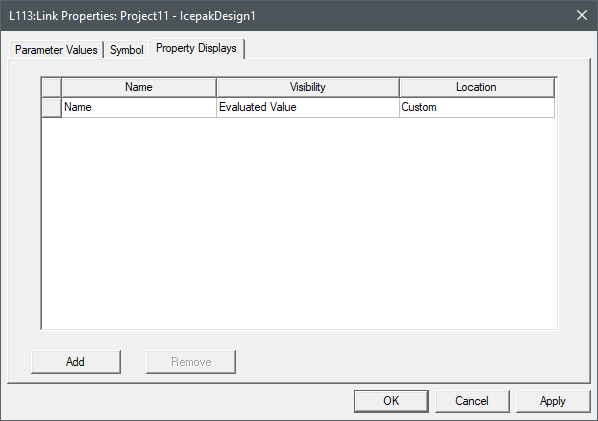
R link properties are displayed on three tabs: Parameter Values, Symbol, and Property Displays.
Use the navigation arrows on the image below to view each tab.
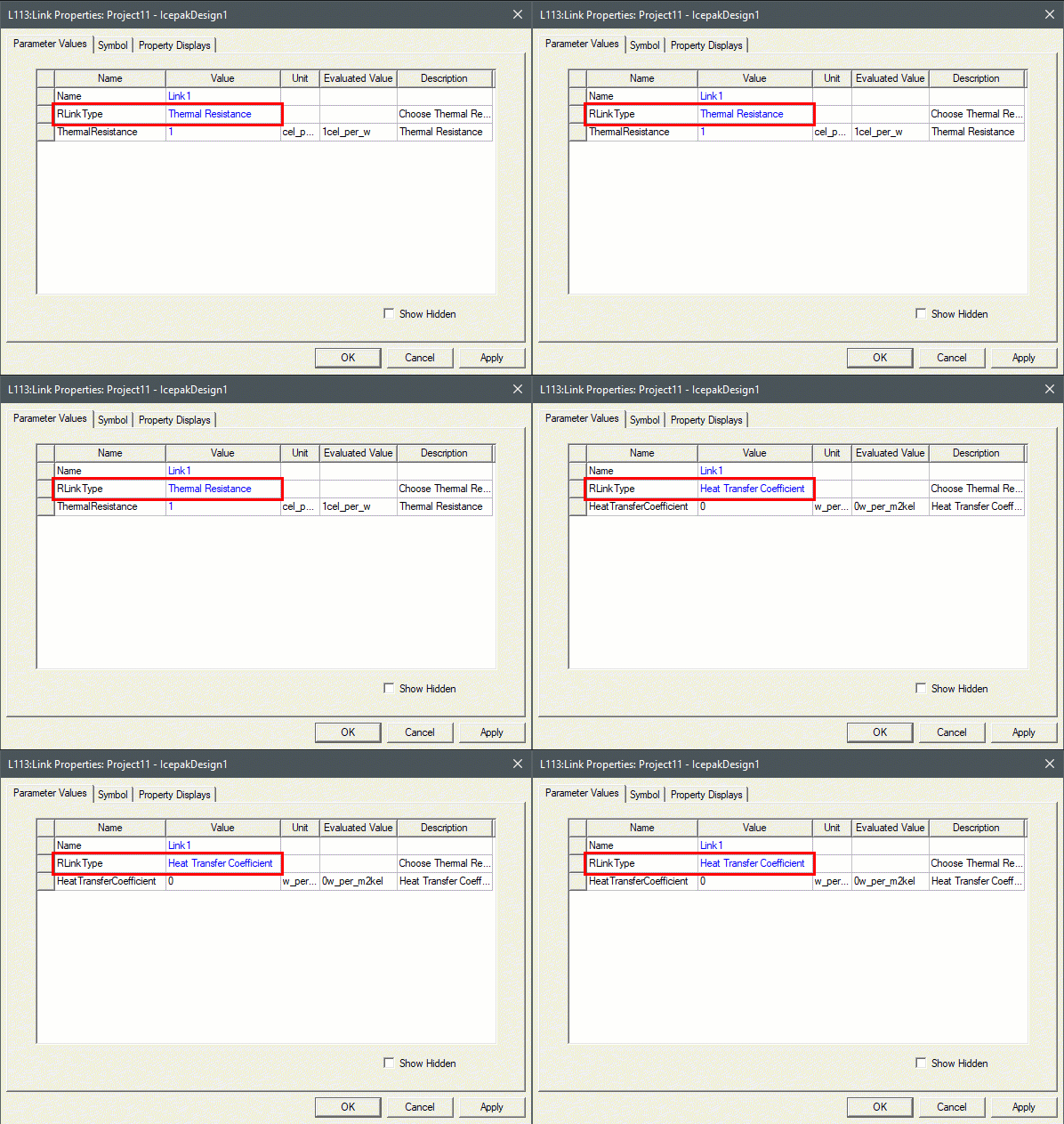
| Parameter Values | |
| Name | The Name appears in the schematic editor. |
| RLinkType | RLinkType allows you to specify whether the link type is Thermal Resistance or Heat Transfer Coefficient. |
| ThermalResistance | When Thermal Resistance is selected, ThermalResistance allows you to directly specify the node's thermal resistance if it is known. |
| HeatTransferCoefficient | When Heat Transfer Coefficient is selected, HeatTransferCoefficient specifies the link's convective heat transfer. Icepak computes the thermal resistance as a  , where h is the heat transfer coefficient and a is the area of the face. , where h is the heat transfer coefficient and a is the area of the face. |
| Symbol | |
| SchematicID | SchematicID specifies the node's assigned identification number. |
| Levels | Levels displays how many levels are associated with the symbols for the node. See Displaying Symbols in Schematics for more information. |
| Component Location | Component Location specifies where in the schematic the node is displayed. Click in the Value field to enter a new set of X,Y coordinates for the symbol. |
| Component Angle | Component Angle specifies the angle at which the node is displayed in the schematic. |
| Component Mirror | Component Mirror allows you to flip the component left-to-right. The mirror operation is performed as soon as you check the box. Uncheck the box to return the symbol to its original orientation. |
| Use Symbol Color | Use Symbol Color allows you to display the symbol color to override the selected component color for the node. |
| Property Displays | |
| Name | Name allows you to specify which setting determines the node's label in the schematic. |
| Visibility | Visibility allows you to choose to display the category Name, the Value, the Evaluated Value, or both. |
| Location | Location allows you to choose the location of the node's label relative to its symbol. |
C Link Properties
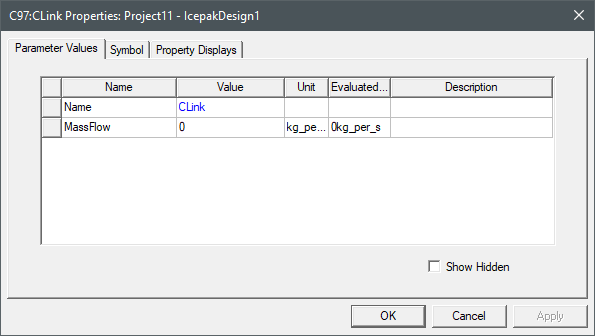
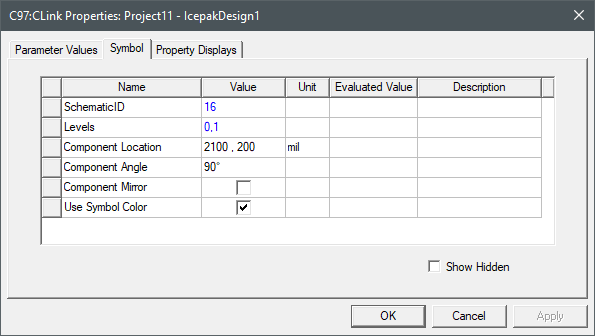
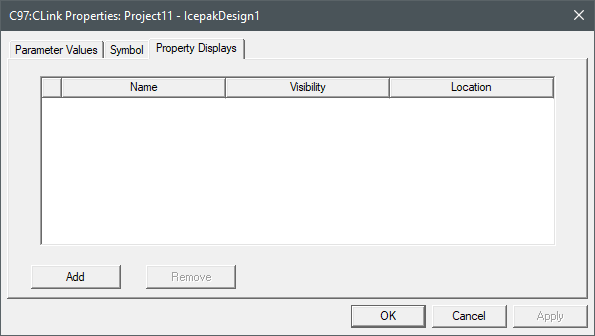
C link properties are displayed on three tabs: Parameter Values, Symbol, and Property Displays.
Use the navigation arrows on the image below to view each tab.
| Parameter Values | |
| Name | The Name appears in the schematic editor. |
| Mass Flow |
Mass Flow allows you to specify the link's mass flow rate. Note: Net incoming and outgoing mass flow from C Links at an internal node should 0. |
| Symbol | |
| SchematicID | SchematicID specifies the node's assigned identification number. |
| Levels | Levels displays how many levels are associated with the symbols for the node. See Displaying Symbols in Schematics for more information. |
| Component Location | Component Location specifies where in the schematic the node is displayed. Click in the Value field to enter a new set of X,Y coordinates for the symbol. |
| Component Angle | Component Angle specifies the angle at which the node is displayed in the schematic. |
| Component Mirror | Component Mirror allows you to flip the component left-to-right. The mirror operation is performed as soon as you check the box. Uncheck the box to return the symbol to its original orientation. |
| Use Symbol Color | Use Symbol Color allows you to display the symbol color to override the selected component color for the node. |
| Property Displays | |
| Name | Name allows you to specify which setting determines the node's label in the schematic. |
| Visibility | Visibility allows you to choose to display the category Name, the Value, the Evaluated Value, or both. |
| Location | Location allows you to choose the location of the node's label relative to its symbol. |