
Customizing the Automation Tab
Note: After clicking OK in the Customize dialog box to save changes to the Automation tab, you must insert a new Icepak design for the changes to be updated.
The Automation tab displays
Note: Click the image to open a full-sized version in a new tab.

You can customize the Automation tab to display buttons for your commonly used toolkits. Click Customize to open the Customize dialog box.
Note: Click the image to open a full-sized version in a new tab.
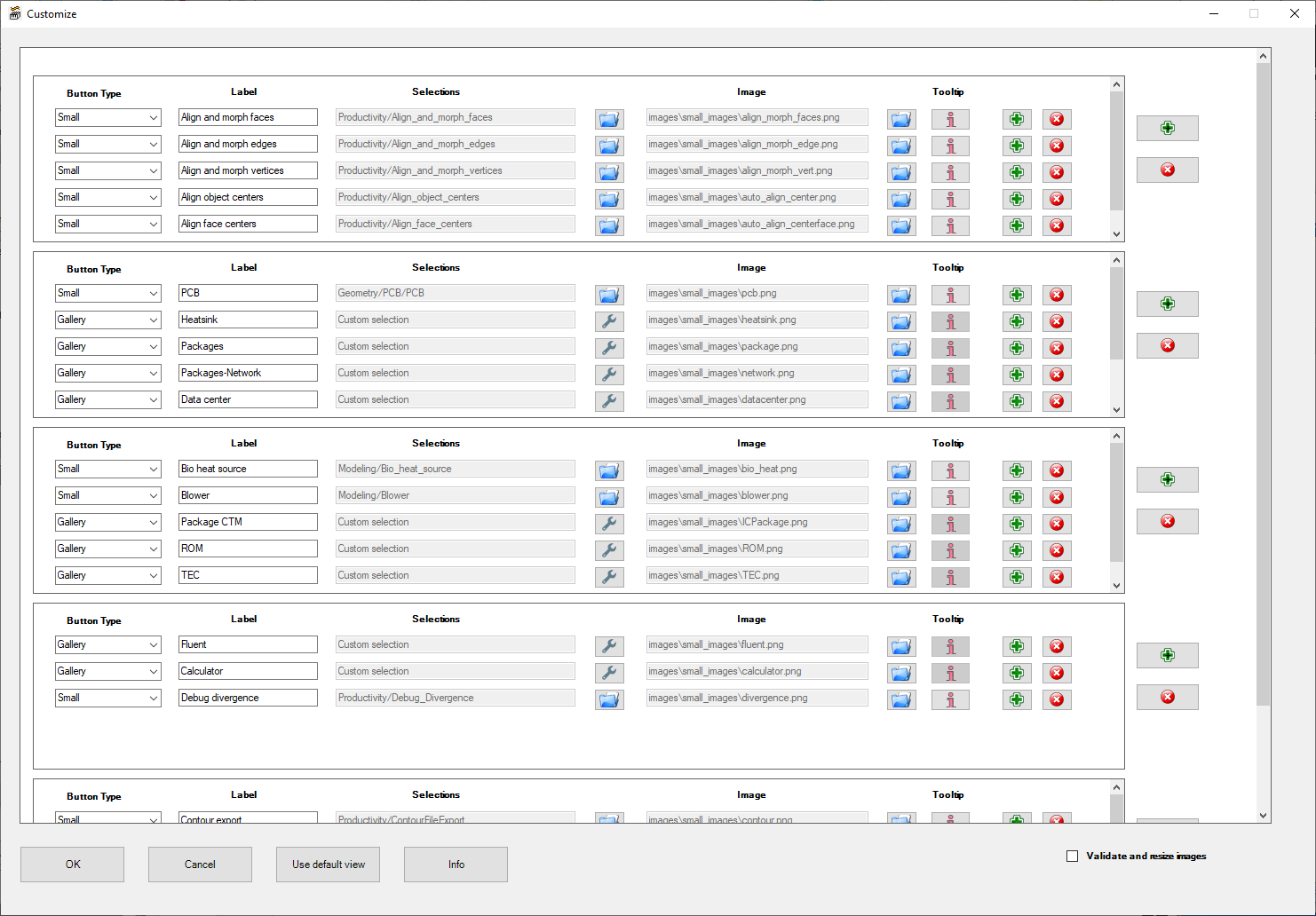
| Add/Remove | Click Add to add individual toolkits to groups or to add a new toolkit group. Click Remove to remove individual toolkits or entire groups. |
| Button Type | From the Button Type drop-down list, select Small, Large, or Gallery. |
| Label | For Label, enter a name to appear on the toolkit or gallery button on the Automation tab. |
| Selections | For Selections, a small or large button links to one toolkit. Click the folder button and select a toolkit from the Select scripts dialog box. A gallery displays links to multiple toolkits in one or more groups. See Creating a Toolkit Gallery for more information. |
| Image | For Image, click the folder button and select an image from the Select images dialog box. The image is displayed on the Automation tab. |
| Tooltip | For Tooltip, click the button and enter a description to be displayed when the cursor hovers over the toolkit button. |
| OK/Cancel/Use default view/Info | Click OK to save your changes and close the dialog box. Click Cancel to close the dialog box without saving. Click Use default view to restore the default selections. Click Info to display image size requirements for each Button Type. |
| Validate and resize images | Enable Validate and resize images to automatically scale the selected images. |
Creating a Toolkit Gallery
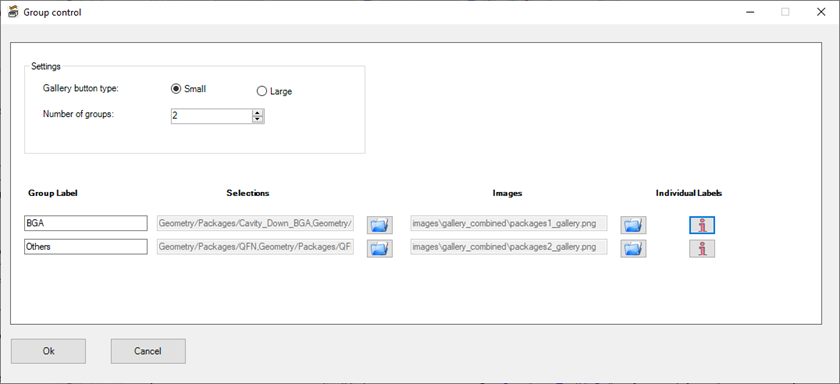
When creating a toolkit gallery, click the wrench button in the Customize dialog box to open the Group control dialog box.
| Settings | |
| Gallery button type | For Gallery button type, select Small or Large to specify the button size. |
| Number of groups | For Number of groups, specify the number or groups to appear in the gallery. |
| Group Label | For Group Label, enter a name to appear on the toolkit group on the Automation tab. |
| Selections | For Selections, a small or large button links to one toolkit. Click the folder button and select a toolkit from the Select scripts dialog box. A gallery displays links to multiple toolkits in one or more groups. |
| Images | For Images, click the folder button and select an image from the Select images dialog box. The image is displayed on the Automation tab. |
| Individual Labels | For Individual Labels, enter names in the Label list dialog box. The labels should match the amount of scripts selected and be separated by commas and listed in the same sequence as the selected scripts. |
| OK/Cancel | Click OK to save your changes and close the dialog box. Click Cancel to close the dialog box without saving. |