
Adding Datasets
The following procedure describes how to add a dataset manually.
You can also add datasets:
- By importing data from an external tab delimited file using the Import... button.
- Using the Sheetscan tool.
To add a dataset manually:
- Access the Datasets window:
- For project-level datasets, click Project > Datasets
from the menu bar, or click
 Datasets on the Desktop ribbon tab.
 - For design-level datasets, click
The Datasets window appears, listing any project or design-level datasets.
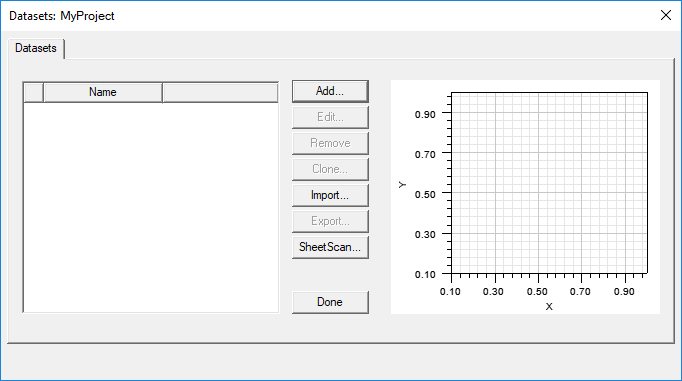
- For project-level datasets, click Project > Datasets
from the menu bar, or click
- Click Add.
The Add Dataset window appears.
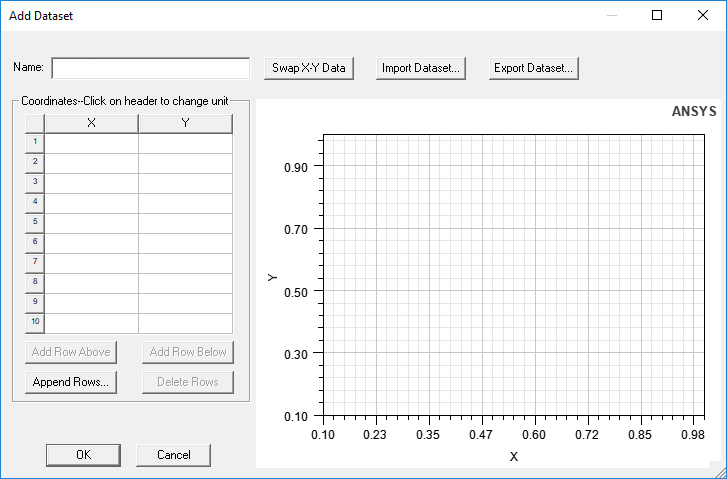
The left side of the Add Dataset window contains fields for the dataset name and a table for X- and Y- coordinates. The right side contains a graphic display that draws a line for the coordinates you add. It also includes buttons for the following functions:
- Swap X-Y Data – this swaps the X- and Y- coordinates and adjusts the graphical display.
- Import Dataset – this provides a way to import data sets from an external source. The format is a tab-separated points file. Clicking the button opens a file browser window.
- Export Dataset – this provides a way to export the current dataset to a tab separated points file. Clicking the button opens a file browser window.
- Add Row Above – adds a new row to the table above the selected row.
- Add Row Below – adds a new row to the table below the selected row.
- Append Row – opens a dialog box that lets you specify a number of rows to add to the table.
- Delete Row – deletes the selected row or rows.
- Enter a Name for the dataset.
Note:
Project-level datasets must begin with a dollar sign character ($). If you do not type one, it will be added for you.
- Enter X/Y coordinates, either by manually typing or by clicking Import Dataset.
If desired, click the X and Y column headers to change the unit.
The display updates to show your coordinates.
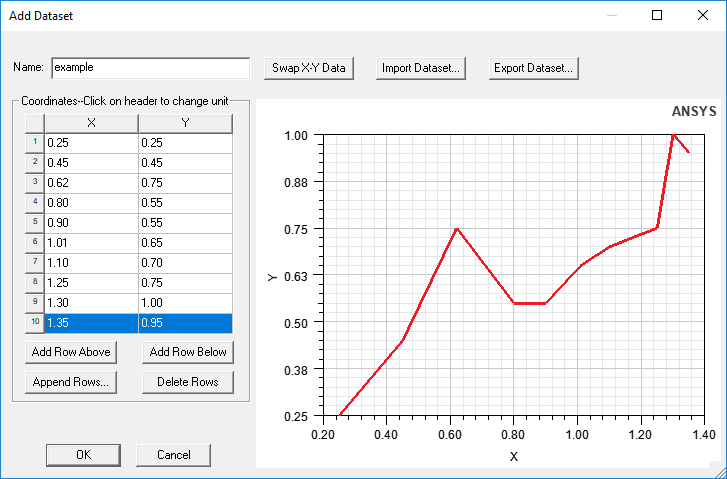
- When you are finished, click OK to exit the Add Datasets window.
The new dataset appears in the Datasets list.
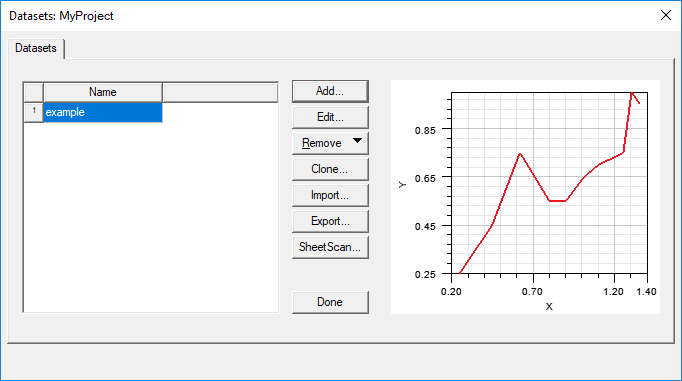
The dataset plot is extrapolated into an expression that can be used in parametric analyses, boundary definitions, or assigned to a material property value.
You can now edit, remove, clone, or export the dataset. You can also change the plot display properties.
- Click Done to exit the Datasets window.