
Viewing a Solution Profile
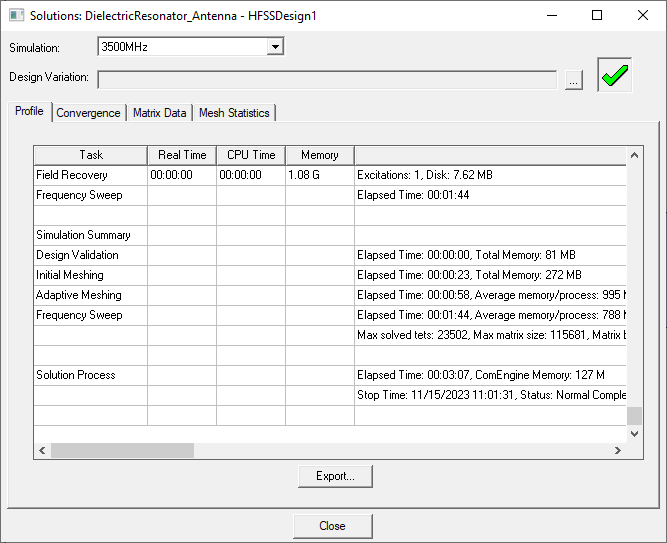
At any time during or after the solution process, you can examine the computing resources or profile data that were used by Ansys Electronics Desktop solvers during the analysis. The profile data is essentially a log of the tasks performed by Ansys Electronics Desktop during analysis. The log indicates the length of time each task took and how much physical and disk memory was required.
- In the project tree, right-click a solution setup, and select Profile.
- If one or more exist, you can select the desired profile information from the Simulation drop-down menu. In general, the information displayed includes:
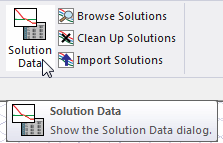
The Solutions dialog box appears, with the Profile tab selected. You can also click the Solution Data icon on the ribbon to open the Solutions dialog box, and then select the Profile tab.
The displayed data depends on the type of problem and solution setup.
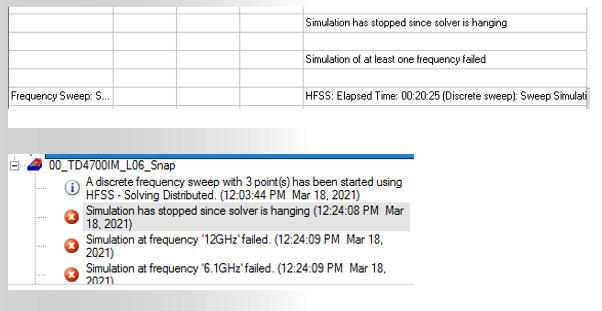
If the simulation hangs, equivalent messages appear in the Message window and the Solution Profile tab.
| Task | Lists the type of task that was performed. Tasks include
|
| Real Time | The difference in time between the start of the task and the end of the task (elapsed time). |
| CPU Time | The amount of CPU time required to perform the task. |
| Memory | The peak amount of physical memory (RAM) used by the individual executable running the task. The memory is freed for other uses after each task is complete. |
|
Information |
General information about the solution (for example, the number of tetrahedra used in the mesh, disk use, solver information, sweep information, and totals). |
To export the profile data:
- Open the Solutions dialog box and select the Profile tab.
- Click Export Profile.
This opens a file save dialog box that lets you provide a file name and location.
- Click Save.
The data is saved in a text file with a .prof extension.