
Selecting Antenna Parameters to Plot
Complete these steps to select and plot antenna parameters.
Note:
If Far Fields Report options are inaccessible using either method described in step 1, the user will first need to create a coordinate system by adding an Infinite Sphere overlay to the design. From the Project Manager window, right-click Radiation and select Insert Far Field Setup > Infinite Sphere.
- Open the Report window by doing either of the following:
- From the Project Manager window, expand the Project Tree and [active design folder] (i.e., 4 Element Aperture Coupled Antenna). Then right-click Results and select Create Far Fields Report > [report type] (i.e., Rectangular Report).
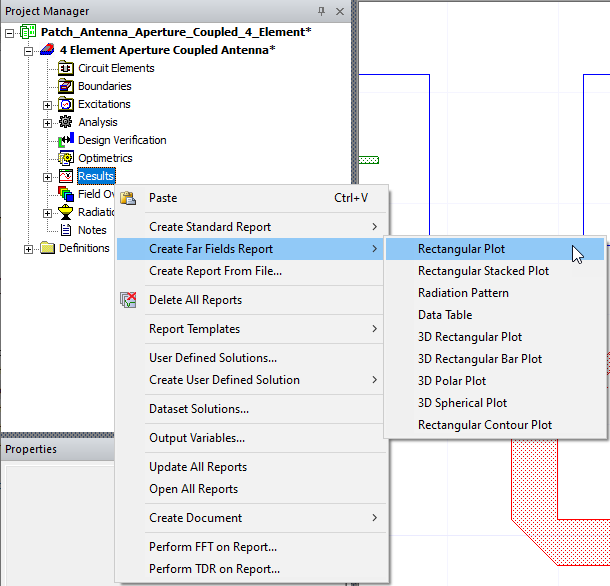
- From the Results tab, select Far Fields Report > [report type] (i.e., 2D).

- From the Project Manager window, expand the Project Tree and [active design folder] (i.e., 4 Element Aperture Coupled Antenna). Then right-click Results and select Create Far Fields Report > [report type] (i.e., Rectangular Report).
- From the Report window, select Antenna Params from the Category list to populate the Quantity list with selectable antenna parameters.
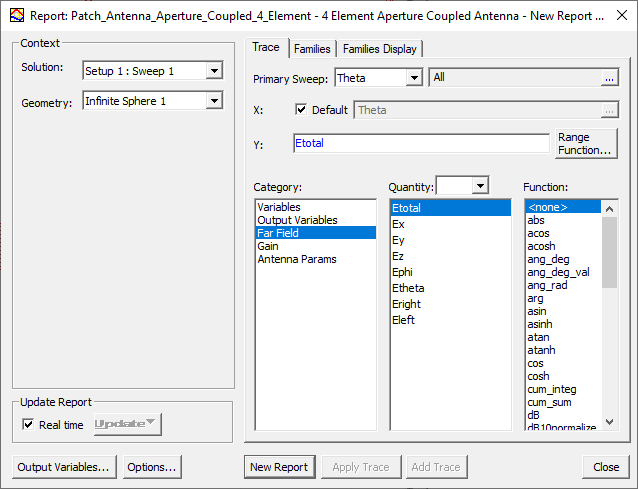
- Select one or more parameters from the Quantity list.

- If appropriate, select one or more options from the Function list.
- Make any other selections, as necessary.
- Click New Report.
- If necessary, return to the Report window to select additional options from the Quantity and Function lists. Then click Add Trace. Each additional trace appears in the report and in the Project Tree.
