
Moving the Cursor Out of Plane
Use the Out of Plane movement mode to specify points of objects being drawn that are along a vector perpendicular to the drawing plane and intersecting it at the reference point:
Before or after clicking a desired drawing command, change the movement mode using one of the following methods:
- From the menu bar, click 3D Model> Movement Mode> Out of Plane.
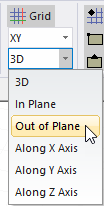
- On the Draw ribbon tab, choose Out of Plane from the Movement mode drop-down menu:
The following additional method is available only after clicking a drawing command:
- Right-click in the Modeler window and choose Movement Mode> Out of Plane from the shortcut menu.
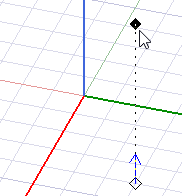
A dashed line perpendicular to the drawing plane is displayed, and a filled black diamond indicates the cursor's location:
The Measure Data window and the coordinate text boxes in the Status Bar provide precise cursor location information.