
Setting Default Boundary, Hybrid Region and Excitation Base Names
To change the default boundary, hybrid region, or excitation base names, so that subsequent names increment from the base of your choosing:
- Click Boundaries>Set Default Base Name or Excitations >Set Default Base Name or Hybrid Regions>Set Default Base Name.
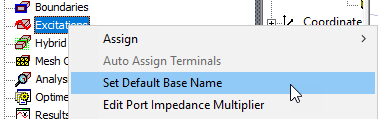
This displays the Set Default Boundary/Excitation Base dialog box. This contains a list of all boundary, hybrid region, and excitation types, and the base names for each. The base names for each type have editable text fields. The base names for boundaries and excitations are incremented from the base names here.
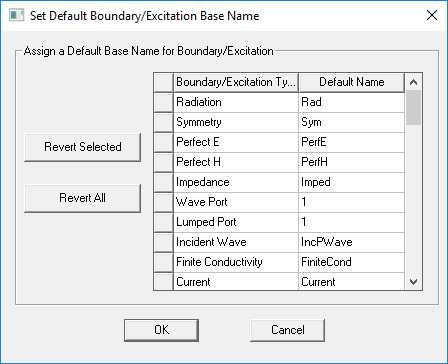
- Edit the text fields to your preferred naming conventions. Names must be less than sixty characters and cannot include spaces. Letters, numbers, and special characters are permitted. Illegal names are not accepted and generate a warning message.
- Click OK to accept the changes or Cancel to close the dialog without accepting changes.
If you want to revert all or selected names to defaults, use the Revert All or Revert Selected buttons.
Excitation Name Ordering Conventions
Ansys Electronics Desktop tries to sort excitations by name, using a sort of "improved" dictionary (lexicographic) ordering that takes into account trailing numerals as a special case.
So if you create some ports in the following chronological order, Port3, Port1A, Port10, Port1, Port3A, Port1A1, Port10A, you will find that they appear in the list as:
Port1, Port3, Port10, Port10A, Port1A, Port1A1, Port3A
Explanation:
- Port1, Port3, and Port10 start with the same string but end in trailing numerals, so they are sorted according to the numeric value of the trailing numerals: 1 < 3 < 10. This is different from the standard dictionary sorting order, which would order them as Port1, Port10, Port3.
- Port10A and Port1A both start with 'Port1' but don't end with trailing numerals, so standard dictionary sorting applies. Numbers come before letters, thus Port10A comes before Port1A (0 is before A in position 6).
- Shorter string ABC comes before longer string ABCD (ABC is a "prefix" of ABCD), so Port10 is before Port10A, and Port1A is before Port1A1.
If the leading strings contain punctuation characters (. and _). The ordering is by the character's ASCII code, so period (ASCII 46) is before underscore (ASCII 95.)