Using Stacked Eye Diagrams
The Rectangular Eye Diagram is optimized for viewing a single eye. But when multiple eyes are overlaid in the same Rectangular Eye Diagram, it is not very easy to compare the eyes. It is also very tedious to compare Y-marker and X-marker intersections. The Stacked Eye Diagram feature allows multiple eye plots to be stacked vertically for easy comparison. For details on the setup, see Stacked Eye Diagram.
Converting a Rectangular Eye Diagram to Stacked Eye Diagram
The following Rectangular Eye Diagram has two eyes. This
is not clearly evident from this plot, except on the legend, and hence
the two eyes cannot be compared easily.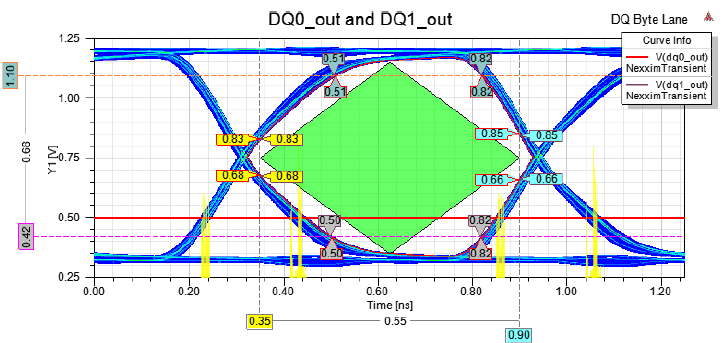
To convert this plot to a Stacked Eye Diagram, select the plot in the Results folder in the Project Manager window and change its Display Type property to Stacked Eye Diagram Plot as shown in the following screenshot.
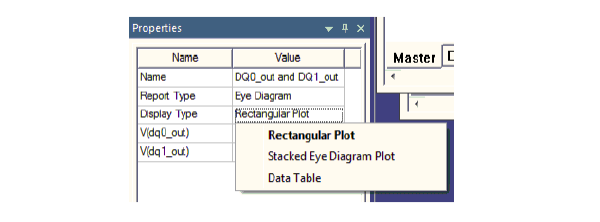
After
conversion, the Eye diagrams are stacked as in the following view: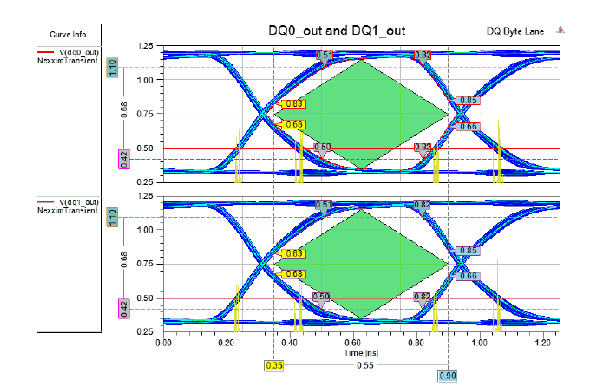
Only Rectangular Eye Diagram display types can be converted to Stacked Eye Diagrams. Statistical Eye Diagram Plots cannot be converted to Stacked Eye Diagrams.
In a Stacked Eye Diagram all the eyes are stacked over each other and are easily comparable in terms of X and Y data ranges, eye mask violations, histograms, X- and Y-marker intersections.
Histograms
Histograms can be enabled in a Stacked Eye Diagram by selecting any eye , then enabling the Show Histogram property under the Histogram tab in the Properties window, just as in Rectangular Eye Diagrams. The histograms are enabled for all eyes in the Stacked Eye Diagram, and are aligned as shown in the illustration above.
X and Y Markers
X-markers and Y-markers can be added to Stacked Eye diagrams on the Report 2D > Marker menu. X-markers align across all the stacked eyes.
Y-markers are specific to each eye. When you set up a Y-marker, select Current Stack to put the Y-marker only on the selected diagram, or All Stacks to add Y-markers to all diagrams. The Y-markers move up and down in tandem.
Eye Masks
An Eye Mask can be enabled and specified just as in a Rectangular Eye Diagram. If enabled and specified, the same Eye Mask is shown for each eye in Stacked Eye Diagram.
Eye Measurements
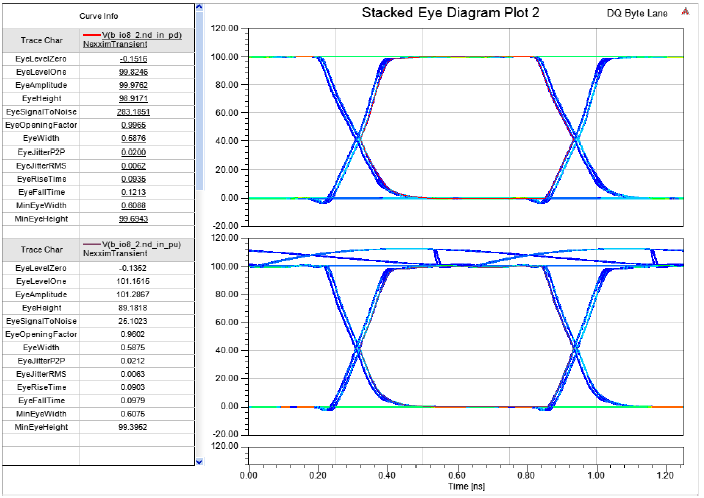
Eye measurements can be enabled through the shortcut menu selection Trace Characteristics > Add All Eye Measurements.
Eye Measurements are shown in a Legend window. To maximize
plot area, Eye Measurements and other trace characteristics are shown
in rows instead of columns for Stacked Plots, alongside each stack, as show in the following: