
From the View / Edit Material window, control the property values of materials. Open the View/Edit Material window in one of two ways:
- From Tools, select Edit Libraries > Materials... to open the Edit Libraries window. Then search for and double-click the name of the appropriate material, or highlight the name and select View/Edit Materials.
- From the Project Manager window, expand the project tree > Definitions > Materials folder. Then right-click the appropriate material and select Edit Material....
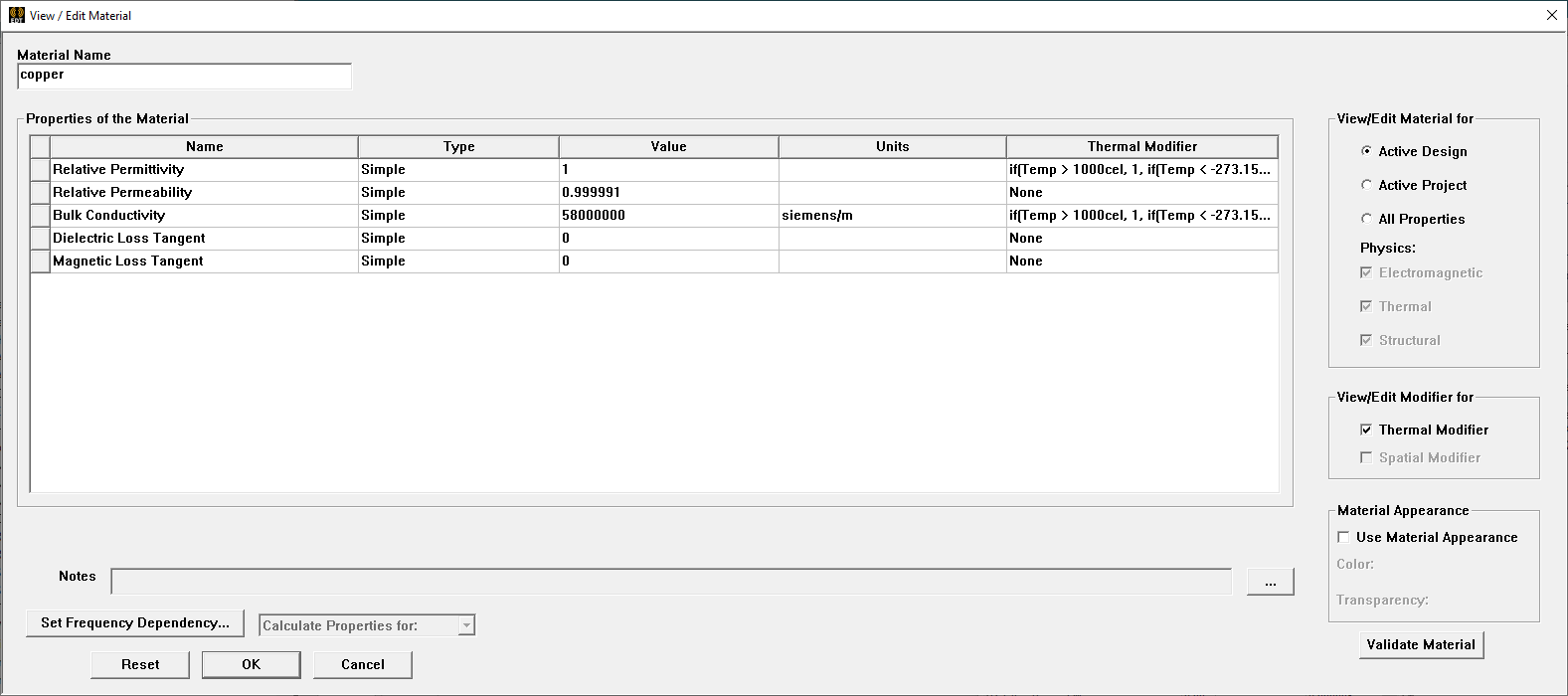
Material Name — This box sets the material name. To specify or change the name, click in the box, then type the appropriate name.
Property Headings
Name — Displays the property name. The values in this column are not editable.
Type – Displays and sets the property type (Simple [the default] or Anisotropic). To change a properties Type setting, click in the Type cell and select the appropriate type.
Value — Displays and sets the property value. To change a property value, click the value you want to change, then type a value or parameter name.
Units – Displays and, where applicable, sets the unit that applies to the Value entry. (For example, the unit of magnetic saturation can be set to Gauss, uGauss, Tesla, or uTesla.) To change a unit, click it, then select the appropriate unit.
Property Names
Relative Permittivity – This box sets the material relative permittivity. To specify or change the value, click in the box, then type the appropriate value.
Relative Permeability – This box sets the material relative permeability. To specify or change the value, click in the box, then type the appropriate value.
Bulk Conductivity – This box sets the material bulk conductivity. To specify or change the value, click in the box, then type the appropriate value.
Dielectric Loss Tangent — This box sets the material dielectric loss tangent. To specify or change the value, click in the box, then type the appropriate value.
Magnetic Loss Tangen t — This box sets the material magnetic loss tangent. To specify or change the value, click in the box, then type the appropriate value.
Magnetic Saturation – This box sets the material magnetic saturation. To specify or change the value, click in the box, then type the appropriate value.
Lande G Factor – This box sets the material Lande G factor. To specify or change the value, click in the box, then type the appropriate value.
Delta H – This box sets the material delta H. To specify or change the value, click in the box, then type the appropriate value.
View/Edit Material For
The check boxes in this group select the Ansys product(s) for which material properties are shown.
- Active Design
- This Product
- All Products
View/Edit Modifier For
The check boxes in this group select the Ansys product(s) for which modifier properties are shown.
- Thermal Modifier
Validate Material
Click Validate Material to validate the current material property values for Electronics Desktop product(s) checked. If validation succeeds, a green check mark appears under Validate Now. If validation fails, a red X appears instead, and an error message informs you of which parameter value(s) are invalid for which product(s), and why.
Set Frequency Dependency
Click Set Frequency Dependency to open a window that allows you to set options for the following:
- Piecewise Linear Input
- Loss Model Input
- Low-Loss Dielectric Model Input
- Enter Frequency Dependent Data Points
After you set options for any of the above, the Value column of the MaterialEditor indicates that a material’s value is set to be frequency dependent, rather than set to a constant.
Material Editor window Controls
- Click Reset to restore all changed properties to their values prior to opening the Material Editor.
- Click Cancel to close the window without committing changes and return to the MaterialBrowser.
- Click OK to save changes and return to the MaterialBrowser.
For more information see Viewing and Modifying Material Attributes.