
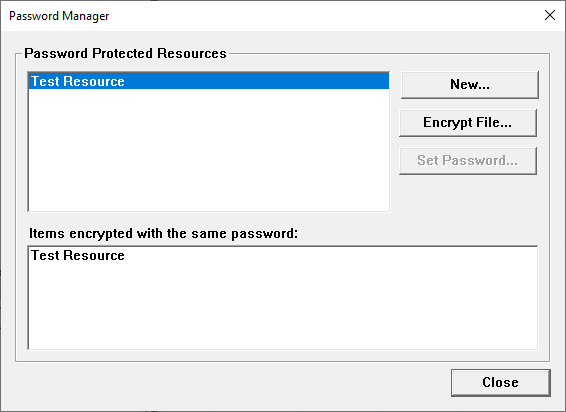
Because an encrypted library requires a password, encryption is done through the Password Manager window. The Password Manager windows lets users create a password or password set as a "password protected resource", which is a group of encrypted files which use the same password. Once the resource and its password type is defined, select it as the password for one or more newly encrypted libraries.
Generate a New Password Protected Resource
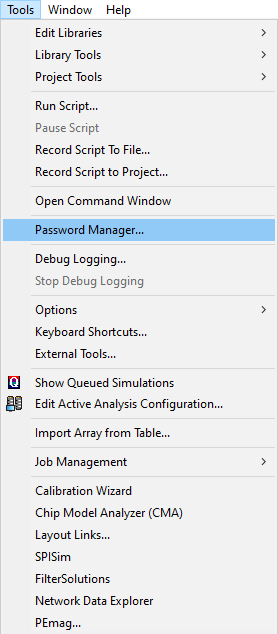
- From Tools, select Password Manager... to open the Password Manager window.
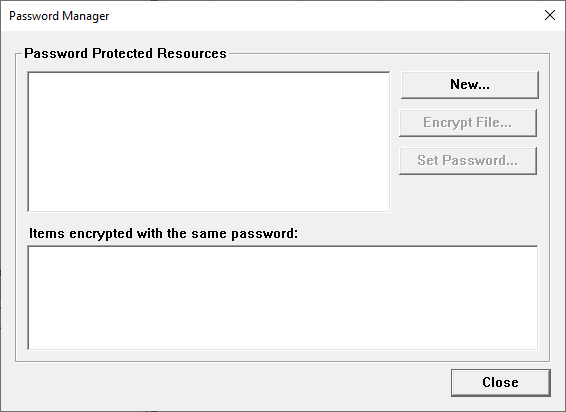
- Click New... to open the New Encrypted Resource window.
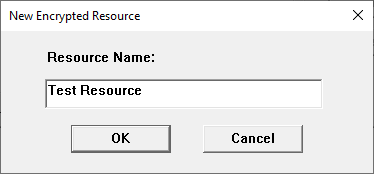
- Type a name for the resource into the field. Then click OK to simultaneously close the New Encrypted Resource window and open the Enter Passwords window.
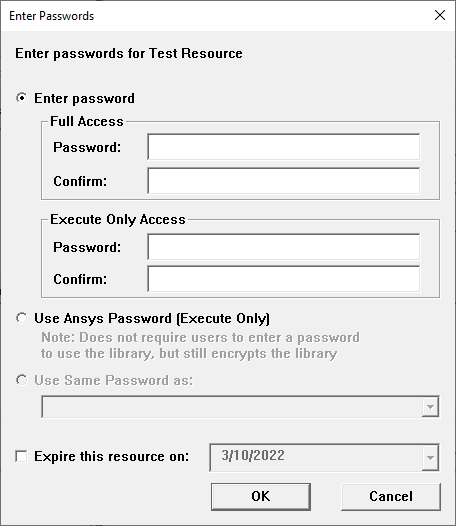
-
Choose on the following:
-
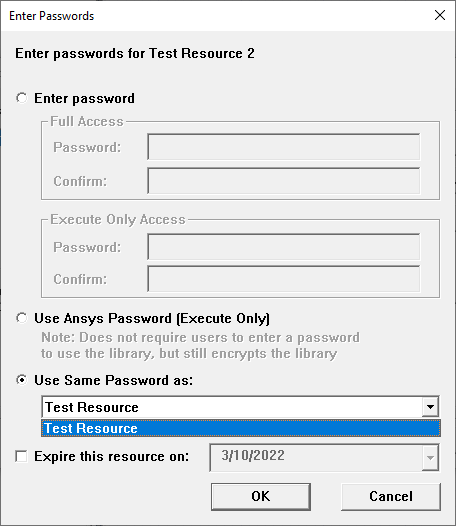
Enter password: choose between Full Access and Execute Only Access, then enter and confirm the new password in the given text fields.
-
Use Ansys Password (Execute Only): as stated, this choice does not require users to enter a password to use the library, but still encrypts the library.
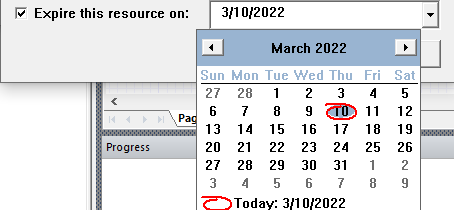
- Optionally, assign an expiration date for the encrypted library by checking the Expire this resource on box and selecting a date on the drop-down calendar. If an expiration date is assigned to a library during encryption, the library cannot be used after the assigned date.
- Click OK to add the new resource to the Password Manager list and simultaneously close the Enter Passwords window. Any number of libraries may be assigned to the new resource.
Generate a New Encrypted Library
When a library file is encrypted, the user can choose to overwrite the existing target library with the encrypted one, or save the encrypted library file with a new name and/or to a new location. During encryption, the user is prompted to choose whether the process respects .prot[ect] statements or ignores them. To generate a new encrypted library, complete the following steps.
- From the Password Manager window, select a resource on the Password Protected Resources list to enable the Encrypt File... button.
- Click Encrypt File... to open an explorer window. Navigate to the appropriate library file.
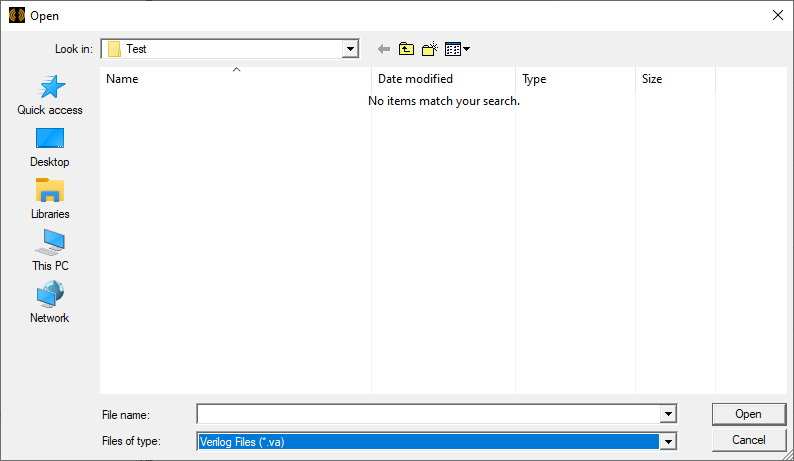
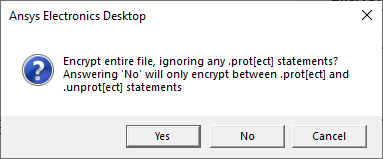
- Select a library file, or first narrow the available choices by selecting Circuit Files (.*lib) or Verilog Files (.va) on the Files of type drop-down menu. Then click Open to immediately open the prompt: Encrypt entire file, ignoring any .prot[ect] statements?
-
As stated in the prompt, choose on the following:
-
Click Yes to permanently encrypt the entire library file.
-
Click No to recognize any .prot[ect] statements and encrypt only the remaining aspect.
-
Click Cancel to exit out of the prompt and return to the previous explorer window.
-
After the library file is encrypted, an explorer window will appear. Navigate to an appropriate location to save and/or rename the file, if appropriate. If the encrypted library file is saved to the same location and with the same file name as the original unencrypted library file, the unecrypted file is overwritten permanently.
-
Click Save to close the explorer window and create the encrypted library file.