
Nexxim Circuit Design — Global Options
To set option defaults that affect all designs, click
Tools>Options>General to open the Options window,
then select Circuit Design on the left group box.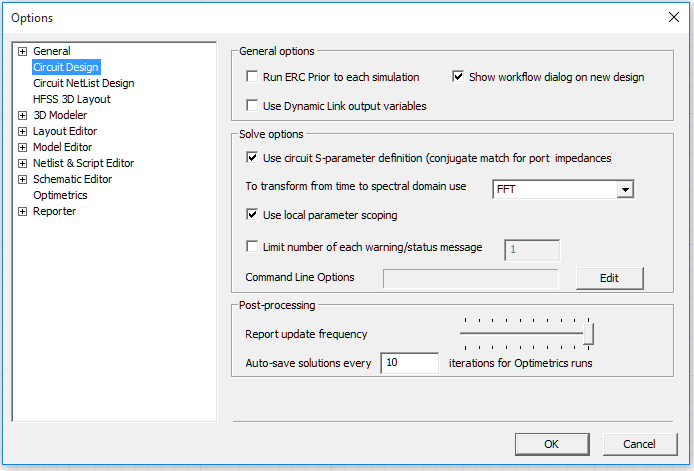
General Options
Run ERC Prior to each simulation — Runs electrical rules checking for nets or nodes that are electrically connected but not physically connected. The ERC results display in the message window. The simulation proceeds regardless of the results of ERC.
Show Workflow window on new design — Controls the display of the Workflow window when a new circuit design is inserted. When a new design is inserted, a window opens that allows you to associate the new design with a workflow template. For more information, see Workflow Projects.
Use Dynamic Link output variables — Enables
the Nexxim simulation to use output variables from dynamically linked
HFSS designs. Using the HFSS output variables gives Nexxim access to
nearly all types of HFSS data instead of just S-parameters. However,
accessing the HFSS output variables can slow down the analysis. See Access to HFSS Output Variables for further information.
Solve Options
Use circuit S-parameter definition — Controls the definition for port impedances. For Nexxim, this option should typically be selected (check box checked). The definition of a “matched port” depends on the application. In applications that deal mostly with circuit quantities (including the Nexxim simulator), a “matched port” has a characteristic impedance that maximizes the power transfer. This is also called a “conjugate match.” In applications that deal mostly with electromagnetic quantities (including HFSS and Planar EM), a “matched port” has a characteristic impedance that maximizes the transfer of the voltage wave. The two definitions differ only by the conjugate of the characteristic impedance of the port. For real port impedances, there is no difference.
To transform from time to spectral domain — Allows you to select the method used to transform on the time domain to the spectral domain for all projects.
- Fourier Integration is very accurate but may be time-consuming for large data sets. The Fourier Integration method computes the projection of the signal on each of the requested harmonics via integration of the inner-product integral.
- FFT (Fast Fourier Transform, the default) achieves faster conversion with a slight reduction in accuracy. The FFT method samples the signal at 2*(maximum harmonic number) points, and outputs the FFT of the sampled signal. The FFT method may not be robust enough to avoid aliasing while converting some time-domain signals to the frequency domain.
Use local parameter scoping – Controls the precedence of parameter handling in subcircuits. By default, option PARHIER=local is inserted in the Nexxim netlist. Uncheck the box to restore global parameter scoping. See Overriding the Precedence of Subcircuit Parameters for further information.
Limit number of each warning message – Lets you specify a maximum number for multiple instances of the same warning message (all error messages are always displayed). Click the check box and enter a whole number, 0 or greater. If the Nexxim solver generates multiple warning messages for the same issue, the number of messages displayed is limited to the value specified. The default is one (1) warning. The logfile includes all status messages, info messages, warning messages, and error messages regardless of this option.
Command Line Options — Additional options that
the user can pass to the HPSICE solver during an HSPICE analysis.
Post-processing
Report update frequency — When dynamic probes (DYNIPROBE or DYNVPROBE) are used in circuit designs, the user can set up plots in schematic. These plots are updated as the simulation progresses. "Report update frequency" controls the frequency at which these reports are updated.
Auto-save solutions every — Used to set Iterations for Optimetrics runs, which is the number of iterations after which to do an auto save during an optimetrics analysis.