
Adding a Design Variable for Dynamic Links
Design variables from an HFSS, Q3D, 2D Extractor, Icepak, or Mechanical design can be imported though a dynamic link to a Circuit or 3D Layout design. New design variables are created in the Circuit or 3D Layout design and correspond to the dynamic link variables. When the new design variables are created, the dynamic link variables are set to the Circuit or 3D Layout design variables.
For example, imagine an HFSS design with a variable wire_rad of 3mm. If a dynamic link is created for this design in a Circuit design, then a design variable “d_wire_rad” is created in the Circuit design and the component instance of the HFSS design has a parameter wire_rad set to d_wire_rad.
Design variables can be created from existing or newly added variables in the dynamic link design.
To create design variables based on pre-existing variables in a dynamic link design:
- In the Circuit or 3D Layout design, create a dynamic link to the target design.
- Either:
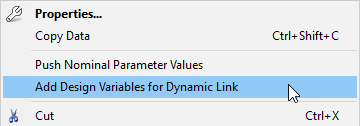
- In the Schematic or Layout editor, right-click the new instance of the linked design and click Add Design Variables for Dynamic Link.
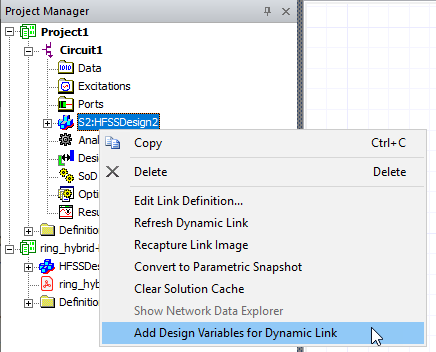
- From the Project Manager window, right-click Project Name > Design Name > Dynamic Link Design and select Add Design Variables for Dynamic Link.
- In the Schematic or Layout editor, right-click the new instance of the linked design and click Add Design Variables for Dynamic Link.
To create design variables based on variables added to a dynamic link design after it was linked:
- Create a new design variable in the dynamic link project.
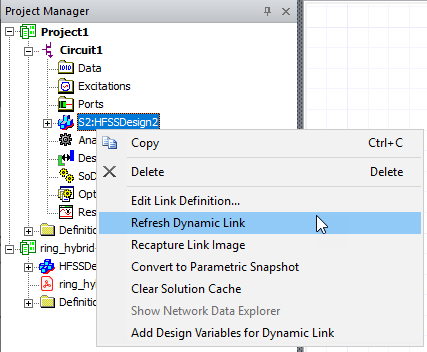
- In the Project Manager of the Circuit or 3D Layout design, Right-click Project Name > Design Name > Dynamic Link Design and click Refresh Dynamic Link.
- Either:
- In the Schematic or Layout editor, right-click the new instance of the linked design and select Add Design Variables for Dynamic Link.
- From the Project Manager window>, right-click Project Name > Design Name > Dynamic Link Design and select Add Design Variables for Dynamic Link.
- In the Schematic or Layout editor, right-click the new instance of the linked design and select Add Design Variables for Dynamic Link.