Viewing Physically Connected Elements in IC Mode
From the Layout Editor, users can view elements that are physically connected in a design.
Complete the steps in the following subsections to view physically connected elements in the Layout Editor, and then an organized list of physically connected elements in the Design List window.
Viewing Physically Connected Elements in the Layout Editor
- If appropriate, navigate to the Layout Editor tab and the chosen components.
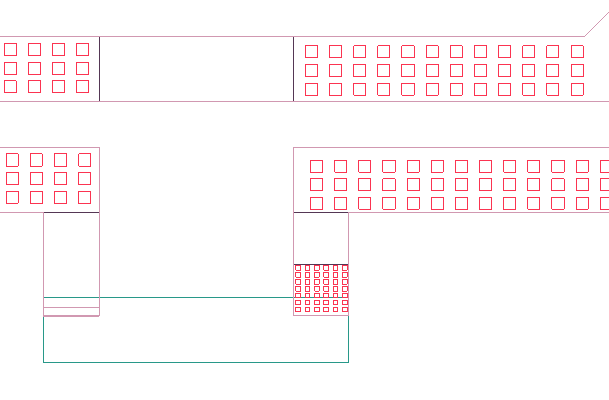
- From the Layout Editor, select a chosen element.
-
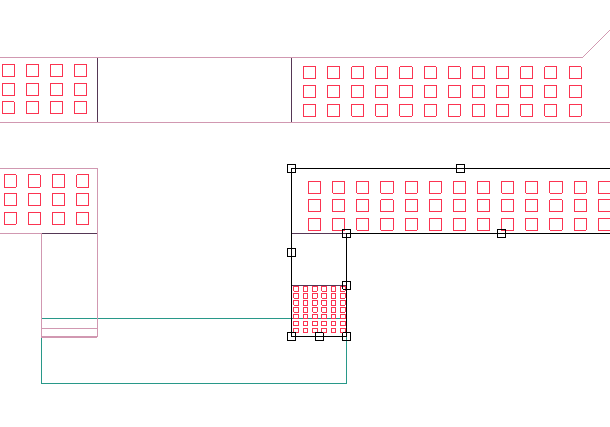
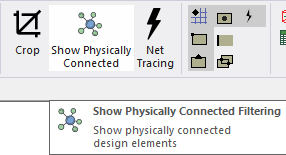
From the Layout tab, click Show Physically Connected.
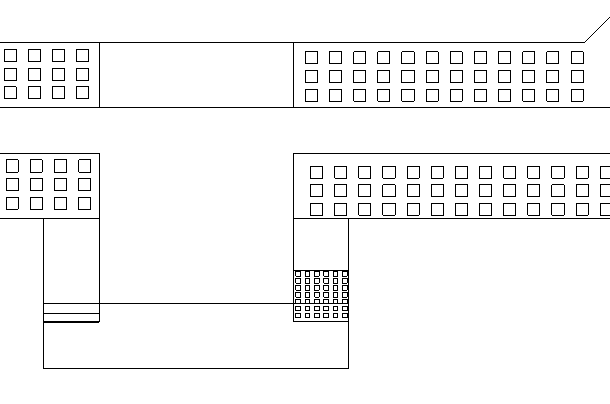
Every element physically connected to the selected element is highlighted.
 Note: To change the selection and highlight colors, refer to Layout Editor Options: Selection Panel.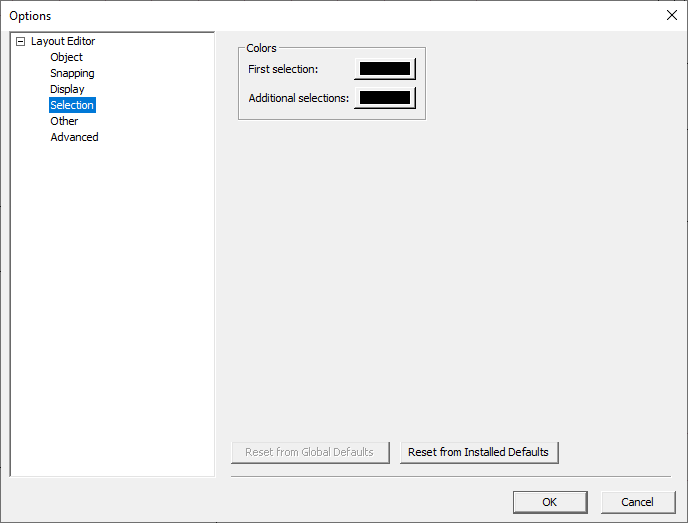
Viewing Physically Connected Elements in the Design List Window
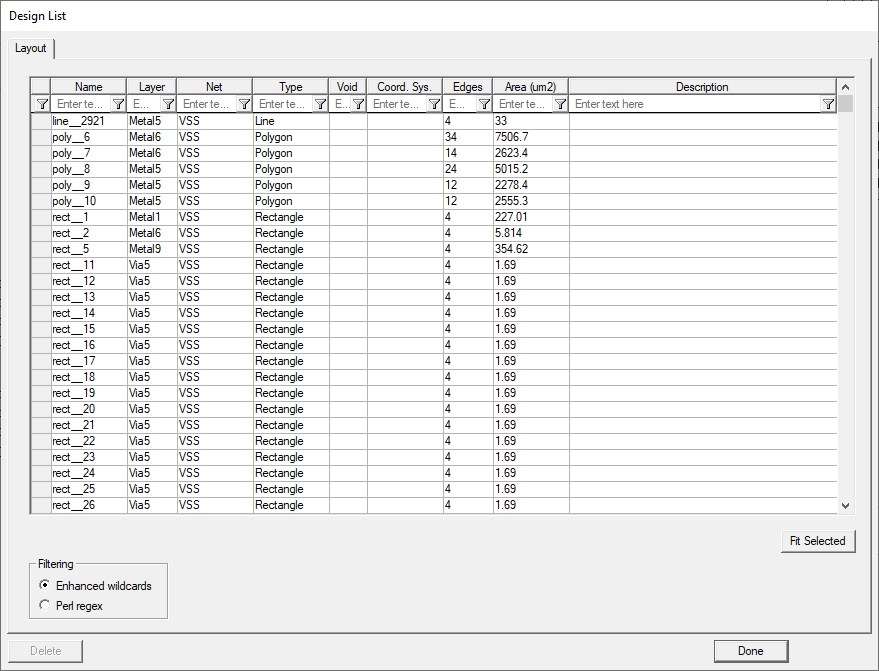
To view a list of the physically connected objects selected in Viewing Physically Connected Elements in IC Mode, right-click within the Layout Editor while the selection is still active.
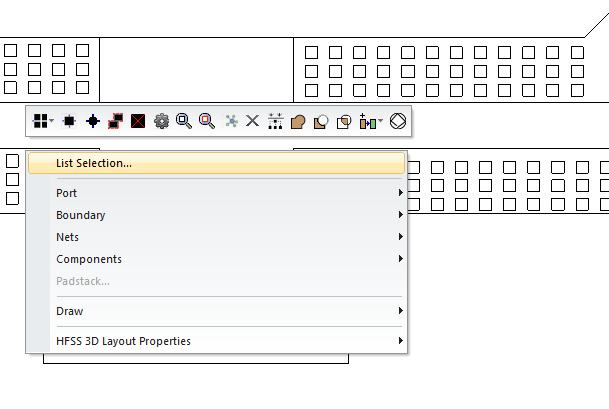
Then select List Selection to open the Design List window.