
Electronics Desktop will automatically reconfigure the HFSS 3D Layout ribbon and surrounding windows for the IC mode layout environment whenever a GDSII file is imported. Users can also switch between General and IC Mode from either the HFSS 3D Layout menu or the active design's Properties window.
If users attempt to open a design in IC Mode that fails to meet the required parameters, or includes hierarchy that IC mode cannot interpret, the design remains active in General Mode only. Refer to Opening a Design in IC Mode.
Switching to IC Mode from the HFSS 3D Layout Menu
-
Navigate to HFSS 3D Layout > Design Settings to open the Design Settings window.
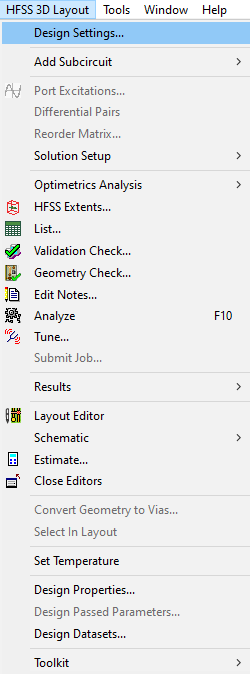
-
Navigate to the Design Mode tab.
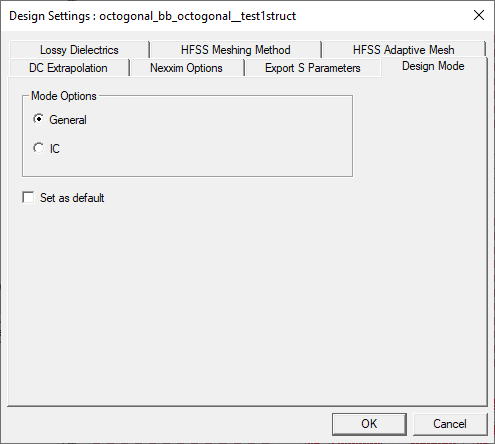
The Design Mode tab will not appear unless the IC Mode beta feature is active.
-
Select IC from the Mode Options area.
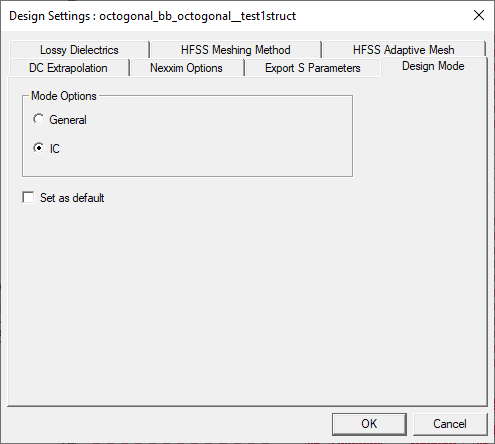
-
Click OK to close the Design Settings window.
-
The ribbon and windows will reconfigure to reflect the selected mode. Users will also see their selection reflected in the Project Manager. As long as a design is in IC Mode, a small "IC" appears in the upper left-hand corner of the design icon (e.g., octogonal_bb_octogonal_test2).
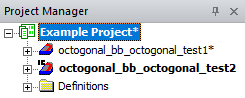
The procedure is complete.
Switching to IC Mode from the Properties Window
-
From the Project Manager, expand the Project Tree and select the [Active Design Folder] (i.e., Example Design) to populate the Properties window with the design's parameters.
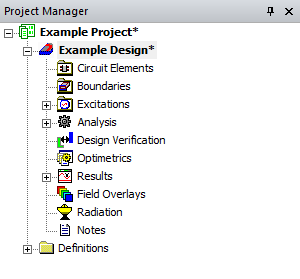
-
Check the box in the Design Mode > IC Mode.
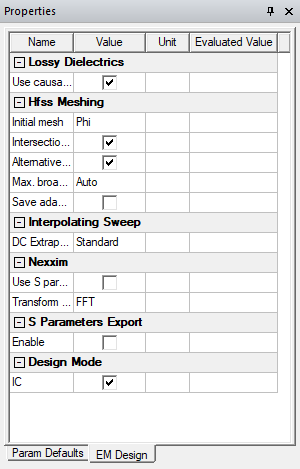
-
The ribbon and windows will reconfigure to reflect the selected mode. Users will also see their selection reflected in the Project Manager. As long as a design is in IC Mode, a small "IC" appears in the upper left-hand corner of the design icon (e.g., Example Design).
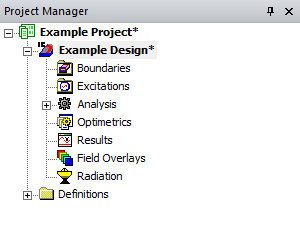
Opening a Design in IC Mode
The following lists explain why a design may be inactive in IC mode or General Mode:
| Inactive in IC Mode if | Inactive in General Mode if |
|
|