
Click the Link Description tab to enter data and link information.
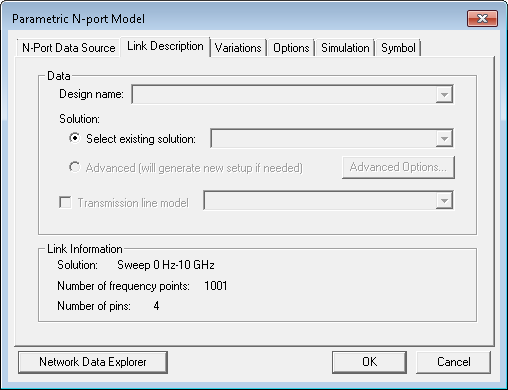
- Design name specifies the top-level design in the filed solver project.
- Solution specifies the solution to be used for the Parametric component.
- Click Select existing solution to enable the selection field. Then make a selection on the HFSS solution drop-down menu.
- Transmission line model specifies that the model specified in the drop-down menu at right are used for transmission lines (HFSS import only)
- Click Advanced to specify a custom setup
using Advanced Options. When Advanced setup
has been selected, Advanced Options becomes active.
Click on Advanced Options to open the Advanced Dynamic
Link Options window:
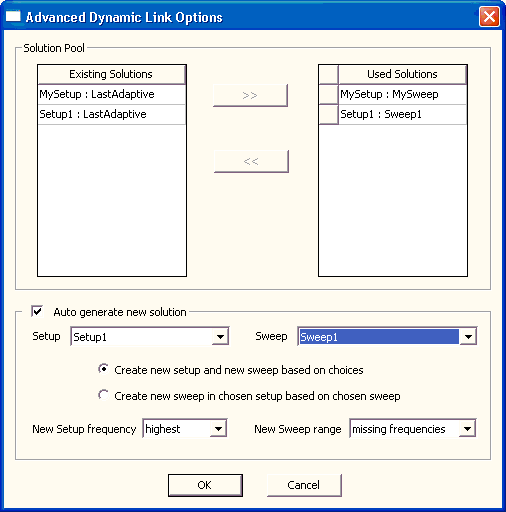
- Select one or more of the Existing Solutions to use in the simulation.
- Click Auto generate new solution to calculate missing frequency ranges.
- Select the chosen Setup and Sweep.
- Use Create new setup to specify that a new setup specification are defined. This generates a new adaptive mesh for the analysis. Next, click the New Setup frequency field to select the new adaptive frequency for mesh generation: “highest” or “middle”.
- Use Create new sweep to specify that a new sweep specification are defined using an existing setup. This uses the existing adaptive mesh for the analysis, which saves simulation time. Next, select a New Sweep range: select “all frequencies” to simulate the entire range of frequencies chosen, or select “missing frequencies” to simulate only the frequencies not listed in the Used Solutions area.
Click OK to close the Advanced Dynamic Link Options window. When the Link Description has been completed, click OK or select another tab.