
Nexxim Solution Options for QuickEye
From the Project Manager window, expand the Project Tree and [Active Design Folder]. Then right-click Analysis and select Add Nexxim Solution Options to open the Solution Options window. Select the Eye Options tab.
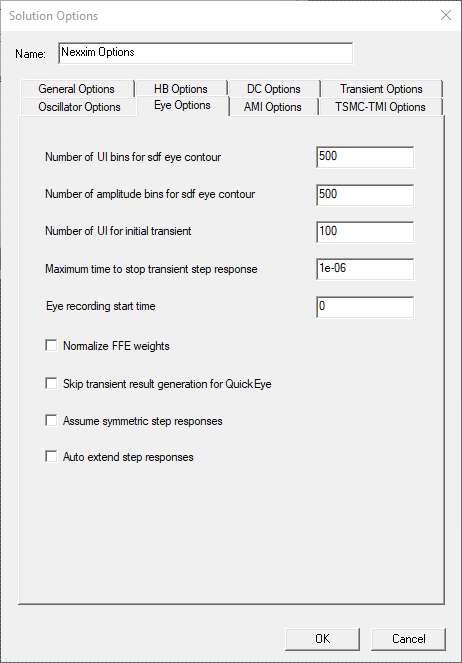
- Number of UI bins sets the number of UI histogram bins to use for generating the 3D and contour data. The default is 500. Option: eye.ui_bins.
-
Number of amplitude bins sets the number of amplitude histogram bins to use for generating the 3D and contour data. The default is 500. Option: eye.ampl_bins.
-
Number of UI sets the number of unit intervals (UI) over which the initial transient step response should run after any channel or source delay. The default is 100. Option: eye.num_initial_ui.
-
Maximum time sets the maximum stop time for the transient step response calculation. The default is 1s. Option: eye.resp_tmax.
Note:QuickEye uses the minimum of (num_initial_ui x UI) and (resp_tmax) to set the transient final time for the step response calculation.
Normalize FFE weights sets the solver to normalize FFE weights (sum of absolute values of all weights equals one). This option applies only to weights supplied by users. The Circuit solver always normalizes the taps weights that it calculates. The default for user-supplied weights is no normalization. Option: eye.normalize_ffe_weights.
-
Skip transient result turns off QuickEye storage of the eye diagram and the transient-like result. By default, QuickEye stores the eye diagram and the transient-like result. Option: eye.qe_only_cmf.
-
Assume symmetric step responses sets QE/VE to use the rise time as the fall time. The default is to use different rise and fall times. Option: eye.sym_step_resp.
-
Auto extend step responses extends the step response beyond the simulation time. By default, the step response is extended only to the end of simulation time. Option: eye.auto_extend_step_resp.
For more information, see Circuit Time Domain Analyses: VerifEye and Quick Eye Analysis Options.