Model a Signal Layer as a Ground Plane
HFSS 3D Layout lets you model a signal layer as ground plane.
- Open the Edit Layers window by:
- On the menu bar, click Layout > Layers or Footprint > Layers.
- In the Layout window, right click and chose Edit Layers.
- On the Layout or Footprint ribbon, click the Edit Layers icon.
- Add or select an existing signal layer.
- From the Analysis area, select Solver to open the Solver Options window.
- From the Planer EM tab, select Treat as infinite ground to model a signal as ground plane.
- Click OK to close the Solver Options window.
- Click Apply in the Edit Layers window.
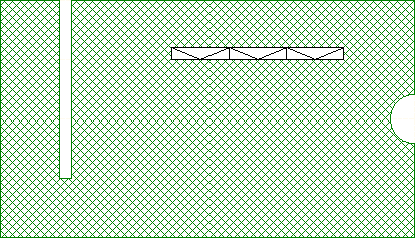
The following diagrams illustrate the difference when a signal is modeled as a ground plane.
Note:
When a signal layer is modeled as a ground plane, only the holes are modeled.
Modeled as a Signal Layer
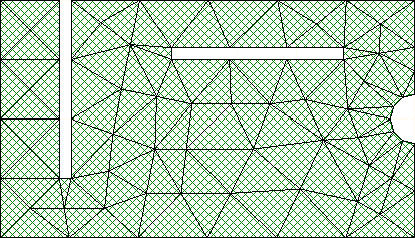
Modeled as a Ground Plane