
Inserting an EM Technology File
HFSS provides default stackups for common structures — technology files. You can create and save your own stackup as a technology file so that it is available to every project. Each technology file you create includes the layers’ attributes: material property, units, thickness, elevation, and roughness data. This information is stored in an .asty file in the \userlib folder. Complete these steps to enable the Choose Technology window and then select an EM technology.
-
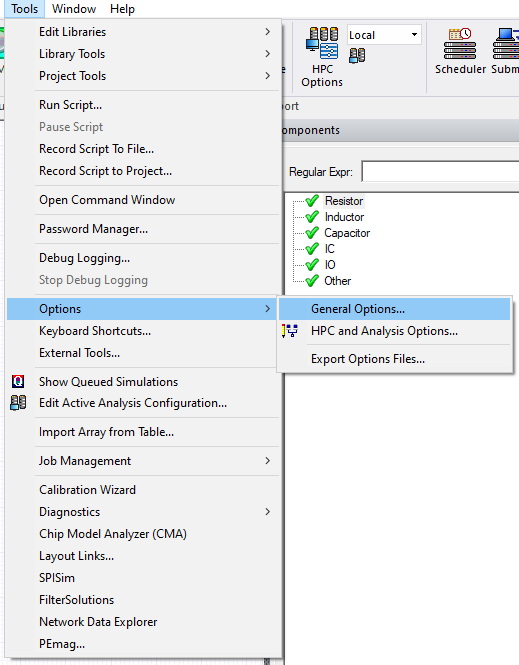
From the Tools menu, select Options > General Options to open the Options window.
-
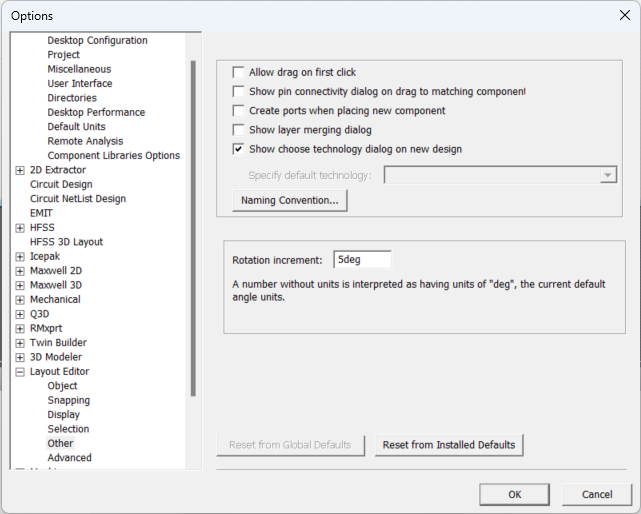
Expand Layout Editor and select Other. Then check the Show choose technology dialog on new design box.
-
Click OK to close the Options window.
-
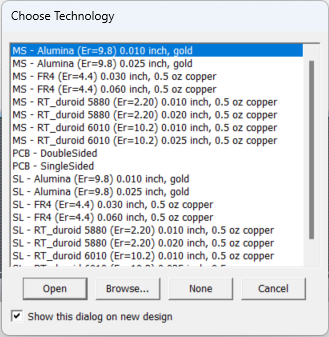
Insert a new design HFSS 3D Layout design in a project to open the Choose Technology window.
-
Select a structure on the list.
Note:Alternatively, click Browse to search for an existing .asty technology file.
- Click Open. The technology file you selected is listed in the Project Tree as EMn by default, where n is the order of the design in a potential series of designs. Sublevels named Data, Excitations, Analysis, and Results are automatically created underneath the design name in the Project Tree, storing data about the current project. The Layout view window also appears. You may now create or edit the design layers.
To import a technology definition from a technology definition file, refer to Adding a Technology Definition File to a Design (IC Mode only).