
Nexxim supports the import of X-parameter models via an import wizard. To open the wizard,
- View the Component Libraries. Open the Symbols area. Click Import Models.
- From the area of icons, select the XParam icon to open the Import Components window.
- Select the file containing the X-parameter component
information.
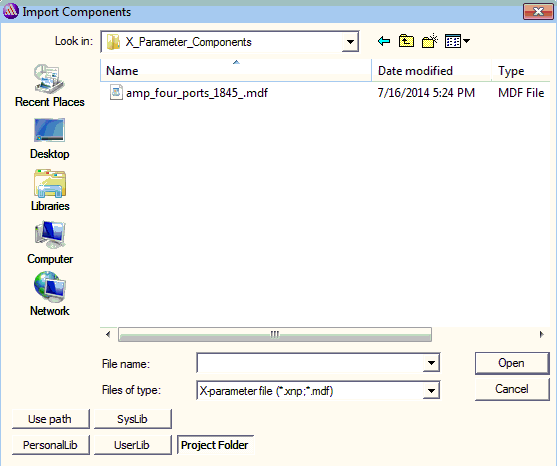
- Select the file containing the X-parameter component information.
- Click
Open and an instance of the X-parameter element attaches to the
cursor. Drag and place it in the schematic. The port configuration is read on the file.
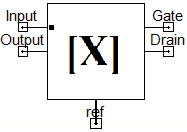
- When you are finished placing instances of the component, right-click and select Finish or press Esc on the keyboard to stop placing instances.
- Select the component to display its Properties.
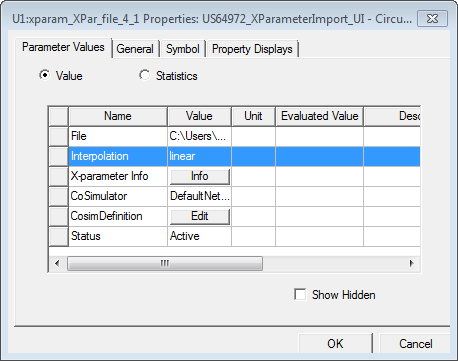
The Interpolation property: Linear interpolation is the only choice currently available for calculating X-parameter values for solution points that are not in the file data.
- Click X-parameter Info to display
a (read-only) summary of the contents of the file.
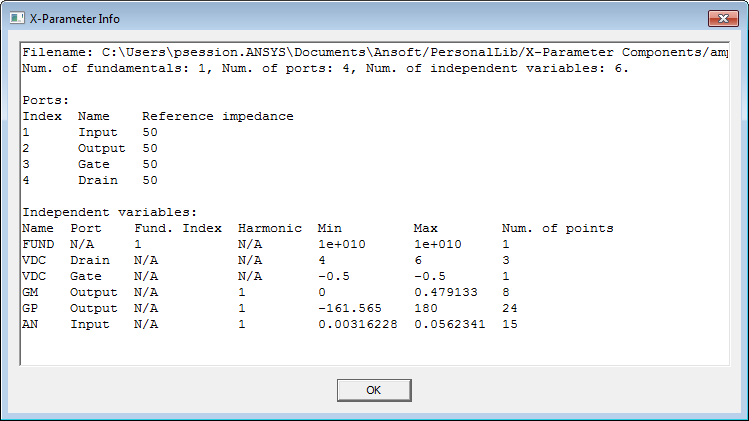
The Info window displays:
From the top lines:
- The name of the file.
- The number of fundamental large-signal inputs.
- The number of ports.
- The number of independent variables in the file.
For each of the Ports:
- The port number.
- The port name.
- The reference impedance.
For each of the Independent Variables:
- The name of the variable.
- For the FUND variable, the index of that fundamental. A FUND with index 1 is required.
- For the VDC and IDC variables, the name of the port corresponding to the port number given in the file.
- For the variables after FUND, VDC and IDC, the name of the port and the harmonic number.
- For all variables, the minimum and maximum values used in generating the X-parameters.
- For all variables, the number of sweep points employed in generating the data file. The number of sweep points affects the accuracy of the calculation when interpolation is required.
See Independent Variables for X-Parameters for details.
-
Click OK to close the X-Parameter Info window.
-
Click OK to close the Properties window.
-
Connect the X-parameter component to the circuit. The X-parameter model can be simulated only with Nexxim Harmonic Balance analysis. See the X-Parameter Technical Notes for information on the implementation.