
To import an IBIS buffer or buffer model from an IBIS library file (.ibs) in a Circuit schematic:
- View the Component Libraries.
Open the Symbols area. Click Import Models.
From the area, select the IBIS icon to open the Import Components window.
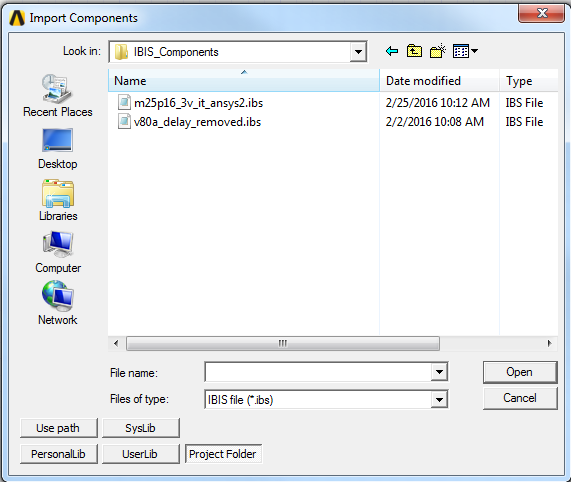
- Specify the location of the IBIS file by clicking Use Path, PersonalLib, UserLib, or SysLib.
See Paths for Model File Selection for details.
- Within the PersonalLib, userlib, or syslib folder, select the file from those listed, or type the name of the file in the File Name area. Note that syslib is reserved for libraries supplied with Electronics Desktop.
If you select Use path, type the name of the file in the File Name area, or click the Look in field to navigate to the file and record its name. Note that components or libraries imported with Use Path may not be portable when the project is moved to another machine.
When Project Folder is selected, references to the file in the design are relative to the directory where the project resides. In this case, the path is saved in the project .adsn file as a variable such as:
.lib '$PROJECTDIR/x_113854.ibs'
The variable $PROJECTDIR are expanded to the current location of the project when the design is converted to a netlist and run by an analysis tool. Otherwise, an absolute path is saved. If you move a project and its library files together to a new directory, you can preserve the file references by selecting the Project Folder option.
- Click Open to select the IBIS file and open the Import IBIS window. The next step is to select the pins and buffer models to make into schematic components.