
HFSS 3D Layout Options
Configure global changes to HFSS 3D Layout on the Tools > Options > General Options window. Make choices in the General Options window to create time-saving configurations for all projects at once. This greatly aids in the setup and execution of solution files and the data files which are produced. The specified options are used for all projects, unless explicitly overridden in a design.
From the General Options window, select HFSS 3D Layout to configure the following options in the Interface Options area.
-
Choose whether to Save solution files in binary mode for new projects. Enabled (checked) by default.
-
Enable Schematic controls whether new HFSS 3D Layouts, and designs imported from ANF files, have schematics activated or deactivated. When Enable Schematic is unchecked (deactivated), all Schematic Editor menu/toolbar options are unavailable. Enabled (checked) by default.
To deactivate schematic options for an active design, first expand the Project Tree in the Project Manager window. Then right-click the active design and select Schematic > Enable to remove the check mark and deactivate schematic options.
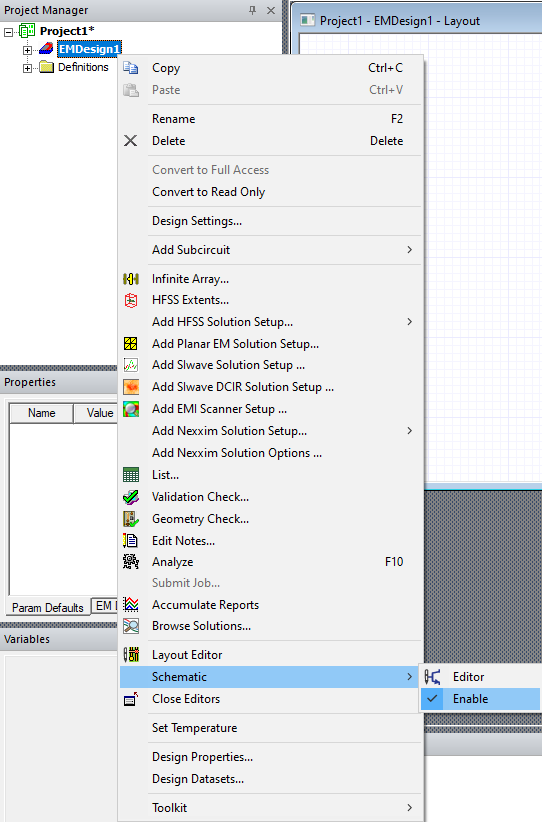
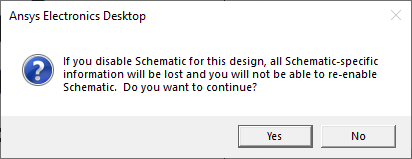
If Enable Schematic is unchecked, the following warning message appears. Once it is deactived, Enable Schematic cannot be re-enabled for a design.
It is possible to have a project in which some designs have schematics enabled and other designs have schematics disabled. Objects cannot be copied from designs without schematics into designs with schematics. Objects can be copied in the opposite direction but the copy operation does not contain schematic-specific information, and the paste option is deactivated.
- Choose whether to Save before solving. Enabled (checked) by default.
If Save before solving is checked (enabled), and a major edit is made, the project is saved if a solve is started. Also, if a new project is created and a solve is started, the Save As window opens automatically and prompts users to save the project before continuing. If this option is unchecked, the user is not prompted to save before a solve.
If users do not have permissions to write to the project folder, or if one of the files in the project folder is read-only, then choosing Save or Analyze prompts users to save the project to another location. Canceling the Save As cancels the Analysis.