
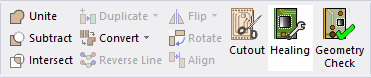
To access the Geometry Healing window, navigate to the Layout ribbon and click Healing.
Once selections are made, select from the following:
Preview – shows a preview of the operation without changing the database.
- Various statistics appear after a preview or application. The worst case is typically given – click magnifying glass to jump to that location.
Apply – save changes.
Close
Point Snapping
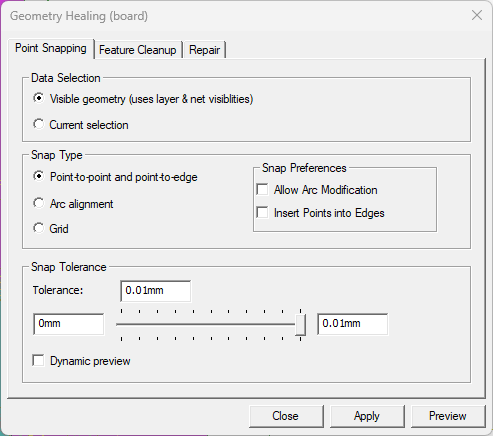
The Point Snapping tab includes the following areas:
Data Selection
Select either of the following geometry healing operations:
Visible geometry (uses layer & net visibilities – determined by layer and net visibility.
Current selection – only the currently selected geometries are affected.
Snap Type
Select from the following snap types:
Point-to-Point and point-to-edge – attempts to snap points to points and points to edges.
- Only points in the tolerance are moved.
- Points are snapped across nets (i.e., nets are not shorted).
- A snap is rejected if the angle about the point changes by more than 1 degree.
- Locked objects can be snap targets but are not themselves altered.
- Points may snap to the edge of a trace but traces themselves are not moved.
- Vias act as snap targets but are not changed.
- Rectangles may become polygons.
Arc Alignment – aligns arcs that share a similar center or a similar radius.
- Only arcs with centers or radii in the tolerance are adjusted.
- Also align the start/end points of traces and bondwires with circles and vias.
- Vias are treated as fixed objects – they are not moved but other arcs may align to them.
- The operation attempts to align arcs but does not guarantee alignment, especially when multiple arcs are connected in a polygon.
Grid – snaps all geometry points to a grid defined by the tolerance. Users can view this as a rounding operation: coordinates are rounded to the tolerance value supplied.
- Snaps all primitives.
- Snaps the center location of vias.
- Snaps the start/end locations of bondwires.
Snap Preferences – check either/both of the following options, as appropriate:
-
Allow Arc Modification – arcs drawn in close proximity to another primitive's edge will snap to the primitive if they are both healed.

-
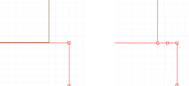
Insert Points into Edges – if adjacent primitives with edges in close proximity are both healed, new points will appear at midpoints between their existing edges and at the new edges created where they snap together.
Snap Tolerance
Enter a value to set the Tolerance, or adjust to an appropriate value using the slide bar. Check Dynamic preview to see a live update as the tolerance is adjusted.
Feature Cleanup
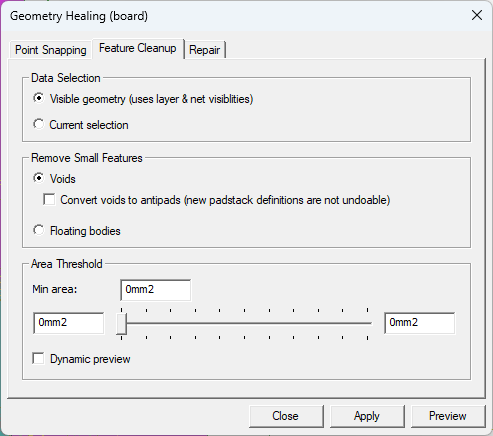
The Feature Cleanup tab includes the following areas:
Data Selection
Select either of the following geometry healing operations:
Visible geometry (uses layer & net visibilities – determined by layer and net visibility.
Current selection – only the currently selected geometries are affected.
For Voids and Floating bodies cleanup, all the geometry is inspected to determine if the criteria for cleanup is met.
Remove Small Features
Select of the following small features to remove:
Voids – removes voids with an area less than the tolerance.
- Does not remove voids with vias passing through them.
- Check Convert voids to antipads (new padstack definitions are not undoable).
- The void must be circular or rectangular and the via must pass through its center.
- The via must belong to a different net than the void owner.Note:
This creates new padstack definitions, which are not removed by undo.
Floating Bodies – removes small islands of metal with an area less than the tolerance.
- If attached to other bodies, the total connected area is considered (takes into account vias).
- When making the determination, all geometry (whether selected or visible) is included.
- Does not remove bodies with ports attached.
Area Threshold
Enter a value to set the minimum area, or adjust to an appropriate value using the slide bar. Check Dynamic preview to see a live update as the threshold is adjusted.
Repair
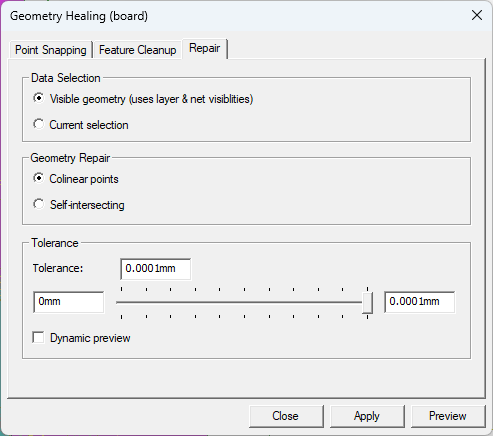
The Repair tab includes the following areas:
Data Selection
Select either of the following geometry healing operations:
Visible geometry (uses layer & net visibilities – determined by layer and net visibility.
Current selection – only the currently selected geometries are affected.
Geometry Repair
Select either of the following geometry healing operations:
Colinear points – removes collinear points from polygons and trace center-lines.
- A point is considered collinear if it deviates on the chord connecting the adjacent points by less than the tolerance.
- This operation also removes very narrow intrusions and spikes from a polygon.
Self-intersecting – removes self-intersections from polygon data.
- The negative region of the self-intersection is excised.
- Voids are correctly preserved – this may require duplicating a void if it overlaps two positive lobes of a self-intersecting shape.
Tolerance
Enter a value to set the minimum area, or adjust to an appropriate value using the slide bar. Check Dynamic preview to see a live update as the threshold is adjusted.