
Complete these steps to export the results of a Planar EM analysis to a matrix data file for use by other analyses.
- Define and run the Planar EM analysis.
- From the EM Design menu, select Results > Matrix Data to open the Solutions window to the Matrix Data tab.
- Select the setup name and simulation name to be saved on the listings in the Simulation fields.
- Select the type of data to be saved (S, Y, Z, Zo, or Gamma). The choices depend on the results that are available.
- Select the frequencies for which data can be saved:
- To save the data for all frequencies, check Display All Freqs.
- To save the data for selected frequencies, leave Display All Freqs unchecked and choose the frequencies on the drop-down menu.
- Optionally, select Check Passivity. EM Design reports any passivity violations in the matrix data. Optionally, set the Passivity Tolerance (default 0.0001 or .01%).
(See the S-Parameter Technical Notes for details.
- Click Export Data Matrix. The Export
Network Data Solution window opens:
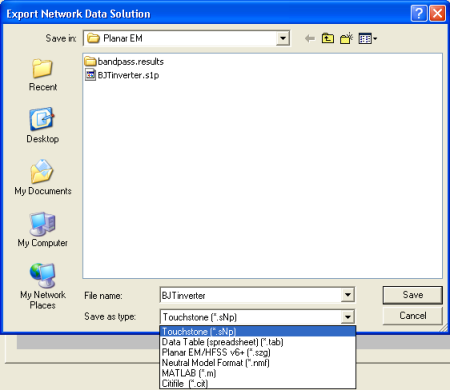
Select a directory for the export in the Save in: field. Select a file name for the exported data in the File name: field. Select the chosen data format on the Save as type: list, then click Save.
Options for file format are:
- Touchstone (.sNp file extension)
- Data Table (spreadsheet) (.tab file extension)
- Neutral Model Format (NMF) (.nmf file extension)
- MATLAB (.m file extension)
- CITIfile (.cit file extension)
- The Specify Export Reference Impedance window opens to specify the reference impedance for the data:
- Select Override Solution Renormalization (the default) and set the impedance as chosen (50 Ohms is the default). The Touchstone file data are renormalized to the port impedance you specify, if the impedance is not the same as that used for the original analysis. Selecting Do Not Override Solution Renormalization inactivates the Impedance field.
- Choose to Export Noise Data with Touchstone files in Electronics Desktop.
- Choose to include Gamma and impedance comments in the Touchstone file (the default), or to omit them. Omitting the comments can make the Touchstone file much smaller.
- When the impedance information is complete, click OK.
- Click Close to close the Solutions window.