
Edit Port Excitations
Many of the excitation features described in the following sections can be accessed by right-clicking the Excitations folder in the Project Manager window.
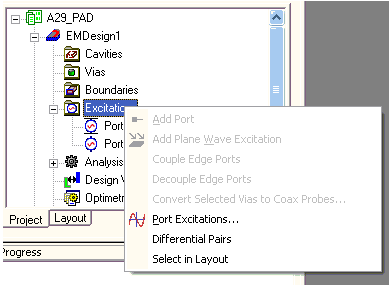
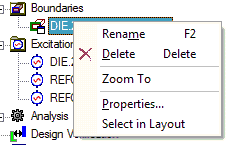
Or can be accessed by right-clicking Excitations items and Boundaries items.
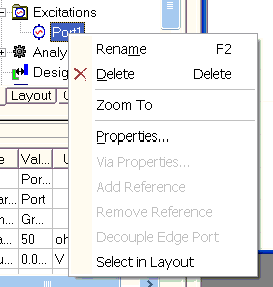
AND
Select Port Excitations to open the Port Excitations window:
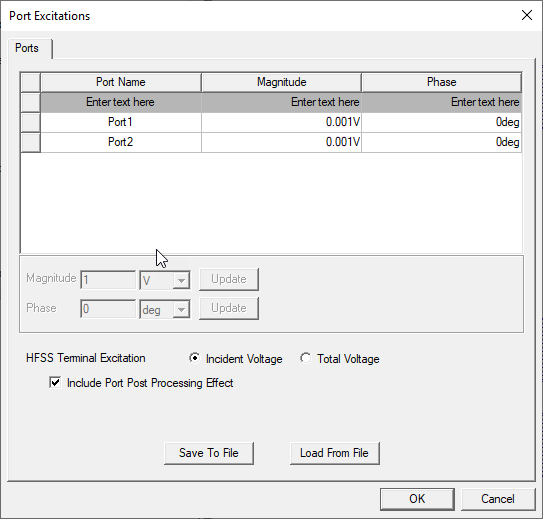
You can use this window to modify port excitations, including post-processing and renormalization settings. For HFSS Terminal solutions, select a terminal excitation type of Incident Voltage or Total Voltage. Selecting Total Voltage adds more columns to the table.
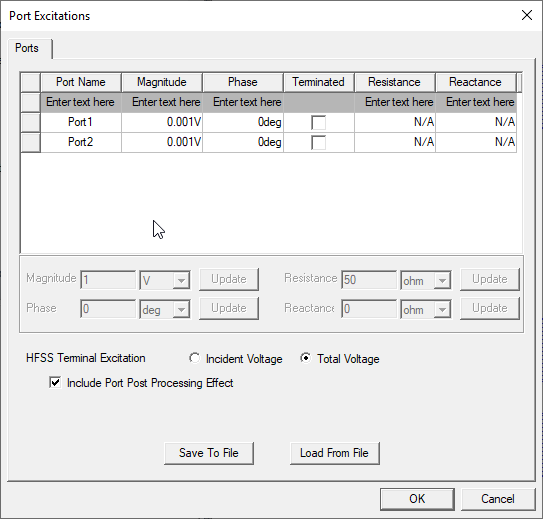
You can scale the sources individually through the source table or import a list of the port excitations and their settings from a text or CSV file through Load From File. This feature can help for projects with many ports. Complete these steps to directly edit the ports table.
- Select ports and their corresponding settings fields activate beneath the table.
- Use the first row of the table to filter the ports to find the ones you want.
- From the Magnitude field, enter the magnitude you want. Design variables
can be used.
Note:
You may not enter a negative voltage. To obtain the equivalent of a negative magnitude, add or subtract 180 degrees on the phase value.
If you use a design variable as a scaling factor note that solutions are invalidated if the variable is changed.
At least one port should be excited (non-zero). If all ports are set to zero, a warning appears, but the values do go through.
- From the Phase field, enter the new phase for the port. The phase of the source is changed by the value that you enter.
- Optionally, if your solution type is driven terminal, you may specify a complex reference impedance:
- For the selected terminal, select Terminated. This turns off the values to the left of the check box, and enables the Resistance and Reactance fields.
- Enter the Resistance and the Reactance and select the units. Ohms is the default.
- Optionally, click a check box to Include Post Processing Effects. The post-processing effect has no impact on the impedance of a terminated port, but the post processing operations (renormalization and/or deembedding) affects the plotted fields.
- To saves a list of the port excitations in the grid and their settings in a text or CSV file, click Save to File.
- Click OK.
Renormalization is ignored if it is set to zero, but de-embedding is still honored. The following warning message is produced for all ports with a zero post-processing renormalization impedance: Zero impedance on port '<arg1>' is ignored; renormalization is skipped for this port.