
Complete these steps to create a void, or remove material from an object in the shape of a circle, rectangle, polygon, or line.
One object can have multiple voids but each void can only be associated with one parent object (e.g., to create two concentric rings, draw the outer circle, then add a circular void within it).
-
Select a parent object.

-
Navigate to Draw, then select Void and one of the following:

-
Circle. Then follow the procedure for drawing a circle.
-
Rectangle. Then follow the procedure for drawing a rectangle.
-
Polygon. Then follow the procedure for drawing a polygon.
Note:To Remove a Line, navigate to Draw menu, then select Void > Line. Follow the procedure for drawing a polygon. A void cannot be created in the shape of a line on an existing line object. Material is removed from the object in the shape and dimensions of the void.
-
-
-
Repeat steps 1-2 to create additional voids in an object.
-
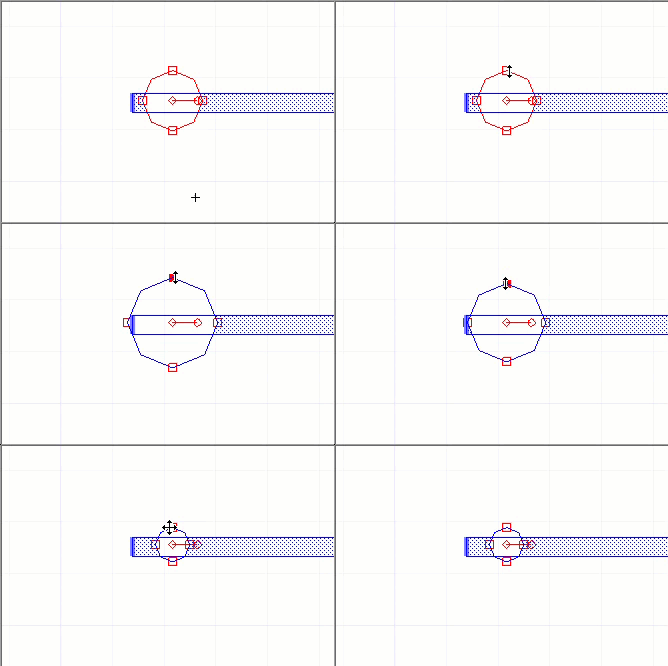
View or edit a void’s properties in the Property Control window or use the mouse to drag the void’s handles.

-
Click+drag the void's handles to change its shape.
3D vias may contain voids. Voids in 3D vias can be placed entirely or partially in the outer contour. No attempt is made to geometrically align voids in the upper polygons with those in the lower. The order in which voids on different layers are created is used to control their alignment.