
Directional drawing allows you to constrain snapping to a particular direction when moving, placing, and duplicating objects or primitives in the Layout Editor. Directional drawing/snapping can be set to snap to the orthogonal (x or y) or to 45 degrees. Directional drawing/snapping is set in the same manner as other layout snap options, by using the Snapping options tab of the Layout Options window. For more information see The Snapping Tab.
Rather than configuring a universal directional drawing constraint using the Snapping options tab of the Layout Options window, alternately you may temporarily modify the current constraint using a simple keystroke. The following keys modifies the current directional drawing/snapping constraint as you manipulate objects and primitives in the Layout Editor:
- Pressing 'd' applies a 45 degree directional drawing/snapping constraint
- Pressing 'r' applies an orthogonal directional drawing/snapping constraint
- Pressing 'n' removes any directional constraint that has been configured
Both the move and duplicate operations uses the currently configured directional constraint. The default for directional drawing is none. From the Layout Editor, the directional drawing mode is indicated by a dotted-cross cursor.
The reference point for directional drawing — the (0,0) point for the current movement — is marked with a dotted cross:
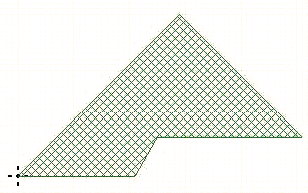
The following directional drawing rules apply when creating primitives, voids, and measurements:
- The first hover after initiating directional drawing sets the reference point for the current movement.
- The cursor moves freely, but when a snapped-on-hover event occurs, the directional constraint is applied.
- Each click resets the reference point for the next movement.