
When the Design Verification run is complete, the icon for the run changes to indicate that it was executed and whether results are found. Run icons also indicate whether results are invalid. Results are invalid if the layout, rule set, or run was changed after it was last executed.
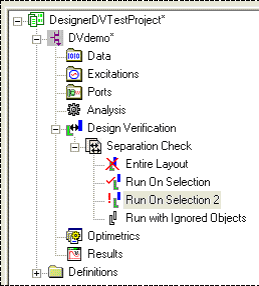
For example:
- Entire Layout has been executed and contains invalid results.
- Run On Selection has been executed and no results are found.
- Run On Selection 2 has been executed and contains valid results.
- Run with Ignored Objects has not been executed.
After a design verification run has been executed and contains valid results, view those results on the Project Manager window (i.e., expand the Project Tree and [Active Design Folder]. Then right-click the chosen analysis and selecting View Results to open the Design Verification Results window). The window is not modal.
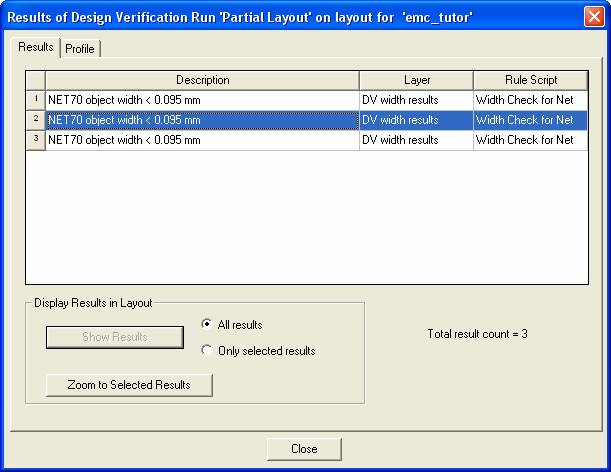
The Results window contains two tabs: Results and Profile. The Results tab is used to display results graphically and interactively, while the Profile tab contains a summary of information about the run.
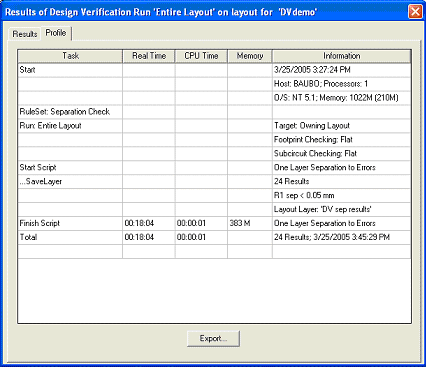
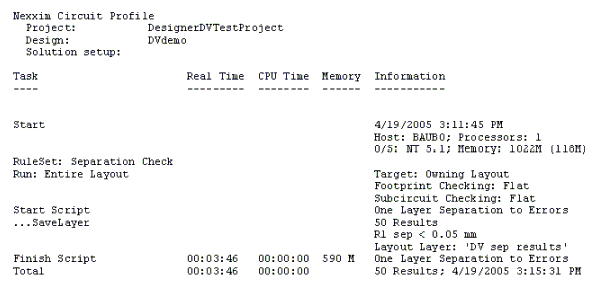
To write the Profile to a specified text file, click Export. This writes the summary to a specified text file with the following format:
To view the actual results of the verification, in the Results tab, select All results or Only selected results, then click ShowResults. The results are displayed in heavy red lines in the Layout Editor.
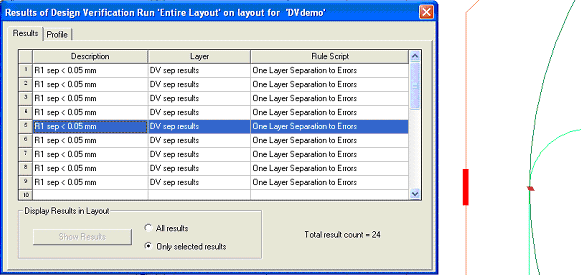
This example shows the result of line 5. The result for this check is a pair of thick line segments, drawn in red on layer "DV sep results". The check was done in the rule script "One Layer Separation to Errors" and was commented in the script with the description "R1 sep < 0.05 mm".
Results are only displayed in the Layout Editor when the Results window is open. Once the window is closed, any results currently being shown in the layout are removed. Multiple Results window for different runs may be open at the same time, but only the results of the active window are shown in the Layout Editor. The Show Results button of each non-active window is enabled to allow you to switch between results. If results are visible in the layout, and at least one result is selected in the grid control, the Zoom to Selected Results button is enabled. Clicking it change the layout view to zoom to the results.
To export the graphical results, display all the results and leave the Results window open. Then use layout Export functionality to export to the chosen format and be sure to include the results layers. The GDSII data exported with this window contains the results geometry and layers, along with layout geometry and layers.