
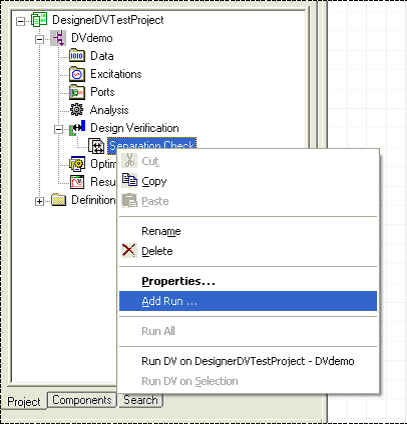
This example helps you set up two design verification runs for a single rule set — one run to test the entire layout and another run to test only selected objects. To define a second run that verifies only selected objects, in the Project Tree beneath Design Verification, right-click the Rule Set and select Add Run.
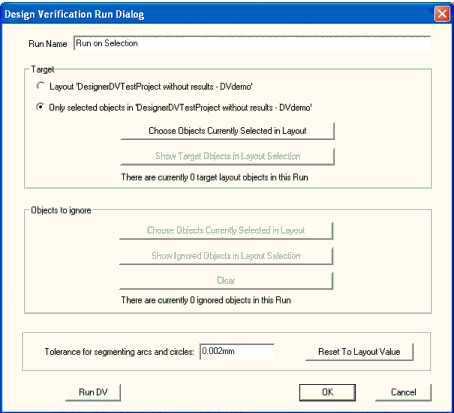
This re-opens the Design Verification Run window. This time, change the Run Name to “Run on Selection” and select the second Target button. The window message updates to show the number of objects checked by the run. Click OK.
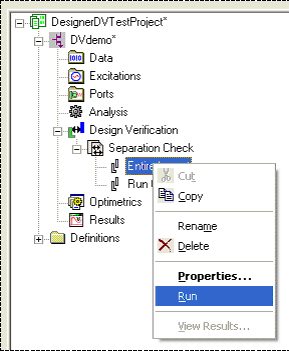
To run the design verification and populate a run with results, in the Project Tree right-click the chosen Run Name, such as “Entire Layout” or “Run on Selection” and select Run. This executes the design verification on the rule set you have chosen.
While the run is executing, a progress bar appears which indicates the rule set, run, script, and command, and how long the run has been executing. The run may be aborted clicking the arrow button.
