
Viewing and Exporting DC IR Solution Results
Complete these steps to view DC IR results.
- From the Project Manager window, expand Project Tree > [Active Design Folder] > Analysis. Then right-click the DC IR simulation (e.g., DC IR Sim) and select Results > [Appropriate Result Type] (e.g., Export Power Tree).
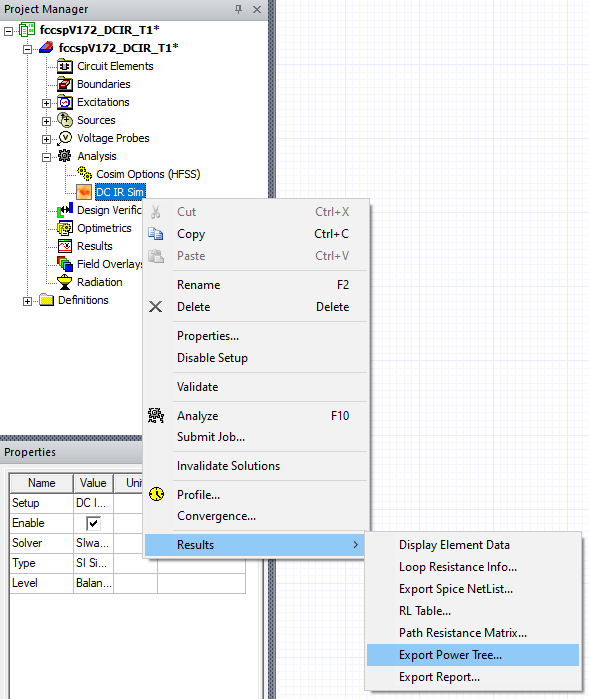
- Select the result type you open a settings menu and customize the final output. Options include the following:
- Display Element Data
- Loop Resistance Info
- Export Spice NetList
- RL Table
- Path Resistance Matrix
- Export Power Tree
Display Element Data
Complete these steps to view and export DC IR data.
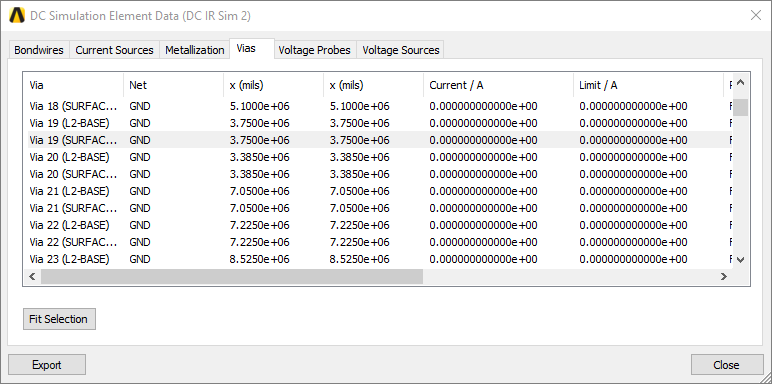
- From the Project Manager window, expand Project Tree > [Active Design Folder] > Analysis. Then right-click the DC IR simulation (e.g., DC IR Sim) and select Results > Display Element Data
to open the DC Simulation Element Data window.
-
Select any element to highlight the element in the design area and populate the Properties window with relevant information. Ctrl+click to select more than one element at a time or Ctrl+A to select all.
-
Click Fit Selection to focus and zoom in on a selected element.
- Use the tabs to move between elements, and click column headers to sort the data. The Pass/Fail column shows Pass if the total current is less than or equal to the current limit flowing through the element.
- Click Export to save the data as a DC Element Data File (*.dc).
Loop Resistance Info
The loop resistance is computed per pair of sources where the first source is the location of the measurement, and the second is the return path of the current loop. Note the source used as return path is shorted and the internal resistance is ignored. Complete these steps to view loop resistance information in SIwave.
- From the Project Manager window, expand Project Tree > [Active Design Folder] > Analysis. Then right-click the DC IR simulation (e.g., DC IR Sim) and select Results > Loop Resistance Info
to open the Loop resistance information window.
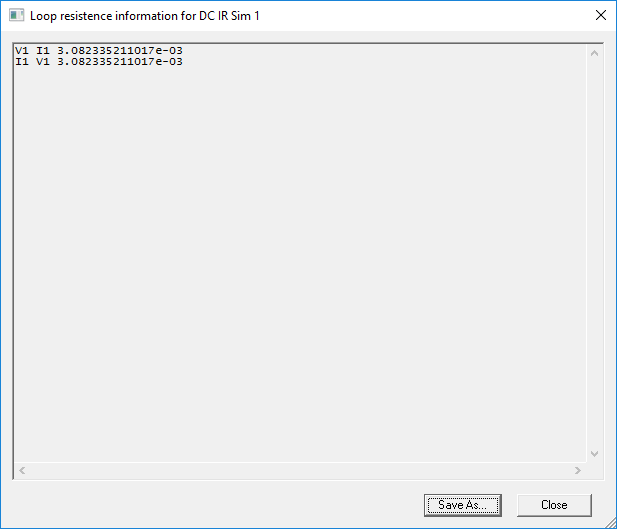
- Click Save As to save the Loop Resistance information in plain text format.
Export DC SPICE Subcircuit
Exporting a subcircuit allows you to perform an analysis of the structure in a circuit simulator, together with detailed nonlinear models of the drivers and receivers. Also simulate systems comprising PCBs and packages by connecting their subcircuits together in SPICE or Spectre. Complete these steps to export a SPICE Subcircuit.
- From the Project Manager window, expand Project Tree > [Active Design Folder] > Analysis. Then right-click the DC IR simulation (e.g., DC IR Sim) and select Results > Export Spice NetList
to open the Export DC SPICE Subcircuit window.
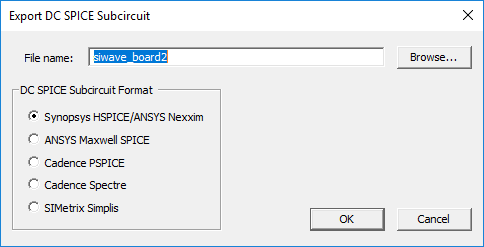
- Browse to the chosen directory to save your file.
- Select the chosen SPICE format.
- Click OK.
RL Table
The RL Table displays RLCG values for terminals and nets. Complete these steps to view the RL Table.
- From the Project Manager window, expand Project Tree > [Active Design Folder] > Analysis. Then right-click the DC IR simulation (e.g., DC IR Sim) and select Results > RL Table
to open the DC RL Table window.
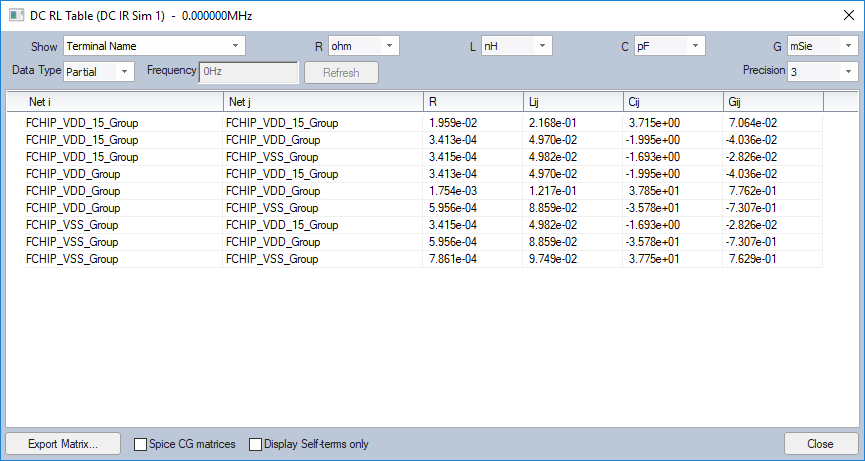
- Use the drop-down menus to adjust data types, units of measure, and precision for display.
- Click Export Matrix to save the table in either CSV or plain text format.
Path Resistance Matrix
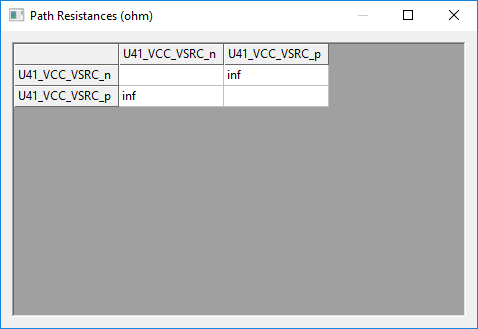
The Path Resistance Matrix shows resistances between pairs of terminals. To view the path resistance matrix, navigate to the Project Manager window. Then expand Project Tree > [Active Design Folder] > Analysis and right-click the DC IR simulation (e.g., DC IR Sim). Select Results > Path Resistance Matrix to open the Path Resistances window.
Export Power Tree
The Power Tree provides a graphical representation of actual voltage, actual current, IR drop, specification, and pass/fail status. Complete these steps to export the Power Tree.
- From the Project Manager window, expand Project Tree > [Active Design Folder] > Analysis. Then right-click the DC IR simulation (e.g., DC IR Sim) and select Results > Export Power Tree
to open the Export DC Power Tree window.
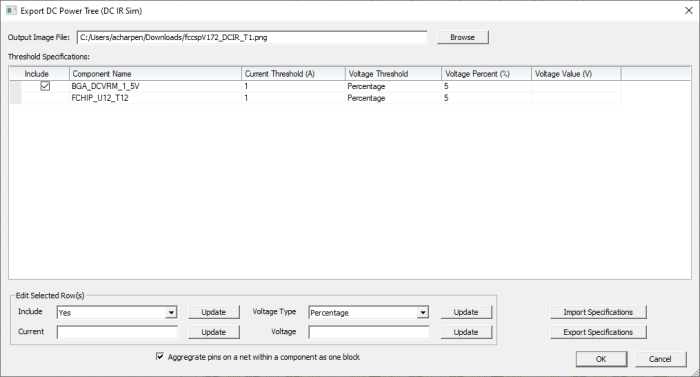
- Click Browse to select a name and location for your file.
- Adjust the settings as chosen.
If the source/probe is a distributed current, all of the pins from a single component can be combined into one block for general analysis. Check the Aggregate pins on a net within a component as one block box beneath the Edit Selected Row(s) area to proceed.
Before Pin Aggregation
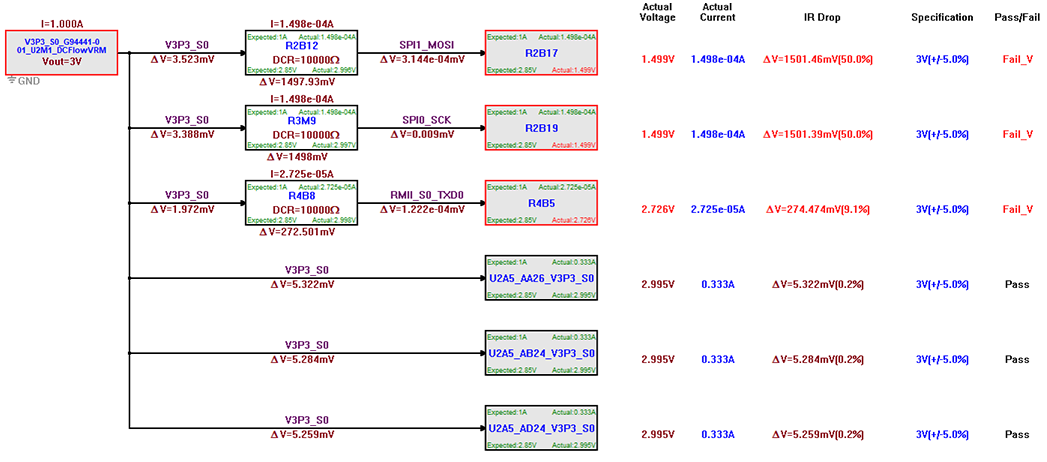
The result will display the combined pins' average voltage loss as well as the most significant voltage loss experienced by any of the pins.
After Pin Aggregation
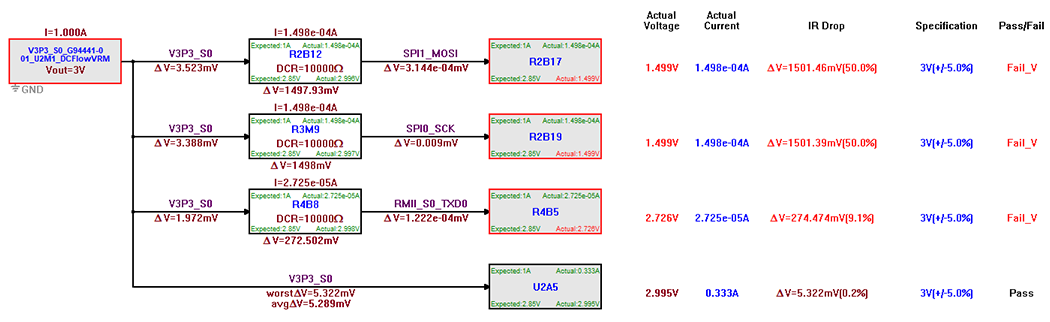
- Click OK to save the power tree in PNG format and open it in the default image viewer.
