
Creating Vias, Pins, and Padstack Definitions from Primitives
HFSS 3D Layout can create a via or pin from a primitive. When it does, HFSS 3D Layout creates a new padstack definition based on the geometry of the primitive. HFSS 3D Layout then replaces the primitive with a via that is assigned this new padstack definition. To make a primitive into a pin, convert the primitive to a via, the via into a pin.
Multiple primitives can be converted into vias at once. When identical primitives are converted at the same time, only one padstack definition is created. That definition is then applied to all the identical vias. These vias has the same dimensions. If the primitives are not identical, then one padstack definition is created for each unique geometry.
To create vias from primitives, or pins from vias, perform the steps in the following subsections.
To Create Vias from Primitives:
- Draw one or more primitives. From the Properties window, the primitive’s Type is whatever type of primitive that it is (e.g., "poly").

- Highlight the primitives. Note:
The vias remain selected until purposefully deselected.
- From either the menu bar or by right-clicking in the Layout Editor, select Draw > Convert > Primitives to Vias.
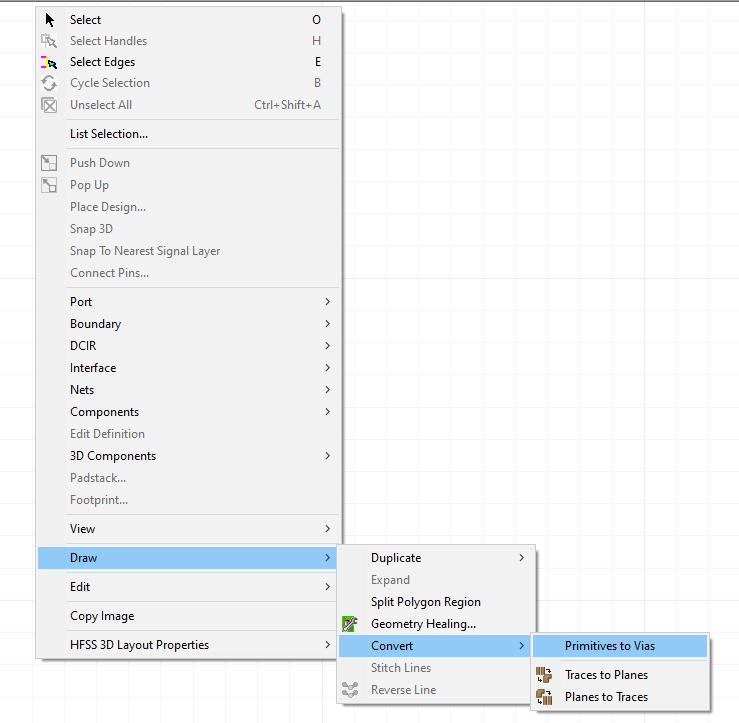
From the Properties window, the primitive's Type is now Via.

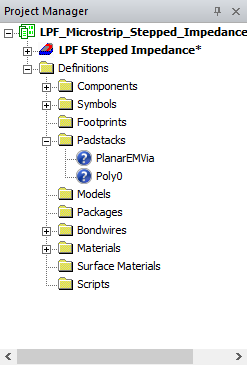
New padstack definitions appear in the Project Tree (Definitions > Padstacks) .
To Create Pins from Vias:
To convert the new vias to pins, change the Type to Pin in the Properties window.
To See the Geometry of a New Via:
- From the Properties window, click Padstack Definition to open the Select Definition window. The via's padstack definition is highlighted.The padstack definition is named after the type of primitive.
- Highlight the new via.
- Click Edit Padstack. The geometry of the via is listed in the Layers section.
If this procedure is attempted on anything that is not a primitive, then it is ignored.