
Re-solving after Ansys Workbench Thermal Feedback
With the Enable Feedback box in Setting the Temperature of Objects dialog box is checked, you can manage analysis with feedback in Ansys Workbench. After solving an HFSS or Q3D Extractor or Maxwell design, after performing the corresponding linked thermal analysis in Ansys Workbench, you can receive a temperature distribution back from the thermal solution. Ansys Workbench will write the feedback files directly to the Project Solution directory.
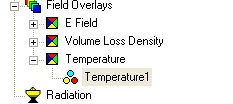
After an analysis that includes thermal feedback from Ansys Workbench, you can see temperature changes expressed in Temperature field overlays (both visually in the overlay and in the color key) as well as in the Solution data.
In the Solution data Profile tab you will see a new entry for Maximum Delta T, for the change in temperature from the previous simulation. The solver calculates delta in the first iteration by comparing the temperature distribution output from thermal with the initial temperature setting in HFSS/Maxwell/Q3D. Subsequent simulation iterations provide a number for the temperature delta.

This simulation feedback loop from Ansys Electronics Desktop to Ansys Workbench and back can continue until you decide that Temperature delta reported in the Solution Report low and stable for the designs.