Toolkit
The Toolkit command in the solver menu provides access to a design type specific IronPython script, such as the Hearing Aid Compliance Test, MIMO calculation or a module specific task, such as for Boundary, Excitation, or Solve Setup. The Hearing Aid Compliance Test toolkit example involves multiple modules. The MIMO example includes a Toolkit script and a User Defined Solution Script. The Cable modeling toolkits serve automotive cable applications and oil and gas applications.
An MI Materials Gateway toolkit that can interact with the Granta Gateway to bring in new materials at a project level, and so, it appears on the Tools>Toolkit menu, rather than the <solver>Toolkit menu. It works in conjuction with scripting commands.
The python script provides default but customizable UI and canned automations. The UDD format can be adjusted/extended as needed. The default UI is a modal dialog.
This allows us to support changing standards, or multiple standards, without necessarily being tied to the product release cycle. Similarly, you can create new UDD to customize the test report.
UDD are saved in project result directory. This type of reports can be created prior to simulation, but will only be populated when there is solution.
Undo/Redo/Scripting is supported. If a script includes multiple commands, it takes multiple undo(s) to revert all the changes made by the python script. Also, the script playback might not work if the baseline of the design has changed.
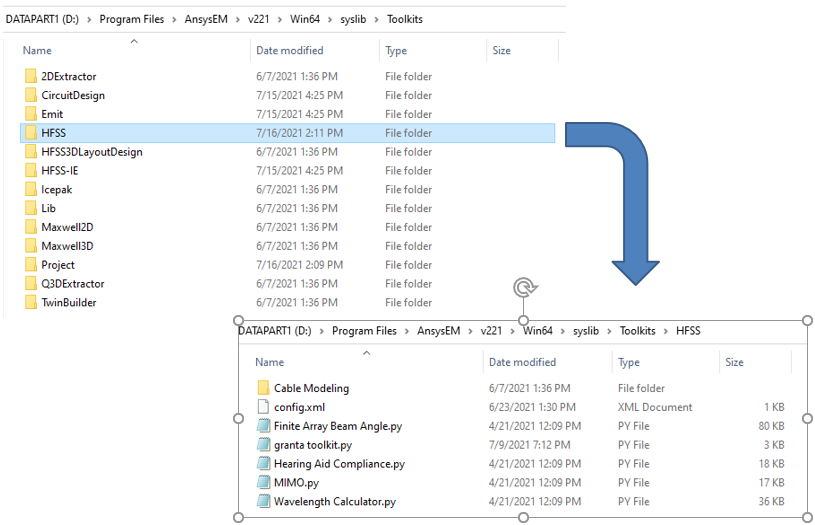
A directory called "Toolkits" appears in the syslib, userlib and personallib of HFSS installation. Menu items for files found in <installation>/syslib will be inserted at the first level of the menu.
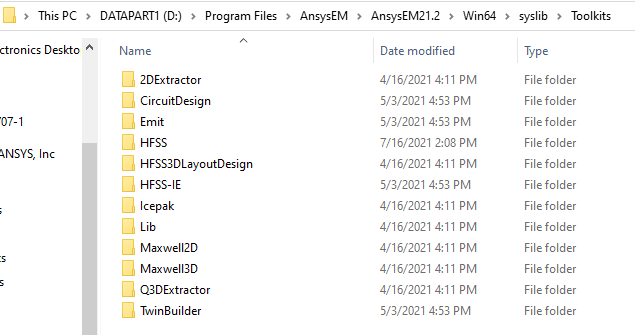
There are product specific directories in "Toolkits" and each directory contains toolkits (scripts) that are specific for that product. The following snapshot illustrates the file structure on disk that provides access to the "HearingAidCompliance" toolkit at the design level menu.