
3D Component Agents: 3D Component Library
3D Components Agents is a feature that allows vendors to provide the information about 3D components that includes a link to their website for downloads. Such 3D Component Agents appear in the component browser along with other installed components, but shows them in a different color and with a globe icon or provide other visual clue to indicate that these are different from components provided in the Ansys Electronics Desktop installation.
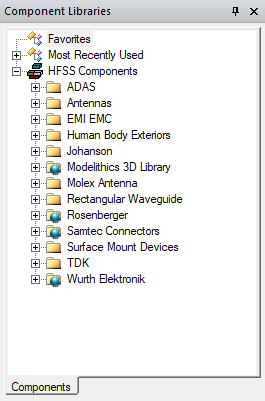
When you double click these 3D Component Agents, your default browser opens to a page with information about downloading the component. Dragging the proxy component into the editor window will do the same thing.
To view any 3D Component Agents, you must have a vendor-provided .xml file in the appropriate model directory:
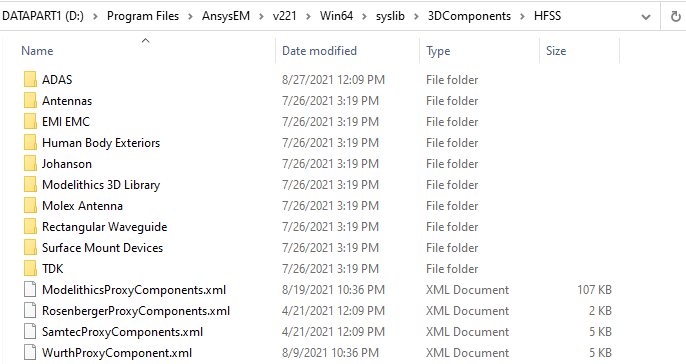
You can view 3D Component Agents in the 3D Component Library if you have enabled View > Component Libraries. You can see the Component Libraries window which will show available proxy libraries. Notice that the folders for a 3D Component Agent Library have a small globe image overlayed on them, and the Agent components have a double icon (rectangle and circle) before the name, rather than just a single blue rectangle.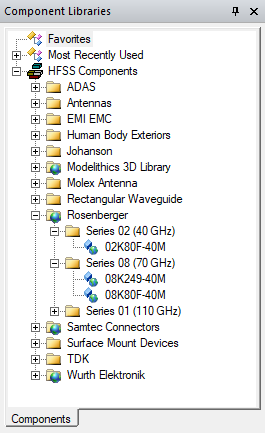
Vendor Nodes of 3D Component Agent Libraries
The vendors provide the name and other additional information such as part number, image, and so forth, for the 3D Components Agents, including the link to their website, and guidance for download, install, and organize them in a hierarchical folder structure just as the 3D components that are part of the installation libraries are organized. If you right click on the top node of a 3D Component Agent library, a menu lets you view information or visit their website.
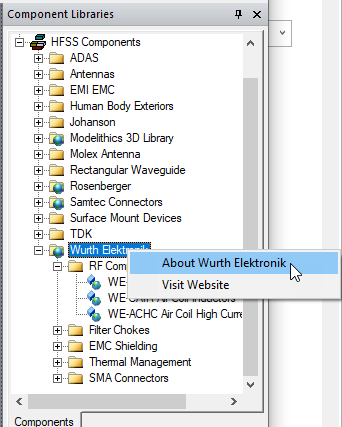
- About: displays information about the whole group of components
- Visit Website: launch browser to website for whole group of components
3D Component Agent Node in Vendor Libraries
These nodes represent an individual Agent component.
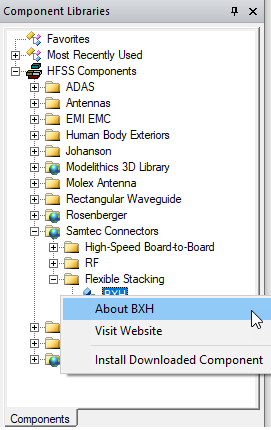
Right clicking on a component displays a menu with three items:
- About: displays information about the selected component
- Visit Website: launches browser to view information about the selected component, and possibly purchase/download the selected component.
- Install Downloaded Component: allows user to import the downloaded component into the component browser.
Installing Downloaded Agent Components
Once an agent component has been purchased/downloaded, it needs to be installed into your component library. Right click on the Agent component node corresponding to the component you downloaded and choose “Install Downloaded Component”. Note: it is VERY important that you select the correct component node that corresponds to the component file that you downloaded or the component file may be installed as the wrong component.
When you click “Install Downloaded Component”, you will be shown a file browse dialog where you can choose the purchased/downloaded component file. See below.
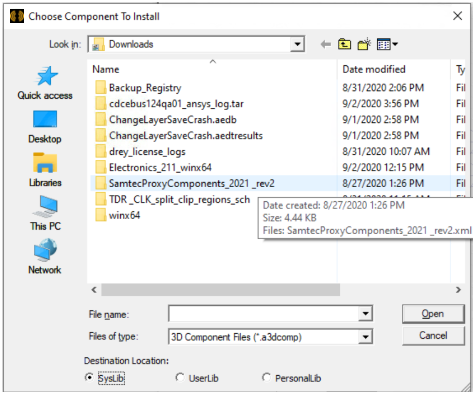
You can also choose to import the component into your syslib, userlib, or personal dir.
Once the component file has been installed, it will now show up as a normal component that can be inserted into the design. See below.
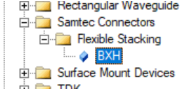
You can drag and drop installed models from the Component Libraries window to the