
Ansys HPC Platform Services Support for HPC Job Management
Ansys Electromagnetics Desktop supports the Ansys HPC Platform Services mechanism that allows quick and easy access to HPC resources, to include Ansys Cloud Direct Gateway. HPC Platform Services can be selected through both the Simulation Ribbon (Scheduler button) and Tools > Job Management > Select Scheduler.
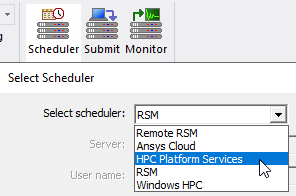
This opens the Select Scheduler dialog.
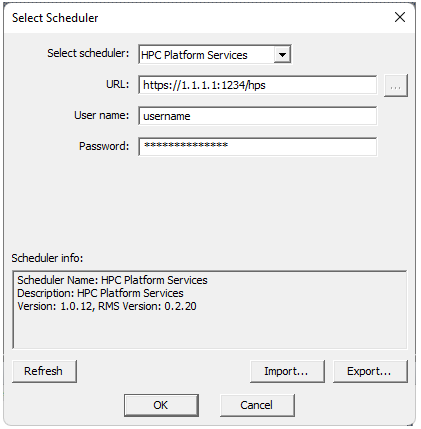
You must supply the URL for the HPC Platform Services. You must also enter the username and password for the HPC Platform Services account to be used for job submission. If you press the Refresh button, the versions of the HPC Platform Services server and the JMS (Job Management Service) are reported in this dialog.
Uploads to and downloads from Ansys HPC Platform Services use archives to improve speed. The Project browser shows both .aedt and .aedtz (archive) files. If you submit an unarchived project, an archive will be automatically created for upload. When the job completes, the results are packaged into an archive. When the download is initiated, the repackaged archive file is transferred to the download folder along with the other job-related files, such as the batch log.
Prerequisites for Using Ansys HPC Platform Services with Ansys Electronics Desktop
You must select HPC Platform Services as your Job Management Scheduler, including an endpoint URL, username, and associated password.
Job Management UI for Ansys HPC Platform Services
You can use Ansys Electronics Desktop to submit batch jobs to Ansys HPC Platform Services and monitor those jobs.
Use Tools > Job Management > Select Scheduler to select HPC Platform Services as the scheduler.
Use Tools > Job Management > Submit Job to submit a batch job to Ansys HPC Platform Services.
Ansys HPC Platform Services-Specific Settings:
The main use case for Ansys HPC Platform Services is where a SLURM cluster is used for computing at the endpoint.
Other schedulers could potentially be used in a compute cluster for Ansys HPC Platform Services.
When a job is submitted from AEDT, HPC Platform Services in turn submits a job to the compute cluster using the scheduler running on that cluster.
In case there are multiple queues (SLURM partitions) set up in the cluster, the Compute Resources tab has a drop-down list box for selecting the queue.
See your cluster administrator for the correct queue/partition name.
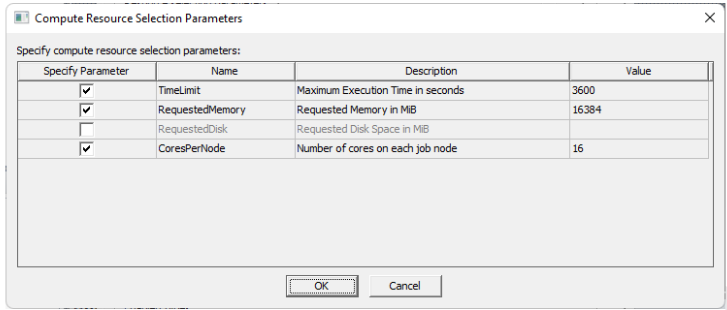
On the Compute Resources tab, Resource Selection Parameters allows you to select the following:
TimeLimit: Maximum execution time for the job in seconds
RequestedMemory: Requested memory for the job (all nodes combined) in megabytes
RequestedDisk: Requested disk space for the job (all nodes combined) in megabytes
CoresPerNode: The number of cores allocated to the job on each node
On the Compute Resources tab, if you select Use automatic settings with Num variations to distribute set to 1, Optimetrics variations will be solved sequentially. Other distribution types will be distributed automatically.
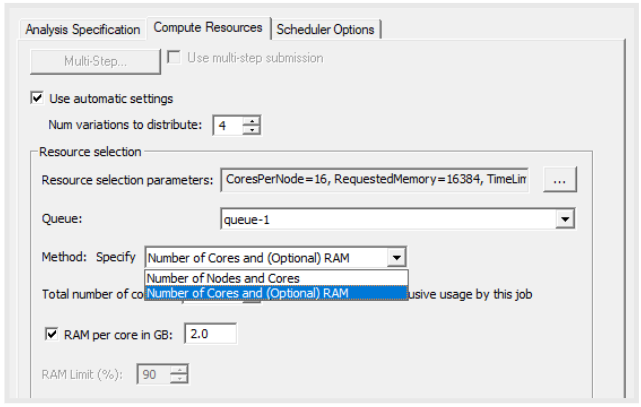
If you check the Use automatic settings checkbox, then you may select one of the following methods for specifying job resources:
Specify Number of Cores and (Optional) RAM
You must select the total number of cores for the job. If you check the associated checkbox is checked, you may also specify the RAM per core for the job. The total RAM requested will be the product of the RAM per core and the number of cores for the job.
Specify Number of Nodes and Cores
The job will request all cores on the specified number of nodes. The analysis will be limited to the specified number of cores; this may be useful to limit the licenses used by the job. This method may only be used if a queue is specified and if all queue execution nodes have the same number of cores. The number of cores specified must be less than or equal to the number of cores available on the specified number of nodes. If these requirements are not met, then the job will not be submitted, and an error message will be displayed.
If you set Num variations to distribute to 2 or more, Optimetrics variations will be solved in parallel. Other distribution types will be distributed automatically.
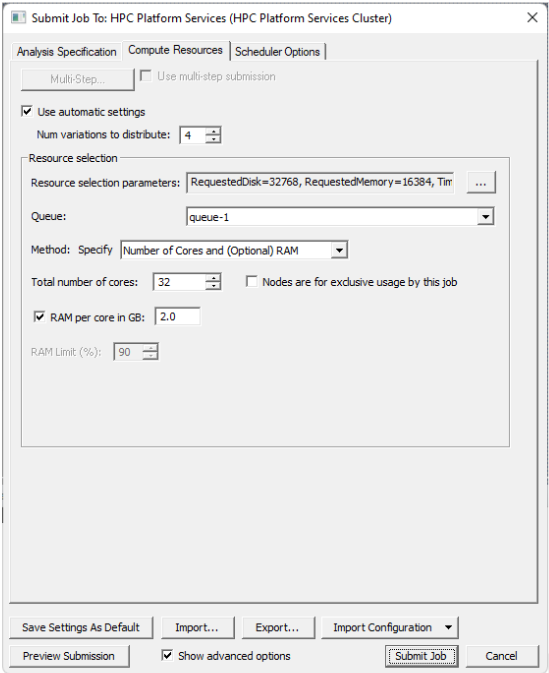
If you set Num variations to distribute to 1, Optimetrics variations will be solved in sequentially. Other distribution types will be distributed automatically.
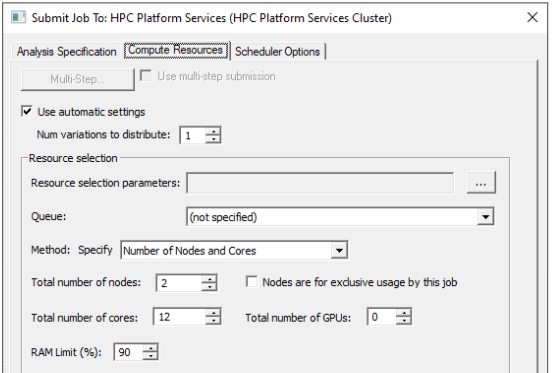
If you do not check Use automatic settings, then you may only select the following method for specifying job resources:
Specify Number of Tasks and Cores
You must specify the number of distributed tasks and the number of cores for each distributed task. The number of cores allocated to the job on each host must be an integral multiple of the number of cores per distributed task. If this requirement is not met, then the job will not start, and an error message will be output. In this case, you may specify a different submission method, or set the CoresPerNode resource selection parameter to an integral multiple of the number of cores per task and resubmit the job.
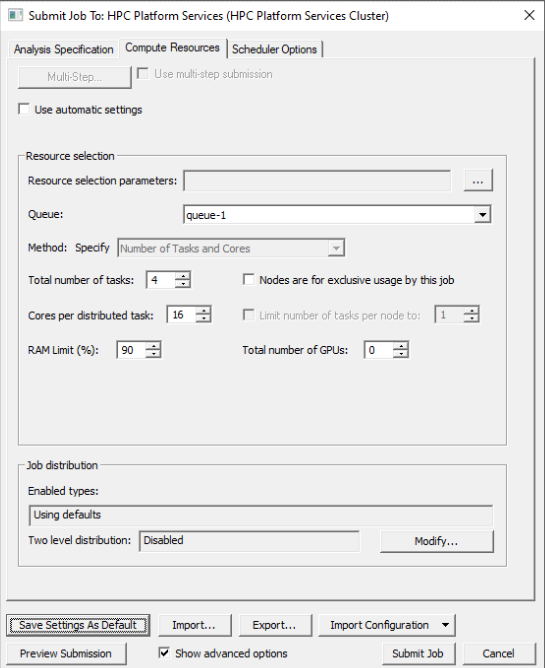
Use Tools > Job Management > Monitor Job to monitor the job's progress.
To get more detailed monitoring information, there is a Job Management Service that can be accessed from the base endpoint URL (without "/hps" at the end).
Option Settings for Ansys HPC Platform Services
The following option is automatically added for Ansys HPC Platform Services jobs:
"-autoextract reports".
See: Running Electronics Desktop from a Command Line.