
Set Coupling for Hybrid Regions
The Set Coupling Command for Hybrid Regions opens a menu that lets you specify one-way, two-way or advanced region coupling. Two-way coupling is the default for all HFSS designs, and fully models the field interaction between regions. One-way coupling includes propagation from source to target regions, and a single bounce of interaction between all regions. This is more efficient than two-way coupling, but also more accurate than traditional one-way links. The Advanced command on the Set Coupling menu lets you place regions in two-way coupled groups in a design that is otherwise one-way coupled..
In some cases the coupling between regions is restricted:
- Two-way coupling is always used for:
- Regions of the same mesh type that are in contact:
- Contact between FE-BI / Dielectric Cavity regions
- Contact between IE/PO Regions
- Physically separated objects that are part of the same region assignment, for example, two boxes that don’t touch, but are in one FE-BI region
- Regions of the same mesh type that are in contact:
- One-way coupling is always used between:
- Linked regions and all other regions
- Designs containing SBR+ regions will always be set to All One-Way and the Set Coupling menu will be replaced by the Set SBR+ Source Regions command. Non-SBR+ regions will serve as sources, and interact with each other through the SBR+ regions.
These restrictions are either enforced by design validation or implicitly handled by the solver.
The Set Coupling menu appears in the right-click menu of the Hybrid folder at the project tree and at the HFSS>Hybrid menu. 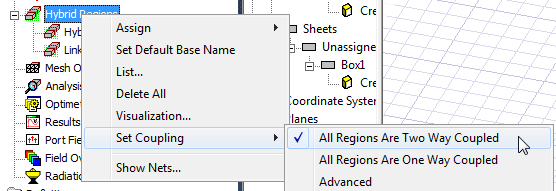
Selecting Set Coupling>Advanced opens a Setup Coupling dialog setup that lists the coupling settings of all the hybrid regions in the design. Any Selected regions in this dialog are highlighted in the view window. You can edit groupings (as shown below) but remember that editing groups invalidates existing solutions.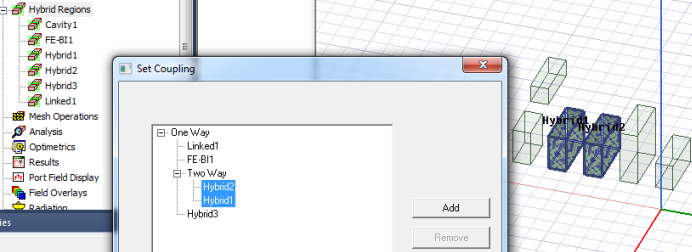
You can add a Two Way coupling group by first selecting the regions to be coupled and then click Group and Ok.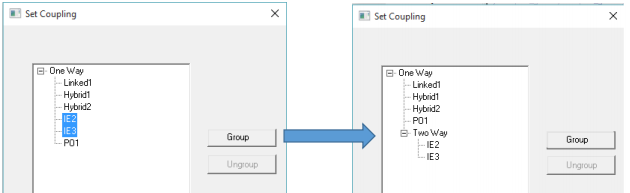
You can un-group a Two Way Coupled group by selecting it and clicking Ungroup and clicking Ok.
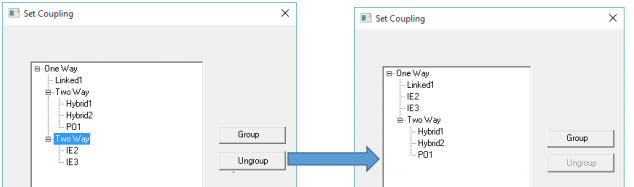
You can also edit grouping by dragging and dropping from one group to another. On Ok, any empty Two Way groups are automatically removed. You will be asked to fix the coupling if you have a Two Way group with only one region.