
Editing Zones
Once zones are created, follow these steps to edit the zones.
-
Edit the new zones (e.g., add or remove layers, et cetera) using the same methods described in the The Edit Layers Window for editing layers.
Note:
If a layer cannot be removed, check that an object (e.g., a primitive) is not still on that layer or in that zone. Then do one of the following:
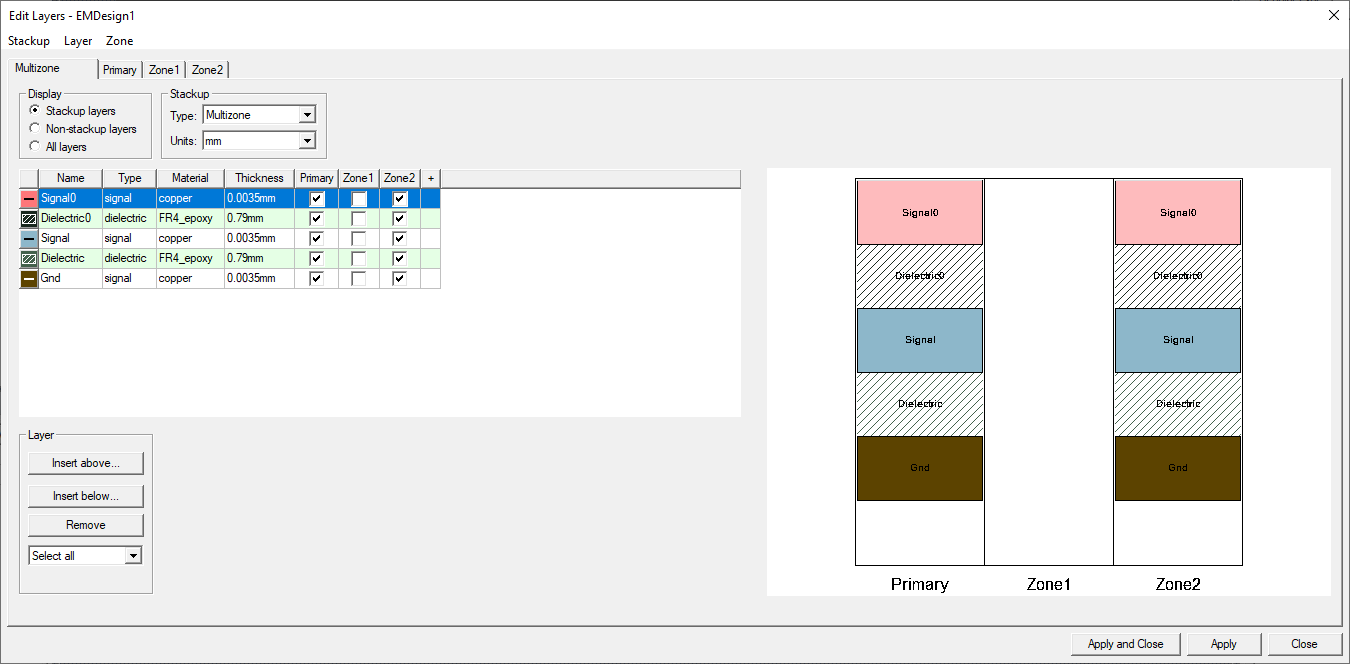
- Remove the check on the box in the zone's column. View the change in the preview window.
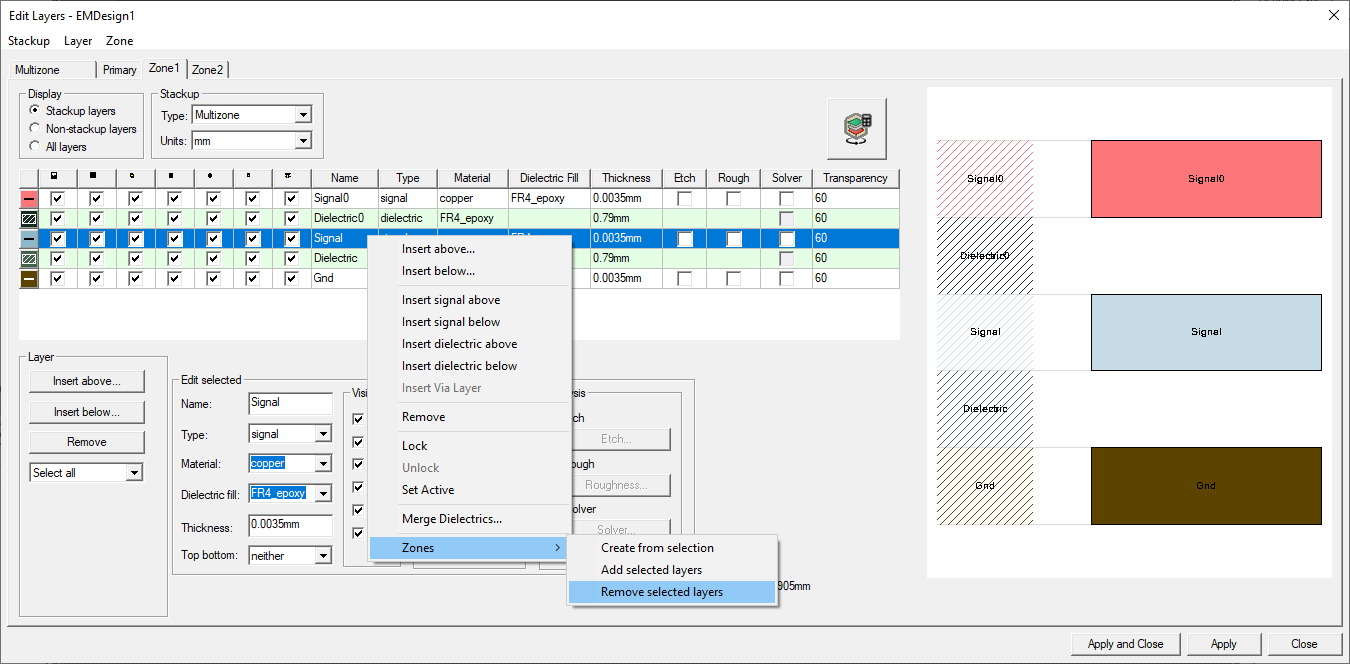
- Select the inappropriate layer or Ctrl+click to select multiple layers. Then right-click and select Zones > Remove selected layers to open the Select Item window.
 Select the chosen zone and click OK to close the window.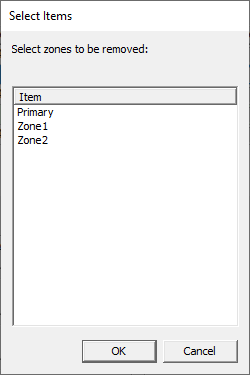
Note:
Layers can also be removed from zones after bends have been created and defined (i.e., after Editing Zones).
-
Click Apply and Close to close the Edit Layers window and return to the Layout Editor.
Continue to Defining Zones.