
Plot Trace Properties
Each Plot node contains one or more Plot Trace nodes. Each Plot Trace node corresponds to a data trace (drawn line) in the plot window. The purpose of the Plot Trace node is to configure the rendering properties of the trace line in the plot, its legend, and to select from the available options of the data that it represents.
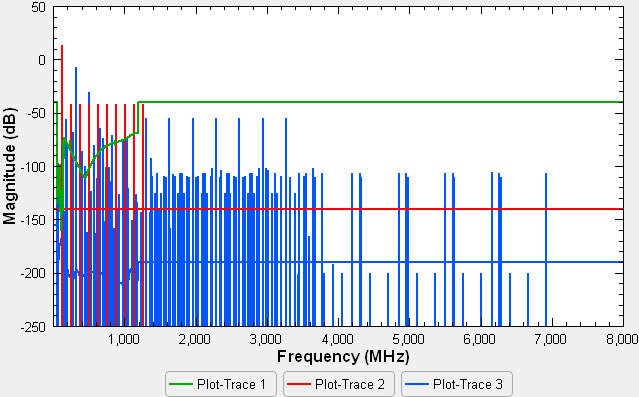
Each trace in a plot appears in a legend at the bottom of the plot window as seen in the following example. Selecting one of the legend entries in the plot window will highlight the corresponding trace and bring up the properties for the Plot Trace.
The Plot Trace property panel contains settings to control the rendering properties of the trace drawn in the Plot window and its legend (at the bottom of the plot). The settings available in the Plot Trace properties varies somewhat depending on the particular type of data being plotted. There are four Plot Trace types in EMIT corresponding to different types of data being plotted and the properties for each of these is shown below.
Plots of the response of an Amplifier contain some special features. Please refer to the Amplifiers section for more details.
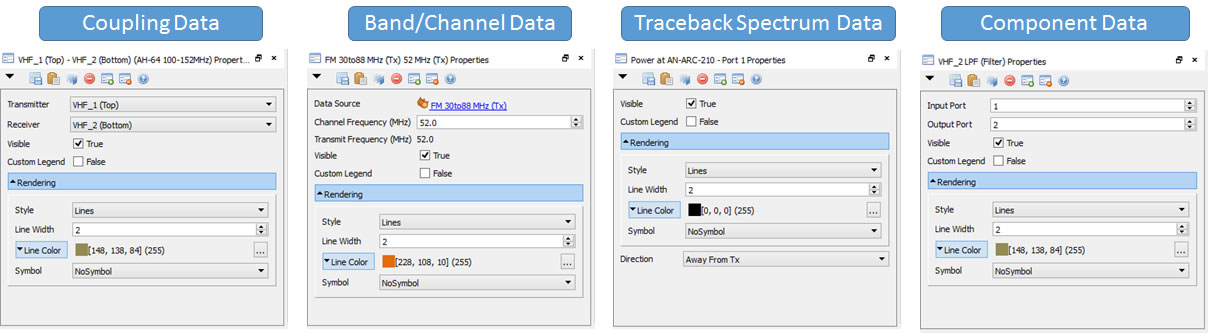
Transmitter / Receiver: (Available when plotting Coupling Data) Plots the coupling data associated with the specified Transmitter and Receiver antennas.
Data Source: (Available when plotting Band data) Indicates the name of the Band node associated with the Plot Trace node. The node name is shown as a link and clicking it takes you to that data node in the project tree. This field is not editable.
Direction: (Available when plotting power spectrum data from the Interaction Diagram) Select whether to plot the power spectrum for the signal moving Away from Tx (to the right) or Toward Tx (to the left).
Input / Output Port: (Available when plotting Components data) Selects the input and output ports for plotting the desired S-parameters.
Visible: Toggles whether the trace is displayed in the Plot.
Custom Legend: This is a toggle panel folder. When switched on, Custom Legend becomes a panel folder. Expand this panel folder to specify the custom text of the trace in the plot legend. You can click the button to the right of the entry field to insert a variety of symbols (encoded as rich text). The plot legend appears at the bottom of the plot window.
Rendering Panel Folder: The rendering panel folder contains settings for configuring how the plot trace is drawn: line style, line width, line color, symbol type, symbol size, symbol color, symbol line width, and symbol fill. For plots with many traces there are many options for differentiating them.
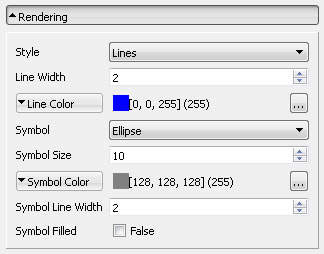
Style: Specify the trace line style: None, Lines, Dotted, and so on.
Line Width: Specify the line thickness.
Line Color: Set the line color. Expand this panel folder to set the red-green-blue (RGB) levels for the line color. Click the  button to choose the color from a palette.
Symbol: Select a marker symbol to be placed at every sample point: No Symbol (default), Ellipse, Rect, and so on.