
Plot Marker Properties
By default, the Result Plot has a marker on the highest EMI margin. The associated marker label will specify the EMI Margin and the origin of the interfering signal by default, but can be customized if desired.
The Marker property panel contains settings to control the text, symbol, and rendering properties of the marker in the window. It also allows you to move the marker and attach or detach it from the plotted data.
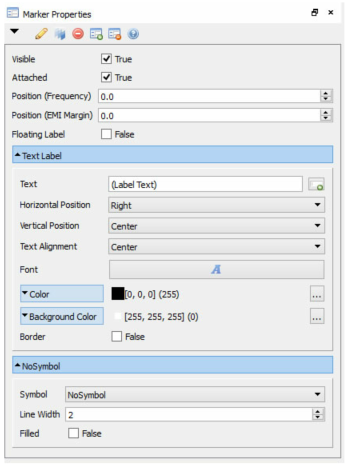
Visible: Toggles whether the marker is displayed in the Plot.
Attached: Toggle on/off whether the marker is positioned in axes coordinates or plot window coordinates. Determines whether the marker is positioned relative to the axes (and therefore moves with the scale) or relative to the plot window. Markers can be moved within the plot window by clicking on them and then dragging. Attached markers will snap to the plot data point nearest to the mouse cursor when dragging.
Position (Frequency): Set the X-axis (frequency) position of the attached marker. This settings is only visible when Attached is enabled (true).
Position (EMI Margin): Set the Y-axis (EMI Margin) position of the attached marker. This settings is only visible when Attached is enabled (true).
Floating Label: Toggle on/off whether the label text behaves as a floating label or is positioned adjacent to attached marker symbol. When switched off (default), the text label is kept next to the marker, which is positioned relative to the axes. When switched on, the text label behaves like a floating marker and is positioned relative to the window frame. This setting is only visible when Attached is switched on (true).
Position from Left, Top (%): Set the position of the unattached marker (or floating label) as a fraction (%) of the plot window size. This pair of settings is only visible when Attached is switched off (false) or when Floating Label is switched on (true). Unattached markers (and floating labels) can also be interactively positioned in the plot or polar plot window by clicking on them and then dragging.
Text Label Panel Folder: The Text Label panel folder contains settings for configuring the text, symbol, and rendering of the marker.
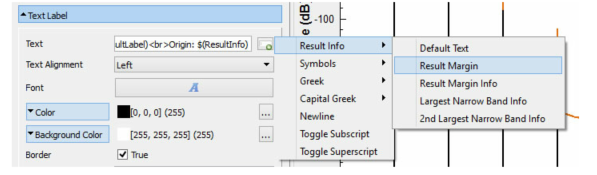
Text: Specify the marker text. The label supports rich-text formatting, so you can insert HTML-style text formatting and special characters. While editing the text, you can click the button to the right of the entry field to insert a variety of symbols (encoded as rich text) at the current cursor position. Additional options for EMI Info are available in Result Plots as shown below.
Horizontal Position: Set the horizontal position of the label relative to the position of the marker. This setting is only visible when Attached is switched on and Floating Label is switched off.
Vertical Position: Set the vertical position of the label relative to the position of the marker. This setting is only visible when Attached is switched on and Floating Label is switched off.
Text Alignment: Set the alignment (that is, justification) of the text. This setting only effects multi-line text.
Font: Set the font of the marker text. Certain types of rich-text formatting in the text itself may override this.
Color: Set the color of the marker text. Expand this panel folder to set the red-green-blue (RGB) levels for the text color. Click the icon button to choose the color from a palette.
Background Color: Set the background color of the marker text. Expand this panel folder to set the red-green-blue (RGB) levels for the text background color. Click the icon button to choose the color from a palette.
Border: Toggle on/off whether a border is displayed around the text label.
Border Width: Set the thickness of the text label border. This setting is only visible when Border is switched on.
Border Color: Set the color of the text label border. Expand this panel folder to set the red-green-blue (RGB) levels for the text label border color. Click the icon button to choose the color from a palette. This setting is only visible when Border is switched on.
Symbol Panel Folder: The Symbol panel folder contains settings for configuring an optional symbol displayed at the position of an attached marker. It is only available when Attached is switched on (true).
Symbol: Select a symbol to be placed at the marker position. Choose NoSymbol to remove the symbol.
Symbol Size: Set the size (in points) of the symbol.
Symbol Color: Set the color of the symbol.
Symbol Line Width: Set the line thickness symbol.
Symbol Filled: Fill the interior of the symbol with the Symbol Color.