
Circuit Design Overview
This chapter briefly introduces the basic steps for setting up and running a design project in the Electronics Desktop (Electronics Desktop). The focus is on circuit and system analysis and the framework required to design RF-microwave, signal integrity, and printed circuit board applications. The initial steps are 1.) launch Electronics Desktop, 2.) start a new project, and 3.) enable the Choose Technology window (optional).
Launch Electronics Desktop
To launch Electronics Desktop, click the Electronics Desktop shortcut icon:
Start a New Project
When you launch Electronics Desktop, a new project may be created for you (Project 3 in the example above). If a new project is not automatically created, go to the File menu and click New to start one. A project can contain one or more designs.
Enable Technology Dialog
If your Circuit design uses a field solver, you may need to select the layout technology before opening the design. Complete the following steps to ensure that the appropriate window opens.
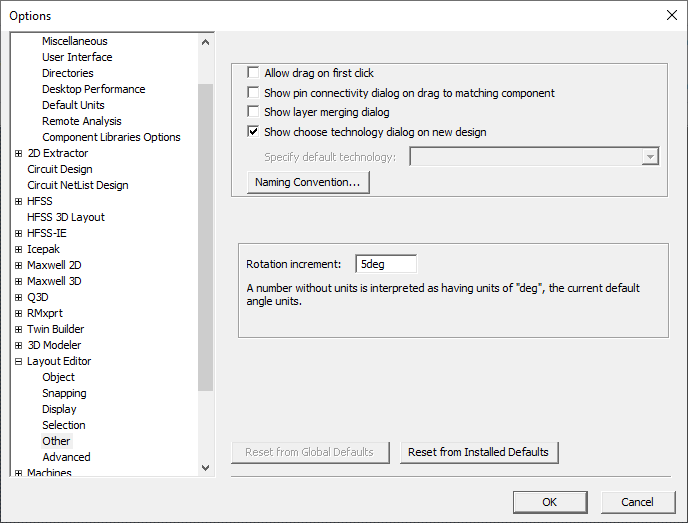
- Go to Tools > Options > General Options.
- From the Options window, expand the Layout Editor and select Other.
-
Ensure the Show choose technology window on new design option is selected and click OK.
Enable Legacy View
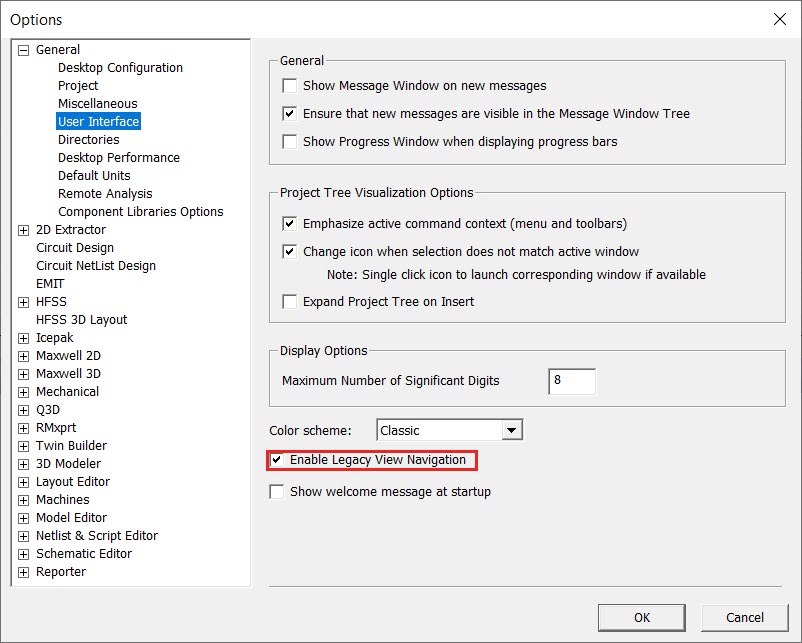
To view orientations consistent with the instructions and images in the guide, enable legacy view navigation.
-
Go to Tools > Options > General Options.
-
From the Options window, expand General and select User Interface.
-
Check Enable Legacy View Navigation
The subsequent workflow involves these steps:
- Select the type of design to create.
- Define the initial physical stackup, if required.
- Populate the design with components and layout objects.
- Add ports and/or sources.
- Create a solution setup.
- Analyze the design.
- Generate an analysis report.
Related Topics