
Title Block Tab
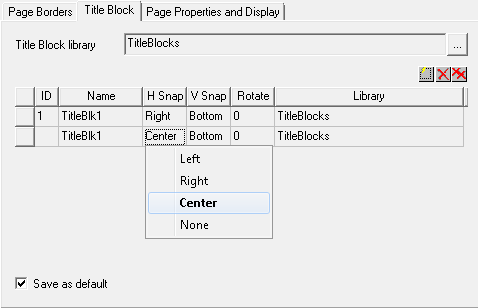
- From the Title Block tab, choose a Title Block Library by clicking the [...] browse button to locate a title block .aslb library; or accept the default library.
- To add a title block to the grid, click the yellow “lightning bolt” icon, and select a title block symbol on the list presented.
- Within the grid control, the title block can be set to snap along the bottom, top, or on either side, or can be set to not snap at all. You can also Rotate the title block 0, 90 or 270 degrees.
- You can move title blocks on the schematic much like any other element, though title blocks have optional snapping constraints. If a title block has been set to snap (any choice but None), it can be moved between snapping points: Left, Center and Right for horizontal; Top, Center and Bottom for vertical. The snap property on the title block is changed accordingly. The snap location can also be changed through the property window or the Page Borders and Title Blocks window.
- More than one title block can be added to a page. Unwanted title blocks can be deleted on the page using either the single red “X” button to delete a single entry, or the double red “X” button to delete all entries. An ID property on the title block corresponds to the number in the ID column of this tab, so a user can identify which title block to delete.
- Click OK to add all title blocks in the list to the schematic page, The blocks in the list snap to the border as specified, or as previously placed if the snap specification is None. If blocks are removed on the list, they are removed on the schematic. Any changes made to blocks in the list are applied to preexisting title blocks.
- Selecting None for Border Type after setting up border and title block(s) causes title blocks to be remembered but not drawn.
- Note that to create a symbol with company logo, propdisplay positioning, and as much additional information and graphics as needed and store it in a symbol library where it is available for any schematic page.
- Clicking on the Save as default check box causes the title block information to be saved to the registry and used as a default for the subsequent pages.