
Set Up the VerifEye Analysis
From the Schematic Editor, perform the following steps to set up and run a VerifEye analysis.
- From the Project Manager window, expand the Project Tree and [active design folder]. Then right-click Analysis and select Add Nexxim Solution Setup ... > VerifEye Analysis to open the VerifEye (Statistical Eye) Analysis window.
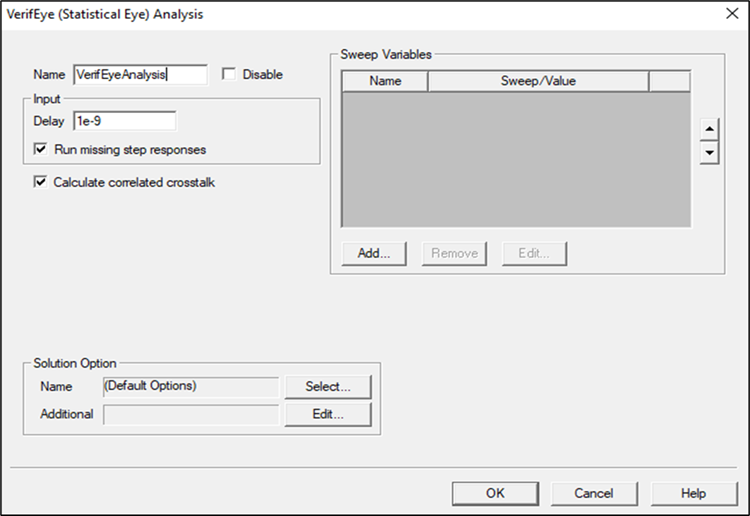
- Type an Analysis Name (or accept the default name, for example “VerifEyeAnalysis”).
- For most simulations, leave the Disable group box unselected (the default setting). Selecting this box lets you store multiple solution setups for later use.
- From the Input group box:
- Specify the Delay to be applied before the step response is applied (default is 0 seconds)
- Run missing step response allows simulation to proceed when an External Step Response component is present in the design but no step response data file can be found.
-
Calculate correlated crosstalk is checked (i.e., activated) by default. To compute uncorrelated crosstalk, uncheck the Calculate correlated crosstalk box.
- To add a sweep, locate the Sweep Variable area in the VerifEye Analysis window.
- From the Sweep Variable area, select Add to open the Add/Edit Sweep window.
- In the Variable list, select Temp or the name of a variable (when a variable has been defined for the design), then select one of the following: Single value, Linear step, Linear count, Decade count, or Octave count.
- Type the sweep values into the Value text box (for Single value), or into the Start, Stop, and Step text fields (for Linear, Decade, or Octave count), and ensure that the appropriate units are selected for each.
- For details on sweeps, see Variable Sweep.
- Click Add, then click OK to close the Add/Edit Sweep window and reopen the VerifEye Analysis window.
- Optionally, use the fields in the Solution Options group box to add VerifEye/QuickEye options.
- Click Select on the Name field to open the Select Solution Options window.
- To create a new option set, click New to open the Solution Options window.
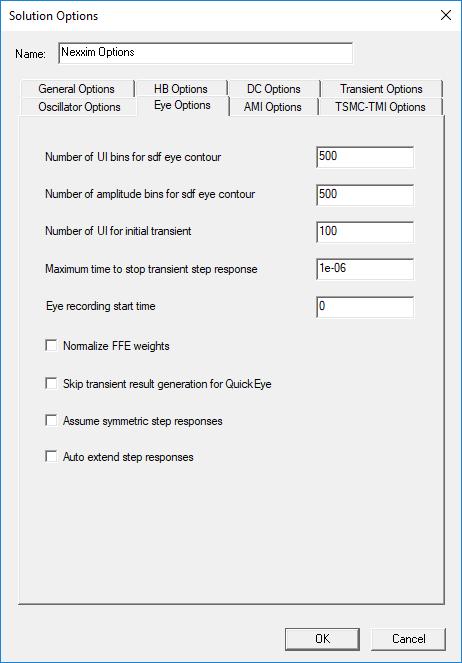
- Click the Name field to name the new option set.
- Click the Eye Options group box fields and check boxes to set any appropriate options.
Number of UI bins sets the number of UI histogram bins to use for generating the 3D and contour data. The default is 500. Option: eye.ui_bins.
Number of amplitude bins sets the number of amplitude histogram bins to use for generating the 3D and contour data. The default is 500. Option: eye.ampl_bins.
Number of UI sets the number of unit intervals (UI) over which the initial transient step response should run after any channel or source delay. The default is 100. Option: eye.num_initial_ui.
Maximum time sets the maximum stop time for the transient step response calculation. The default is 1ms. Option: eye.resp_tmax.
NOTE: VerifEye uses the minimum of (num_initial_ui x UI) and (resp_tmax) to set the transient final time for the step response calculation.
Eye recording start time adds a delay in seconds to the start of sampling for the Statistical Eye diagrams. Default is 0 seconds. Option: eye.eye_start_time.
Normalize FFE weights sets the solver to normalize FFE tap weights (sum of absolute values of all tap weights equals 1). This option applies only to weights supplied by the user. The Circuit solver always normalizes the taps weights that it calculates. By default, the option to normalize user-supplied weights is not enabled in the Solution Options window. Option: eye.normalize_ffe_weights.
Skip transient result turns off QuickEye storage of the eye diagram and the transient-like result. By default, QuickEye stores the eye diagram and the transient-like result. Option: eye.qe_only_cmf.
Assume symmetric step responses sets QE/VE to use the rise time as the fall time. The default is to use different rise and fall times. Option: eye.sym_step_resp.
Auto extend step responses extends the step response beyond the simulation time. By default, the step response is extended only to the end of simulation time. Option: eye.auto_extend_step_resp.
- For more information, see VerifEye and Quick Eye Analysis Options.
- Click OK to return to the VerifEye (Statistical Eye)Analysis window.