
Running Multitone Oscillator Analysis on the Schematic Editor
Multi-tone oscillator analysis is typically used on a circuit that includes one or more oscillation sources:
- One unknown resonant frequency (F1) plus one or more known driven oscillations (RF1 through RFM) such as sinusoidal voltage sources.
- Two or more unknown resonant frequencies (F1 through FN) with no driven oscillations in the circuit.
- Two or more unknown resonant frequencies (F1 through FN) plus one or more known driven oscillations (RF1 through RFM).
An example is a mixer circuit connecting one or more voltage-controlled oscillators (VCOs) of unknown frequencies with one or more RF sources of known frequencies to produce a single resultant IF output.
From the Schematic Editor, perform the following steps to set up and run a multi-tone oscillator analysis using Nexxim, and view the results.
- Set up the schematic circuit for multi-tone oscillator analysis by inserting oscillator probes between pairs of nodes in your circuit. Each probe represents one unknown oscillation. Edit the probe properties and specify an initial guess for the frequency (FREQ parameter) and an initial voltage (A parameter) for each probe. See Using the Oscillator Probe for details.
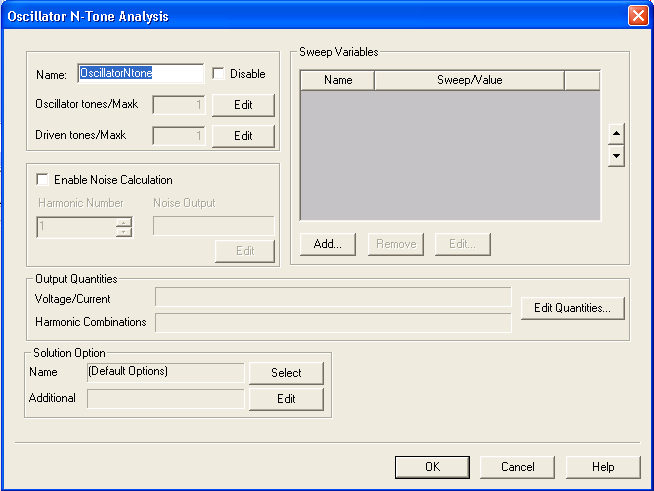
- From the Project Manager window, expand the Project Tree and right-click Analysis. Then select Add Nexxim Solution Setup ... > Oscillator Analysis (N-Tone) to open the Oscillator N-Tone Analysis window.
- Type an Analysis Name (or accept the default name, for example “OscillatorNtone”).
- For most simulations, leave the Disable group box unselected (the default setting). Selecting this box lets you store multiple solution setups for later use. (Note that if a solution setup is deactivated before the analysis is run, any changes made to the design invalidates the simulation results.)
- Click the upper Edit button to
open the Edit Oscillator Tones/Max Harmonic Number window:
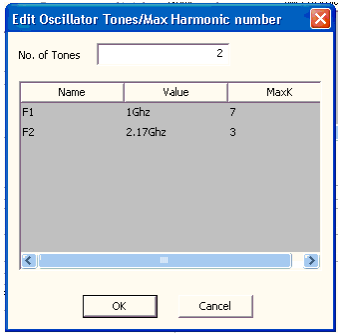
- Specify the number of unknown frequencies to be analyzed in the No. of Tones field. The display changes to show that number of tones, labeled F1 through Fn. The names cannot be changed. The illustration above shows two frequencies (however, most analyses have only one unknown frequency). The number of unknown frequencies must be the same as the number of oscillator probes in the circuit.
- Click the Value fields for the tones to specify the initial guess frequencies. The initial guess frequencies should be the same as the ones entered in the FREQ parameters of the oscillator probes in the circuit. The Oscillator Tones values override the probe FREQ parameters if they are not the same. The default frequency is 1 GHz.
- Click the MaxK field for a tone to specify its maximum harmonic number. The default is 7 harmonics.
- Click OK to return to the Oscillator N-Tone Analysis window.
- Click the lower Edit button to
open the Edit Driven Tones/Max Harmonic Number window:
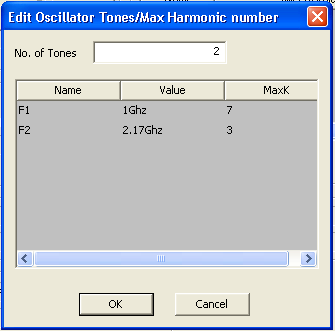
- Specify the number of driven frequencies in the No. of Tones field. The display changes to show that number of tones, labeled RF1 through RFn. The names cannot be changed. The illustration above shows two driven frequencies. These frequencies represent the known, fixed inputs to the analysis.
- Click the Value fields for to specify the frequencies of the driven oscillations. The default frequency is 1 GHz.
- Click the MaxK field for a tone to specify its maximum harmonic number. The default is 7 harmonics.
- Click OK to return to the Oscillator N-Tone Analysis window.
- Optional: To run Phase Noise analysis, check the Enable Noise Calculation group box. See Running Phase Noise Analysis on the Schematic Editor for details on the other steps in setting up the phase noise analysis.
- To add a sweep, Click the Sweep Variable area in the Oscillator N-Tone Analysis window.
- From the Sweep Variable area, select Add to open the Add/Edit Sweep window.
- In the Variable list, select Temp or the name of a variable (when a variable has been defined for the design), then select one of the following: Single value, Linear step, Linear count, Decade count, or Octave count.
- Type the sweep values into the Value text box (for Single value), or into the Start, Stop, and Step text fields (for Linear, Decade, or Octave count), and ensure that the appropriate units are selected for each.
- For details on sweeps, see Variable Sweep.
- Click Add, then click OK to close the Add/Edit Sweep window and reopen the Oscillator N-Tone Analysis window.
- Click Edit Quantities in the Output Quantities field to open the DefinedOutput Quantities window.
Expand the icons for the circuit components (Nets and individual devices), and click the check boxes to select quantities for output.
Expand the Harmonic Combinations icon to display a list of harmonics including combinations. The number of available harmonic combinations is set by the No. of Frequencies and the MaxK for each frequency set in the Edit Oscillator Tones/Max Harmonic Number window in Step 8. Select the harmonics you want to analyze. If you do not select any harmonics, harmonics DC, F1, 2F1, 3F, and 4F1 are automatically selected. In the Report window, only selected harmonics are available for plotting.
Click OK to return to the Oscillator Solution Setup window.
- Optionally, use the fields in the Solution Options group box to select or add Oscillator analysis options and other Nexxim options to the design.
- Click Select on the Name field to open the Select Solution Options window.
If any options sets have been defined, their names appear in the Select Solution Options group box. To select a named option set that you have previously defined, click the name of the option set, then click OK to return to the Oscillator Analysis window. The named option set appears in the Name field in the Solution Options group box.
To create a new option set, click New to open the Solution Options window.
- Select the Oscillator Options tab:
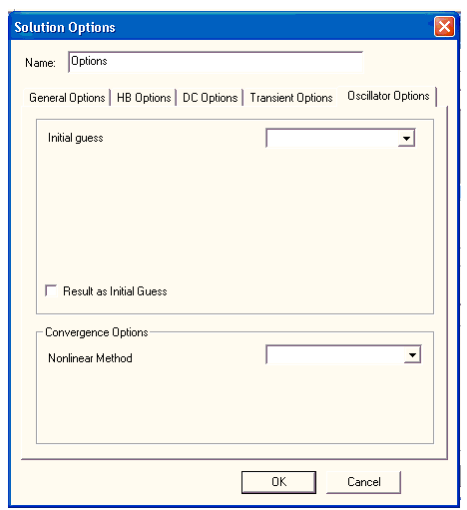
- Enter a name for the options, or accept the default name.
- To select an Initial Guess option, click in the drop-down menu field. The options are Frequency Sweep, Transient, and DC.
For an Initial Guess of Frequency Sweep, the window changes to:
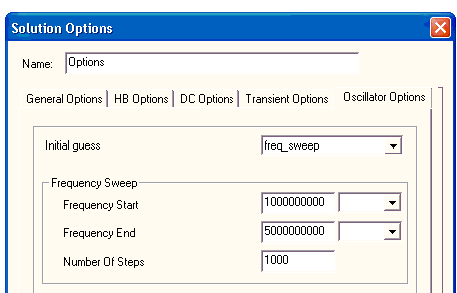
Enter the Frequency Start and Frequency End values. Select the unit (Hz or kHz) using the drop-down menu.
For an Initial Guess of Transient, the window changes to:
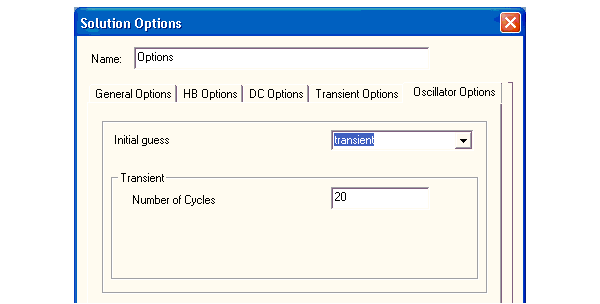
Enter a Number of Cycles if
the default is not as appropriate.
- Click the Result as Initial Guess group box to use the result on the previous oscillator sweep step as the initial guess for the current step. Use of this setting can avoid repeated analysis runs.
- To select a Convergence Option, click in the drop-down menu field. The options are Newton, Descent, and Damped Newton.
- Make the appropriate changes to option values, then click OK to return to the Select Solutions window box. From the Select Solutions window, click the name of the new option settings, then click OK to return to the DC Analysis window. The name of the new option settings appears in the Name field in the Solution Options group box.
- Click Edit on the Additional field to open a text-entry window, Edit additional options. Use the field to enter any Nexxim options exactly as they are to appear in the netlist. Click OK to return to the Oscillator Analysis window.
- For more information on the option settings, see Nexxim Oscillator Analysis Options.
- When all setup steps are as appropriate, click Finish on the Oscillator Analysis window. The solution setup is added to the Project Manager window under the Analysis icon.
- Run the simulation:
- Click the solution setup in the Project Manager window and click Analyze on the menu. If the circuit is set up correctly, the analysis begins immediately and a progress bar appears.
- If the analysis is not successful, an error message appears in the Message Manager window. Check the Message Manager window for an explanation, then take corrective action.
- View results:
- After a successful oscillator analysis, Nexxim displays a message like the following in the Message Manager window, near the end of the messages:
[info]analysis:osc(info):
Lowest oscillation frequency is 2.28514e_006 Hz (Time, Date)
The frequency value is the one calculated for your circuit, and the time and date shows the time of the analysis on your machine.
As analysis progresses, oscillator analysis may save messages like the following to the log file:
analysis:osc(status): Probe 0: selecting (node_name1,node_name2) as alternative location 1.
analysis:osc(status): Probe 0: selecting (node_name3, node_name4) as alternative location 2.
The node_names are circuit-specific. If oscillator analysis fails, Nexxim automatically reruns the analysis after moving the probe to alternative location 1. If that analysis fails, Nexxim retries using alternative location 2.