Running Frequency Domain Analysis
To set up a design and run frequency domain analysis
- Open a new Circuit design.
- Place the Components.
- Nexsys behavioral MIXER and AMP elements are located
in
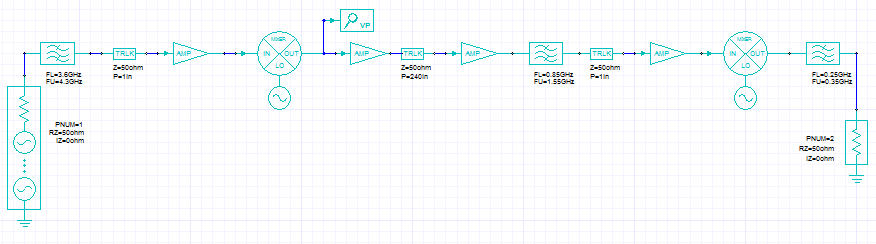
Components>System>nonlinear_RF. - The behavioral AMP and MIXER components can be
connected directly to the electrical (Nexxim) components, as in the following
example:
- Add ports to external output nodes.
- Ports are added by clicking the port symbol in the menu. See Ports in Schematics for further information.
- Power and voltage results are calculated for every output port.
- Place and name Nexsys voltage probes (VP) on internal nodes of interest.
- Nexsys voltage probes are in Components>System>Probes.
- Voltage and power spectra and steady state time domain responses are calculated at every probe location.
- Select Circuit>Add Nexxim Solution
Setup>System Frequency Domain Analysis.
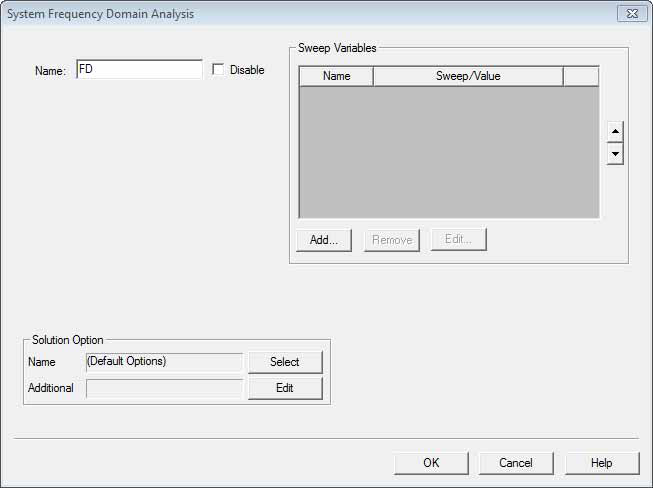
- Select an analysis Name or use the default (SystemFDAnalysisn).
- Click Add in the Sweep Variables group box. Add a frequency sweep:
- In the Variable list, frequency Fis selected (and cannot be changed). Select one of the following: Single value, Linear step, Linear count, Decade count,or Octave count.
- Type the sweep values into the Value field (for Single value), or into the Start, Stop, and Step text fields (for Linear, Decade, or Octave count), and ensure that the appropriate units (GHz, MHz, kHz) are selected for each.
- Click Add, then click OK to close the Add/Edit Sweep window and reopen the Frequency Domain Analysiswindow.
- For more information, see Variable Sweep.
- Click OK to complete the Frequency Domain analysis setup.
- Expand the Project Manager window and the Analysis folder. Right-click the FDAnalysis setup and select Analyze on the menu. The progress bar shows the analysis proceeding to completion.
- When the analysis has run to completion, view the results.
- Click Results>Create Standard Report>Rectangular Plot.
- Select the Solution and the Domain. The FD analysis results may be viewed in the spectral domain or in the time domain.
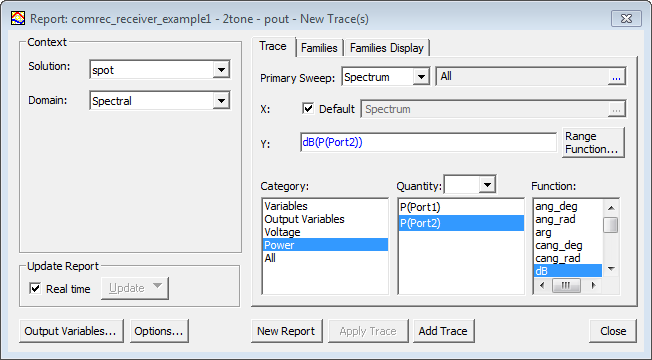
- Select Power or Voltage, the output ports, and
dB. Here is an example report setup:
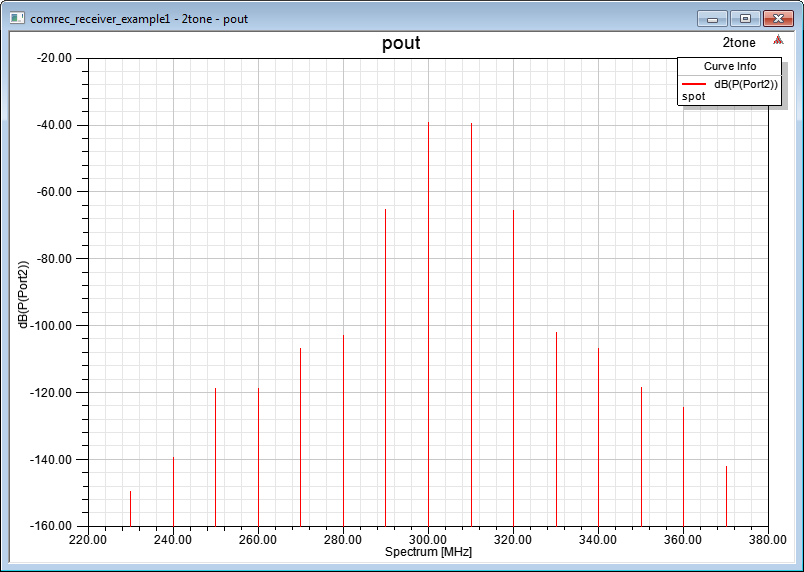
- Click New Report. Here is an example of an
output power plot.