Open topic with navigation
Importing ANFV4 Design Data
- To open an ANFV4-based project, on the File menu, select Import > ANF to open an explorer window.
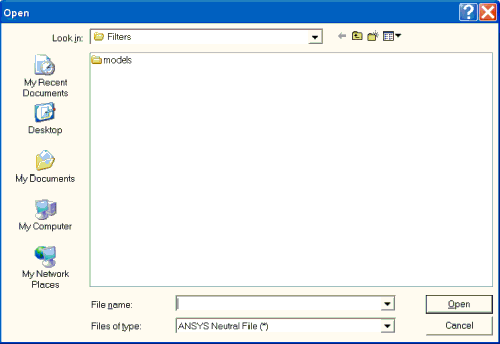
- click the Look in field
to locate the directory containing the file with the project you want
to open. Click the Files of type field to display the files with
the ANF format.
- Click ANF format file in the window
to select it, or type its name into the File name field.
- Click OK. The ANF Conversions
window opens:
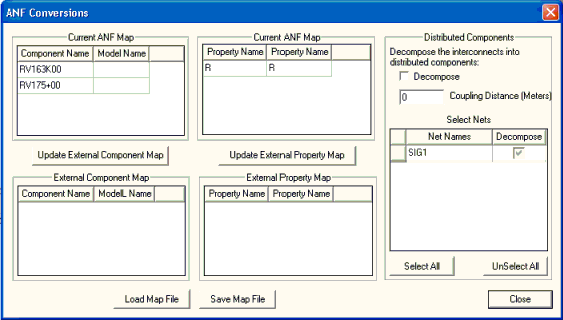
- The Current ANF (Components) Map group boxes list the components on the ANF file and any associated
models. You can enter the names of a model manually in the Property Name
field. The ModelName property for the component are set to the entry
in the Model Name field in the mapping, and the Netlist property
begins with that name instead of the component name.
- Update External Component Map saves
any mappings you enter manually to a text file. Click Save Map File
to open a File explorer window. Use the window to browse to the directory
where the map file is to reside, then enter the name of the file. The
map file is saved with a .mapping extension. The same mapping
file should be used for both component and property mappings. After the
mapping file has been created, Update External Component Map saves
any mappings you enter manually.
- The Current ANF (Property) Map
group boxes list the mapping of properties in the ANF file to the properties
that are used when the file is imported. You can enter the mapped
name of a property manually in the Model Name field. The name
for the property are set to the entry in the netlist.
- Update External Property Map saves
any mappings you enter manually to a text file. Click Save Map File
to open a File explorer window. Use the window to browse to the directory
where the map file is to reside, then enter the name of the file. The
map file is saved with a .mapping extension. After the mapping
file has been created, Update External Component Map saves any
mappings you enter manually.
- Load Map File opens an explorer window. Browse to the directory where the map file
resides, then select or enter the name of the file. The map file can
contain component and/or property mappings, and must have a .mapping
extension. The same mapping file should be used for both component and
property mappings.
- The External Component Map area
lists the components that have been read from an external mapping file.
The display changes each time the external file is updated on the window.
- The External Property Map area
lists the properties that have been read in from an external mapping
file. The display changes each time the external file is updated from
the window.
- The Distributed Components area
allows you to specify that imported interconnects are converted to
distributed components if they fall within a minimum coupling distance
(specify distance), and select the nets that are thus converted.
The Planar EM tool analyzes the geometry intact.
- Click Close. The Planar EM Layout
Editor shows the design, and the projects window shows the imported
project.
Ansys Electromagnetics Suite 2024 R2 - © ANSYS, Inc. All rights reserved. - Contains proprietary and confidential information of ANSYS, Inc. and its subsidiaries and affiliates.
